Red Screen: The Complete Guide to Causes, Fixes
Introduction
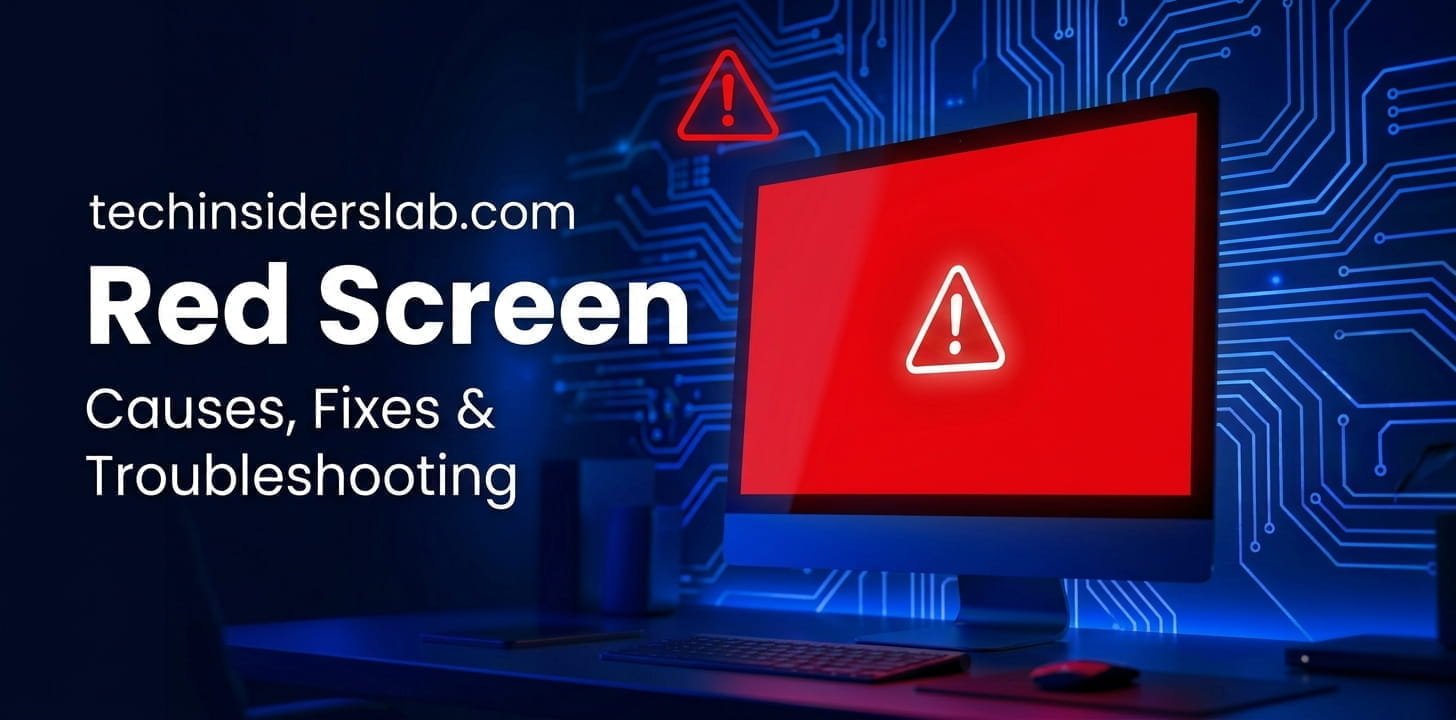
A Red Screen is one of the most alarming display issues that users can experience on a computer, laptop, smartphone, TV, or monitor. Instead of displaying the normal interface, the screen suddenly turns completely red or shows a strong red tint. In some cases, the device becomes unresponsive, while in others it continues to work but with distorted colors.
Although seeing a red screen may make users think their device is permanently damaged, that is not always true. The problem can be caused by software bugs, outdated graphics drivers, loose display cables, hardware failures, overheating, or even incorrect display settings. The good news is that many Red Screen issues can be resolved without replacing the device.
This comprehensive guide explains what a Red Screen is, why it happens, how to identify the root cause, and the most effective ways to fix it. Whether you are using Windows, a laptop, gaming PC, monitor, television, or smartphone, this guide will help you troubleshoot the issue step by step.
What Is a Red Screen?
A Red Screen refers to a display problem where the entire screen becomes red or shows an abnormal red overlay that makes the content difficult or impossible to view. Sometimes users encounter a completely solid red display, while others notice flickering, red lines, or a reddish tint across the screen.
Unlike a cracked screen, a Red Screen can be caused by either software or hardware. This makes proper troubleshooting essential before spending money on repairs.
Common forms of Red Screen include:
- A completely red display
- Red tint covering the entire screen
- Flashing red screen
- Red vertical or horizontal lines
- Red screen during startup
- Red screen while gaming
- Red screen after installing updates
- Red Screen of Death (RSOD)
Each type points toward a different underlying issue.
Types of Red Screen Problems
Understanding the type of Red Screen can make troubleshooting much easier.
1. Red Screen of Death (RSOD)
The Red Screen of Death is a serious system error that appears when Windows encounters a critical failure. It is less common than the Blue Screen of Death but can occur due to graphics driver corruption, hardware instability, BIOS issues, or GPU failures.
Symptoms include:
- Computer freezes
- Red screen appears before restart
- Error messages
- System crash during startup
2. Red Tint on the Display
Instead of turning completely red, the display develops a reddish color.
Possible causes include:
- Incorrect color calibration
- Damaged display cable
- Graphics driver issues
- Faulty monitor settings
3. Flickering Red Screen
Some users experience flashing or blinking red screens.
Possible reasons include:
- Loose HDMI cable
- Refresh rate mismatch
- GPU overheating
- Monitor hardware failure
4. Red Screen While Gaming
Heavy games place significant stress on the graphics card.
Possible causes:
- GPU overheating
- Overclocking instability
- Outdated graphics drivers
- Insufficient power supply
- Graphics card failure
5. Red Screen on Startup
If the Red Screen appears immediately after turning on the computer, the issue may involve:
- BIOS corruption
- Graphics hardware problems
- Display cable damage
- Motherboard issues
Common Causes of Red Screen
There is no single reason behind a Red Screen. Multiple hardware and software problems can produce similar symptoms.
1. Outdated Graphics Drivers
Graphics drivers act as the communication bridge between the operating system and the graphics card.
When drivers become outdated or corrupted, users may experience:
- Red screen
- Screen flickering
- Display glitches
- System crashes
Updating drivers often resolves these problems.
2. Faulty Graphics Card (GPU)
The graphics card processes all visual information.
If it begins to fail, symptoms may include:
- Red screen
- Colored artifacts
- Random crashes
- Black screen
- Gaming instability
Older GPUs are especially vulnerable after years of heavy use.
3. Loose or Damaged Display Cable
A damaged HDMI, DisplayPort, DVI, or VGA cable may interrupt signal transmission.
Common signs include:
- Red tint
- Flickering display
- Missing colors
- Display disconnects
Replacing the cable is often the simplest solution.
4. Overheating
Excessive heat can affect the GPU, CPU, or monitor electronics.
Overheating commonly occurs because of:
- Dust buildup
- Poor airflow
- Faulty cooling fans
- High room temperatures
- Intensive gaming
Heat-related problems usually become worse over time if ignored.
5. Incorrect Display Settings
Sometimes the hardware is perfectly healthy, but the display settings are not.
Examples include:
- Wrong color profile
- Improper HDR configuration
- Incorrect refresh rate
- Night mode conflicts
Restoring default display settings can eliminate the issue.
6. Operating System Errors
Windows updates occasionally introduce display bugs.
Possible causes include:
- Corrupted system files
- Failed updates
- Registry errors
- Driver conflicts
System Restore or repairing Windows can often fix these issues.
7. Hardware Failure
A Red Screen may indicate failing hardware such as:
- Motherboard
- Graphics memory
- Display panel
- Power supply
- Internal connectors
Hardware failures generally require professional diagnosis.
Signs That a Red Screen Problem Is Getting Worse
Early warning signs include:
- Random display flickering
- Red lines across the screen
- Frequent application crashes
- Game freezes
- Unexpected computer restarts
- Display artifacts
- System overheating
- Fan running at maximum speed
Ignoring these symptoms may eventually lead to complete hardware failure.
How to Diagnose a Red Screen Problem
Before attempting repairs, identify where the issue originates.
Step 1: Restart the Device
Temporary software glitches often disappear after restarting.
Step 2: Check External Cables
Inspect:
- HDMI cable
- DisplayPort cable
- VGA cable
- Power cable
Reconnect each cable securely.
Step 3: Test Another Monitor
If another monitor works correctly, the original monitor may be defective.
If both monitors show the same issue, the GPU or operating system may be responsible.
Step 4: Boot into Safe Mode
Safe Mode loads only essential drivers.
If the Red Screen disappears in Safe Mode, the issue is likely caused by graphics drivers or third-party software.
Step 5: Monitor GPU Temperature
Use hardware monitoring software to check graphics card temperatures.
Typical safe GPU temperatures are:
- Idle: 30–45°C
- Normal workload: 50–75°C
- Heavy gaming: 70–85°C
Consistently higher temperatures may indicate cooling problems.
Step 6: Check Device Manager
Look for warning icons next to the graphics adapter.
A yellow warning symbol usually indicates a driver issue.
Quick Fixes You Can Try
Before seeking professional repair, try these solutions:
- Restart your computer or device.
- Update or reinstall graphics drivers.
- Check and replace HDMI or DisplayPort cables.
- Reset display color settings to default.
- Reduce GPU overclocking if enabled.
- Clean dust from cooling fans and vents.
- Update Windows and BIOS (if recommended by the manufacturer).
- Scan for corrupted system files using built-in repair tools.
- Test the device with another monitor or TV.
- Restore the system to a previous working state.
These simple steps solve many Red Screen problems without needing expensive hardware replacement.
How to Fix a Red Screen on Windows
If your Windows PC displays a Red Screen, follow these troubleshooting methods in order. Start with the simplest solutions before moving to advanced fixes.
1. Update or Reinstall Graphics Drivers
Graphics drivers are one of the most common causes of display-related issues. Corrupted or outdated drivers can trigger a Red Screen.
Steps:
- Open Device Manager.
- Expand Display Adapters.
- Right-click your graphics card.
- Select Update Driver.
- Restart your PC after the update.
If updating doesn’t help, uninstall the driver and install the latest version from the GPU manufacturer’s website.
2. Check Windows Updates
Microsoft regularly releases updates that fix bugs and improve hardware compatibility.
To update Windows:
- Open Settings.
- Go to Windows Update.
- Click Check for Updates.
- Install all available updates.
- Restart your computer.
3. Run System File Checker (SFC)
Corrupted Windows system files can also cause display problems.
Open Command Prompt as Administrator and run:
sfc /scannowWait for the scan to finish and restart your PC if any issues are repaired.
4. Use System Restore
If the Red Screen appeared after installing software or a driver update, restoring Windows to an earlier restore point may solve the problem.
How to Fix a Red Screen on a Laptop
Laptop users may face Red Screen issues due to either software or hardware problems.
Try these solutions:
- Restart the laptop.
- Connect an external monitor.
- Update graphics drivers.
- Disable GPU overclocking.
- Check if the screen cable is loose (internal repair).
- Clean cooling vents and fans.
- Reset BIOS settings if necessary.
If the external monitor works normally while the laptop screen remains red, the laptop display or display cable may be faulty.
How to Fix a Red Screen on a Monitor
If only one monitor shows a Red Screen, the monitor itself may be the issue.
Troubleshooting Steps
- Reset monitor settings to factory defaults.
- Replace the HDMI or DisplayPort cable.
- Try another input port.
- Connect the monitor to another computer.
- Test another monitor on the same PC.
If the problem remains after testing with another computer, the monitor may require repair or replacement.
How to Fix a Red Screen on a TV
Televisions can also experience Red Screen issues due to hardware or software faults.
Common fixes include:
- Restart the TV.
- Check HDMI cables.
- Test another HDMI port.
- Update the TV firmware.
- Reset picture settings.
- Perform a factory reset.
If the Red Screen appears on all inputs, the TV’s display panel or internal hardware may need professional servicing.
How to Fix a Red Screen on a Smartphone
A Red Screen on a phone can result from software glitches, overheating, or display damage.
Try the following:
- Force restart the phone.
- Update the operating system.
- Remove recently installed apps.
- Boot into Safe Mode (if supported).
- Reset display settings.
- Factory reset the phone after backing up important data.
If the Red Screen persists after a factory reset, the display or motherboard may require repair.
Advanced Troubleshooting
If the basic solutions do not work, try these advanced methods.
Test the Graphics Card
A failing GPU often causes color distortion.
Signs include:
- Colored artifacts
- Game crashes
- Random freezes
- Fan running at maximum speed
- Driver crashes
If possible, test another graphics card or use integrated graphics to identify the faulty component.
Check Power Supply Stability
An unstable or underpowered power supply can cause graphics issues, especially during gaming or heavy workloads.
Symptoms include:
- Random shutdowns
- Red Screen under load
- GPU crashes
- Unexpected restarts
Replacing a failing power supply may resolve the issue.
Update BIOS
Some motherboard manufacturers release BIOS updates that improve graphics compatibility and system stability.
Update the BIOS only by following the manufacturer’s official instructions, as an interrupted BIOS update can cause serious problems.
Scan for Malware
Although uncommon, malware can corrupt graphics drivers or system files.
Use a trusted antivirus program to perform a full system scan and remove any threats.
Preventing Red Screen Problems
Preventive maintenance can reduce the chances of experiencing a Red Screen.
Keep Drivers Updated
Regularly install the latest graphics drivers from the GPU manufacturer.
Clean Dust Regularly
Dust restricts airflow and increases temperatures.
Clean:
- Cooling fans
- Air vents
- Heat sinks
- PC case filters
Every few months, depending on your environment.
Avoid Excessive Overclocking
While overclocking improves performance, unstable settings can lead to crashes and display issues.
If you overclock, test the system thoroughly for stability.
Monitor Temperatures
Use hardware monitoring software to check CPU and GPU temperatures during gaming or demanding tasks.
Use High-Quality Cables
Cheap or damaged HDMI and DisplayPort cables can introduce display problems.
Choose certified, high-quality cables and replace worn-out ones.
Protect Against Power Surges
A surge protector or UPS (Uninterruptible Power Supply) can protect your system from electrical damage caused by sudden voltage changes.
When Should You Seek Professional Repair?
Consider professional repair if:
- The Red Screen appears immediately after powering on.
- The display remains red after reinstalling Windows.
- Multiple monitors show the same issue.
- The graphics card fails hardware tests.
- You notice a burning smell or unusual noises.
- The screen has visible physical damage.
- The device frequently shuts down because of overheating.
Attempting to repair internal components without experience can cause further damage.
Conclusion
A Red Screen can be frustrating and alarming, but it doesn’t always mean your device is beyond repair. In many cases, the problem is caused by outdated graphics drivers, incorrect display settings, faulty cables, overheating, or temporary software issues that can be fixed with the right troubleshooting steps. Identifying the root cause early is essential to preventing further damage and restoring normal performance.
Regular maintenance—such as updating drivers, keeping your system clean, monitoring hardware temperatures, and using high-quality cables—can help reduce the risk of future Red Screen problems. If basic troubleshooting doesn’t resolve the issue, professional diagnosis may be necessary, especially if hardware failure is suspected. By following the tips and solutions in this guide, you can confidently diagnose, fix, and prevent most Red Screen issues, ensuring your computer, laptop, monitor, TV, or smartphone continues to perform reliably.
Frequently Asked Questions (FAQs)
No. Software bugs, outdated drivers, incorrect display settings, and corrupted system files can also cause a Red Screen.
Yes. Corrupted or outdated graphics drivers are one of the most common causes of display-related issues.
Yes. Excessive heat can make the GPU unstable, leading to display errors, crashes, and Red Screen problems.
If the issue is caused by a damaged or loose cable, replacing it can solve the problem quickly.
No. Both indicate serious system problems, but the Blue Screen of Death (BSOD) is much more common on Windows. The Red Screen of Death (RSOD) is less common and is often linked to graphics hardware, driver issues, or firmware problems.
It is uncommon, but severe malware infections that damage system files or graphics drivers may contribute to display problems.