Auto Clicker: Guide to Automatic Clicking and Mouse Automation
introduction
An Auto Clicker is a useful software tool that automatically performs mouse clicks without requiring the user to repeatedly press the mouse button. It is designed mainly for repetitive tasks where the same clicking action needs to be performed multiple times.
Instead of manually clicking hundreds or thousands of times, users can configure an auto clicker to perform clicks at a selected speed and location. Depending on the software, users can also choose the type of click, number of repetitions, clicking interval, and keyboard shortcut used to start or stop the automation.
Auto clickers are commonly associated with gaming, software testing, repetitive computer tasks, and accessibility. However, their usefulness goes beyond these areas. When used properly, an auto clicker can save time, reduce repetitive mouse movements, and make certain digital tasks more convenient.
What Is an Auto Clicker?
An Auto Clicker is a type of utility software that automates mouse clicking. The application sends simulated mouse-click actions to the computer instead of requiring the user to physically press the mouse button each time.
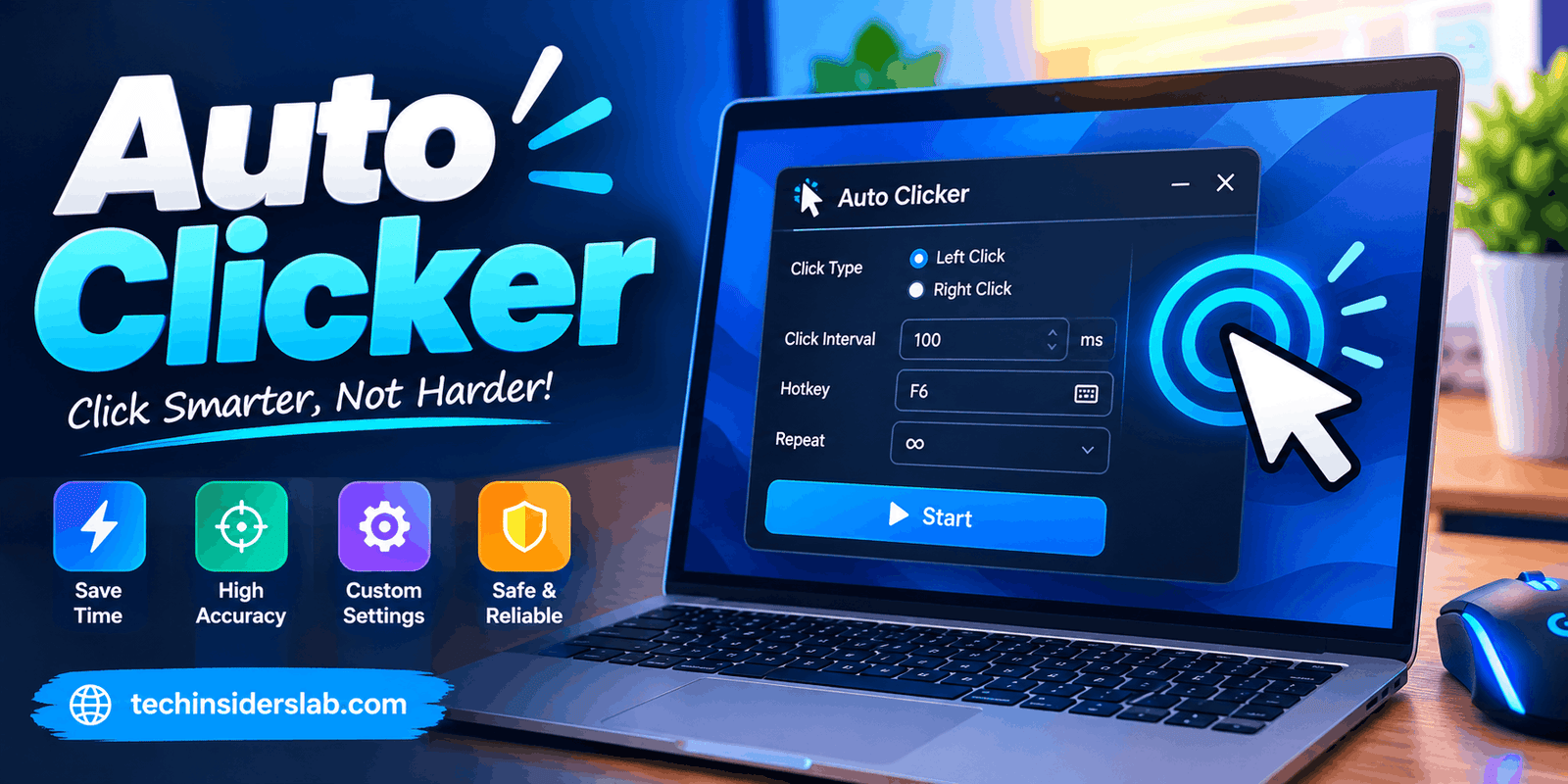
A basic auto clicker usually provides a simple interface where users can select several settings. These may include the clicking interval, mouse button, click type, repeat count, and activation hotkey.
For example, if a task requires clicking the same button 500 times, doing it manually can be boring and time-consuming. With an auto clicker, the user can select the required position, set the desired number of clicks, and start the process.
The main idea is simple:
Choose the click location → Select the click interval → Set repetitions → Start the auto clicker.
Different applications provide different features. Some are designed for simple clicking, while more advanced automation tools can perform multiple actions in a sequence.
How Does an Auto Clicker Work?
An auto clicker works by generating virtual mouse-click events through software. Once the user starts the program, it repeatedly sends the configured click action to the selected location.
Most auto clickers allow users to control the following settings:
- Left or right mouse button
- Single or double click
- Click interval
- Number of clicks
- Fixed mouse location
- Start and stop hotkeys
- Initial delay
- Continuous clicking
The user can configure these options according to the task. Some programs also allow clicking to continue until the user presses a stop key.
More advanced automation programs can perform additional actions such as mouse movement, keyboard input, delays, and application interactions. These tools are more powerful than basic auto clickers and are often used for complete workflow automation.
Why Do People Use Auto Clickers?
The biggest reason people use auto clickers is to avoid repetitive manual clicking. Performing the same action again and again can consume time and attention, especially when the task has little variation.
Repetitive Computer Tasks
Many computer activities involve repeating the same action. An auto clicker can automate simple clicking tasks and allow the user to focus on other parts of the workflow.
For example, someone testing an interface may need to repeatedly activate the same button. Automating the clicking portion can make the process easier and more consistent.
Software Testing
Auto clickers can be useful for basic software testing. Testers may need to repeat certain interface interactions to check how an application behaves.
Although dedicated testing and automation tools are usually better for complex testing, an auto clicker can be useful for simple repetitive actions.
Accessibility
Repeated mouse clicking can be difficult for some users. Automation can reduce the amount of physical effort required to perform repetitive clicking tasks.
People who experience difficulty with continuous mouse movements may find automation useful for certain activities, although operating-system accessibility features and specialized assistive technologies may be more suitable for individual accessibility needs.
Gaming
Gaming is one of the most well-known uses of auto clickers. Some games include repetitive actions that require frequent clicking.
However, players should always check the rules of a particular game before using an auto clicker. Some games prohibit automated clicking, macros, bots, or other forms of simulated input. Using automation where it is not allowed can result in penalties or account restrictions.
Important Features of an Auto Clicker
Auto clickers can range from extremely simple programs to advanced automation utilities. Understanding their main features makes it easier to choose an appropriate tool.
Click Interval
The click interval controls how much time passes between individual clicks.
A short interval results in faster clicking, while a longer interval creates slower and more controlled actions.
The appropriate interval depends on the task. Extremely fast clicking is not always better because some applications may not respond correctly to rapid input.
Click Type
Many auto clickers allow users to select different click types.
Common options include:
- Single left click
- Single right click
- Double click
- Repeated clicking
Having multiple click options makes an auto clicker more flexible for different tasks.
Repeat Count
The repeat-count feature allows users to decide how many times an action should be performed.
For example, a user may configure the software to click 100 times and then stop automatically. This is safer and more controlled than allowing the software to continue indefinitely.
Hotkeys
Hotkeys are keyboard shortcuts that control the auto clicker.
A common setup is to assign one key to start the clicking process and another action or the same key to stop it.
Hotkeys are particularly useful when another application is covering the auto clicker’s interface.
Mouse Location
Basic auto clickers can often click at a specific screen position.
The user selects a location, and the software repeatedly sends clicks to that location.
This approach is simple, but it can become unreliable if the application window moves or the interface changes.
Start Delay
Some auto clickers provide a delay before clicking begins. This gives the user time to move to the required application or prepare the screen.
A start delay can be useful when an automated action needs to begin after another process has finished loading.
Auto Clicker vs. Macro Software
Auto clickers and macro programs are related, but they are not exactly the same.
An auto clicker is primarily designed to automate mouse clicks. Its main purpose is repeating a clicking action.
A macro tool can record and replay a sequence of actions. Depending on the software, a macro may include mouse movement, clicks, keyboard input, delays, and other commands.
For simple repetitive clicking, an auto clicker is usually easier to configure. For complex workflows involving several actions, macro or automation software may be a better choice.
This distinction is important because not every automation task requires a complicated program. Choosing a tool based on the actual task can make the process faster and easier.
Benefits of Using an Auto Clicker
Auto clickers can provide several advantages when used for appropriate tasks.
Saves Time
The most obvious advantage is time savings. Automating repetitive clicks means users do not have to manually perform the same action over and over again.
Reduces Repetitive Work
Repeated clicking can become tiring and frustrating. An auto clicker can handle repetitive actions while the user focuses on other work.
Provides Consistent Clicking
Human clicking naturally varies in timing. Software can repeat clicks according to a configured interval, making the process more consistent.
Easy to Configure
Many basic auto clickers have simple interfaces. Users generally only need to select the click type, interval, location, and hotkey.
Useful for Testing
Automated clicking can help reproduce repetitive interface actions during basic testing and troubleshooting.
Limitations of Auto Clickers
Although auto clickers are useful, they also have limitations.
One of the biggest problems is that basic auto clickers usually depend on screen coordinates. If a window moves or the screen layout changes, the program may click the wrong location.
Another limitation is that a simple auto clicker does not necessarily understand what is happening on the screen. It may continue clicking even when a button disappears, an error message appears, or the intended task has already finished.
This is why advanced automation tools can be preferable for complicated workflows. They may be able to identify interface elements, respond to conditions, and perform different actions based on what happens during the process.
Are Auto Clickers Safe?
An auto clicker can be safe when obtained from a trustworthy source and configured appropriately. However, users should not assume that every program advertised as an auto clicker is safe.
Unknown software can potentially contain unwanted programs, intrusive advertising, or malicious components. Users should therefore be careful when downloading and installing automation software.
Some important safety practices include:
- Download software from reputable sources.
- Check the publisher before installation.
- Avoid suspicious modified versions.
- Review the permissions requested by the application.
- Scan unfamiliar installers with security software.
- Keep the operating system updated.
- Remove software that is no longer required.
Users should also pay attention to applications that request permissions unrelated to their purpose.
Auto Clickers and Online Services
Using an auto clicker with an online service requires additional caution.
Some websites, applications, and games have rules that prohibit automated actions. This can be especially important for platforms involving rankings, rewards, advertising, engagement, or competitive activities.
An automated click may technically work while still violating the rules of the service.
Before using an auto clicker on an online platform, users should review its policies and terms. Automation should not be used to manipulate engagement, bypass restrictions, gain an unfair advantage, or generate artificial activity.
Auto Clicker for Windows
Windows is one of the most common platforms for desktop automation.
A Windows auto clicker typically runs in the background and uses a keyboard shortcut to start or stop clicking. Depending on the software, users can select the mouse button, click speed, screen position, and number of repetitions.
Windows users who need more advanced automation may also consider macro and workflow automation programs. These can perform multiple actions instead of simply repeating a mouse click.
For a simple repetitive task, however, a lightweight auto clicker may be more convenient.
Auto Clicker for Android
Android automation works somewhat differently from desktop automation. Some applications use accessibility-related capabilities to interact with elements on the screen.
Because these capabilities can provide significant control over applications, Android users should pay close attention to permissions when installing an auto clicker.
Users should only install applications they trust and should understand why an application needs a particular permission before granting access.
Auto Clicker for Mac
Mac users have access to built-in accessibility and pointer-control features that may reduce the need for third-party automation tools in some situations.
Third-party applications that simulate mouse activity may require additional system permissions. Users should understand these permissions before enabling them.
As with Windows and Android, choosing reputable software and keeping permissions under control is an important part of safe automation.
How to Choose the Best Auto Clicker
The best auto clicker depends on the task you want to automate.
For simple clicking, look for a tool that provides:
- Adjustable clicking speed
- Start and stop hotkeys
- Left and right-click support
- Repeat-count controls
- Simple interface
- Reliable performance
- Appropriate permissions
For more complex tasks, consider a macro or automation program instead of a basic clicker.
You should also consider compatibility with your operating system, ease of use, privacy, reliability, and the reputation of the software developer.
A simple program is often better than an overly complicated solution when the task only requires repeated clicks.
Tips for Using an Auto Clicker Responsibly
Before starting an automated clicking session, test the configuration with a small number of clicks. This helps ensure that the correct location and click type have been selected.
Always keep an easy way to stop the automation. A keyboard shortcut can be particularly useful if the program starts clicking unexpectedly.
Do not leave automated clicking running when it is unnecessary. This can prevent accidental clicks and reduce the possibility of unintended actions.
Most importantly, respect the rules of the applications and services where the tool is being used. Automation should be used for legitimate purposes and should not be used to bypass security measures, manipulate online systems, or gain prohibited advantages.
Conclusion
An Auto Clicker is a convenient tool for automating repetitive mouse clicks and reducing unnecessary manual work. It can be useful for productivity tasks, software testing, accessibility-related activities, and gaming when automation is permitted. Choosing a reliable tool, configuring the click settings carefully, and checking the rules of the application or platform can help ensure safe and responsible use. For simple clicking tasks, an auto clicker can be an easy way to save time and make repetitive computer activities more efficient.