
introduction
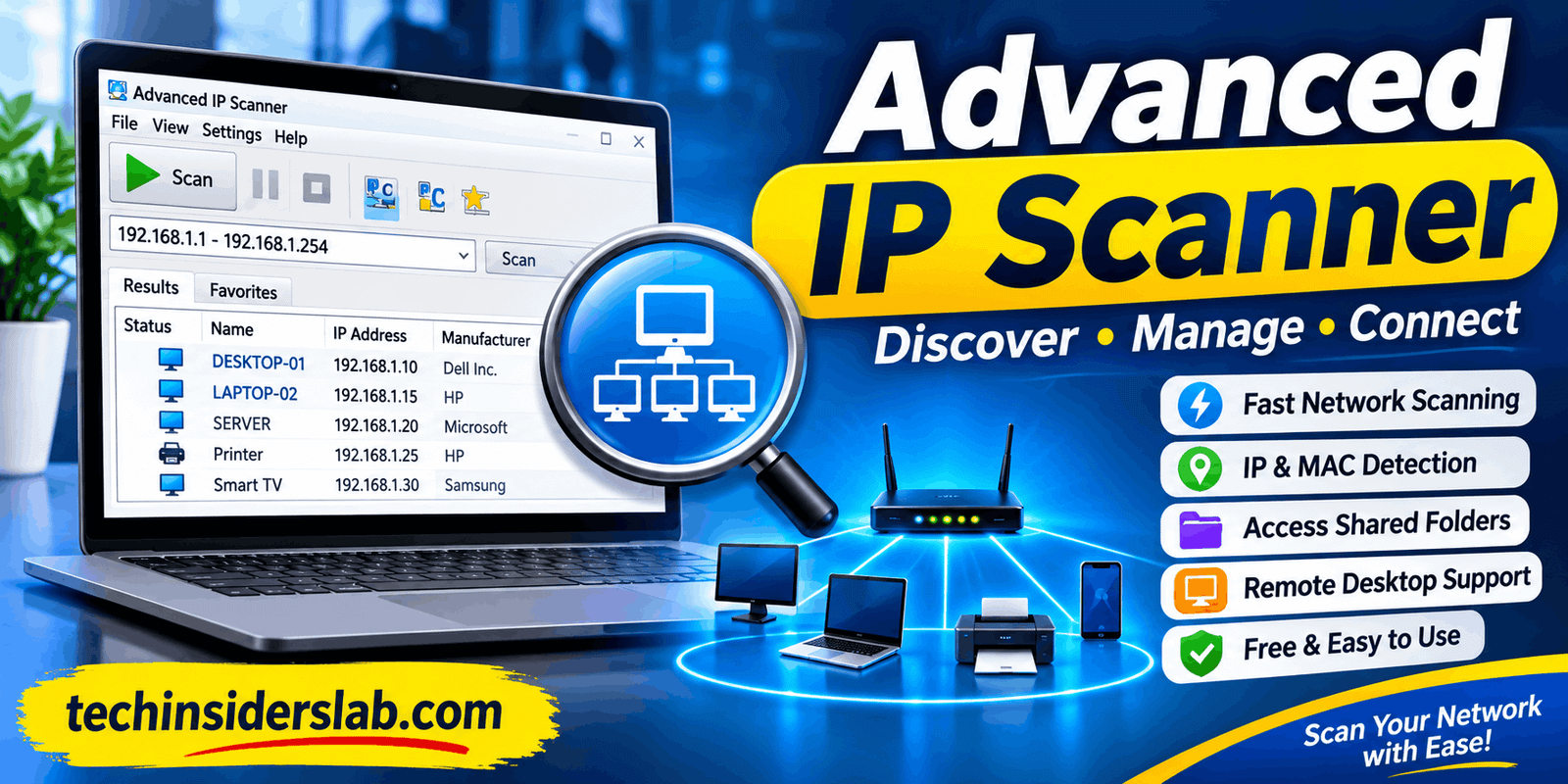
Advanced IP Scanner is a popular network scanning tool designed to help users discover devices connected to a local network. It makes network management easier by identifying IP addresses, computer names, shared folders, and other available network resources. Whether you are an IT professional, network administrator, or regular Windows user, this software can help you understand what is happening on your local network.
In this detailed review, we will explore Advanced IP Scanner, its main features, how it works, its advantages and limitations, security considerations, and whether it is worth using.
What Is Advanced IP Scanner?
Advanced IP Scanner is a free network discovery application developed by Famatech. It is designed to scan local area networks (LANs) and identify computers and other devices that respond within a selected IP address range.
Every device connected to a network may have its own IP address. For example, a home network can include laptops, desktop computers, smartphones, printers, routers, and smart devices. Finding the details of these devices manually can be difficult, especially when several computers share the same network.
Advanced IP Scanner simplifies this process by scanning the selected network range and displaying available information in an organized list. Depending on device settings and network permissions, users can view IP addresses, MAC addresses, computer names, and accessible shared resources.
The software also provides shortcuts for remote connections through Remote Desktop Protocol (RDP) and Radmin. These options make it useful for IT support teams that regularly access computers across a local network.
One important point is that Advanced IP Scanner is primarily a network discovery tool, not a complete cybersecurity scanner. It helps users understand which devices are visible on a network, but it does not automatically identify every vulnerability or security weakness.
Main Features of Advanced IP Scanner
Advanced IP Scanner offers several useful features that make network discovery and basic network administration easier.
1. Fast Network Scanning
One of its most important features is the ability to scan a selected range of IP addresses. Users can enter their network’s address range and start scanning with a single click.
The application checks the selected addresses and identifies devices that respond to its discovery methods. The results are displayed in a structured list, allowing users to understand which computers and devices are available.
This feature is particularly helpful in offices, schools, computer laboratories, and home networks where multiple devices are connected simultaneously.
2. IP Address and MAC Address Detection
Advanced IP Scanner can display IP addresses and MAC addresses for discovered devices when the relevant information is available.
An IP address helps identify a device’s network location, while a MAC address is associated with its network interface.
These details can help administrators distinguish between computers, investigate unfamiliar devices, and troubleshoot connectivity issues.
For example, if a network administrator notices an unknown device connected to the office network, the available IP and MAC information can help with further identification.
3. Access to Shared Folders
Another useful feature is access to shared network folders.
Many organizations use shared folders to exchange documents, reports, images, and other files between computers. Advanced IP Scanner helps users discover available shared resources and open them directly from the scan results when permissions allow.
This can reduce the time required to locate shared network resources manually.
However, access still depends on Windows sharing settings, network configuration, and the permissions assigned to the user.
4. Remote Desktop Connection
Advanced IP Scanner supports launching Remote Desktop Protocol connections to discovered Windows computers.
RDP allows an authorized user to connect to another computer and interact with its desktop through a network connection.
This feature is useful for IT professionals who provide technical support without physically visiting every workstation.
For example, an administrator can identify a computer on the office network and launch an RDP connection if the target machine has Remote Desktop enabled and the user has the required permissions.
5. Radmin Integration
The software also integrates with Radmin, a remote administration solution developed by Famatech.
This integration allows users to launch Radmin connections from the discovered device list. It can make remote support more convenient because users do not need to locate the target computer’s address separately.
However, Radmin is a separate product with its own requirements. Advanced IP Scanner does not automatically provide a permanent Radmin Server license or guarantee remote access to every discovered computer.
6. Remote Shutdown
Advanced IP Scanner includes remote power-management options for compatible computers.
Users with the necessary administrative permissions can initiate actions such as shutting down or restarting a remote computer. The application also documents warning messages and countdown options for certain shutdown operations.
This functionality can be useful for network administrators managing several office computers.
It should be used carefully because shutting down a computer unexpectedly may interrupt important work or cause unsaved information to be lost.
7. Export Scan Results
Keeping network information organized is important for troubleshooting and documentation.
Advanced IP Scanner allows users to save scan results in supported formats, including CSV. Its help documentation also describes saving Favorites information in XML and HTML formats.
Exporting information can help administrators maintain records, compare network discoveries, and share device information with colleagues.
However, exported results represent the information collected during a particular scan. They should not be treated as continuously updated network records.
8. Portable Operation
One feature that makes Advanced IP Scanner convenient is its portable edition.
The official website advertises the ability to run the software without a traditional installation. This can be useful for technicians who work with different computers and need a lightweight network discovery application.
Portable operation can also reduce setup time when performing occasional network troubleshooting.
For security reasons, users should still obtain the software from its official website and follow their organization’s software policies.
How Does Advanced IP Scanner Work?
Advanced IP Scanner works by checking a range of IP addresses within a local network and identifying devices that respond to its scanning methods.
The process is relatively straightforward and does not require advanced networking knowledge.
Here is a simple explanation of how it works:
- Select the network range: Users enter the beginning and ending IP addresses they want to scan.
- Start the scanning process: The application checks addresses within the selected range.
- Identify available devices: It collects information from devices that respond to the discovery process.
- Display network information: The results appear in a list containing available device details.
- Use additional options: Users can explore shared folders, launch supported remote connections, or export the results.
For example, a typical private network might use addresses in the range 192.168.1.1 to 192.168.1.254. The correct range depends on the router and subnet configuration, so users should verify their actual network settings before scanning.
It is also important to understand that a scan may not discover every connected device. Firewalls, network isolation, sleeping computers, and other restrictions can prevent devices from responding.
How to Download and Install Advanced IP Scanner
Getting started with Advanced IP Scanner is relatively simple. Users can obtain the application from the official Famatech website.
Follow these steps:
Step 1: Visit the Official Website
Open the official Advanced IP Scanner website using your web browser. Look for the download option and make sure you are using the genuine publisher’s website.
Step 2: Download the Software
Select the available download option and save the setup file to your Windows computer.
Avoid downloading installers from unfamiliar websites because unofficial downloads may contain unwanted or modified software.
Step 3: Open the Downloaded File
Locate the downloaded file and open it. Follow the instructions displayed by the application.
If you prefer not to perform a traditional installation, check whether the portable edition is available.
Step 4: Launch the Application
After opening Advanced IP Scanner, you will see its main interface. The application provides options for entering an IP range and starting a network scan.
Step 5: Configure the IP Range
Enter the appropriate starting and ending IP addresses for your local network.
If you are unsure about the correct range, check your Windows network settings or consult your network administrator.
Step 6: Start Scanning
Click the Scan button and allow the application to check the selected range.
When the process finishes, review the results to see which devices and network resources were discovered.
Benefits of Using Advanced IP Scanner
Advanced IP Scanner offers several advantages for users who need a straightforward way to discover devices on a local network.
Easy to use: Its simple interface makes network scanning accessible to beginners as well as experienced administrators.
Free availability: The core application is offered as a free download, making it useful for individuals and organizations that need basic network discovery without purchasing a dedicated scanner.
Saves time: Instead of checking devices individually, users can scan a selected address range and review the available results together.
Useful remote-access shortcuts: Integration with RDP and Radmin provides convenient ways to initiate authorized remote connections.
Portable option: The advertised portable edition can be useful for technicians who perform network troubleshooting on different computers.
Helpful reporting: Export options make it easier to save device information for documentation and future reference.
Suitable for small networks: Home users, small businesses, and IT support teams can use it to understand which devices are visible on their local networks.
These advantages make it a practical option for basic network discovery and everyday troubleshooting.
Limitations of Advanced IP Scanner
Although Advanced IP Scanner is useful, it is not designed to replace every network administration or cybersecurity application.
Windows Compatibility
Advanced IP Scanner is primarily designed for Windows computers. Users working on macOS or Linux should consider other network discovery applications.
The official website lists Windows 11, Windows 10, Windows 8, and Windows 7 compatibility. Check the current download information before using it in a specialized environment.
Not a Complete Security Scanner
The application helps discover network devices, but it should not be confused with a vulnerability assessment platform.
It does not provide a complete analysis of security weaknesses, software vulnerabilities, or every network service.
Organizations that require advanced security testing should use dedicated security tools alongside their normal network administration software.
Limited Network Visibility
The accuracy of scan results depends on network configuration and device responses.
Some devices may remain invisible because of firewalls, VLAN separation, Wi-Fi client isolation, or other restrictions.
Therefore, an empty result does not necessarily mean that no device is connected.
Remote Access Requires Configuration
Finding a computer does not automatically allow users to control it.
Remote connections require appropriate software, enabled services, network access, credentials, and permissions.
Not Designed for Continuous Monitoring
Advanced IP Scanner is mainly intended for on-demand network discovery. It should not be considered a full-time network monitoring platform with continuous alerts, historical performance reports, and centralized device management.
Is Advanced IP Scanner Safe to Use?
Advanced IP Scanner can be a useful tool for legitimate network administration, but safe usage depends on where it is downloaded and how its features are used.
Always obtain the application from the official Famatech website. Keep Windows security protections enabled and avoid running unknown executables from untrusted sources.
Users should also understand that network scanning involves checking devices and addresses. It is important to scan only networks they own or have explicit permission to manage.
Remote desktop connections, shared-folder access, and shutdown operations should also be restricted to authorized users.
For businesses, it is a good idea to follow internal IT policies before introducing network scanning software into an office environment.
Finally, remember that identifying devices is only one part of network security. Strong passwords, updated software, firewalls, access controls, and regular security assessments remain important.
Who Should Use Advanced IP Scanner?
Advanced IP Scanner is suitable for different types of users who need basic network discovery and device identification.
- Network Administrators: They can identify computers and other devices connected to office networks and investigate basic connectivity issues.
- IT Support Technicians: They can locate computers, check available network resources, and initiate authorized remote support sessions.
- Small Business Owners: They can get a clearer picture of devices connected to their business network.
- Home Users: They can identify visible devices on their home Wi-Fi or wired network.
- Computer Technicians: They can use its portable functionality when troubleshooting different Windows computers.
- Educational Institutions: IT staff can use it to discover computers in computer laboratories and other authorized network environments.
It is especially useful for people who prefer a simple graphical interface instead of complicated command-line networking tools.
Advanced IP Scanner vs. Other Network Scanning Tools
Several network scanning applications offer similar capabilities, but their features and intended audiences are different.
| Tool | Main Purpose | Best For |
| Advanced IP Scanner | Local network discovery | Windows users |
| Angry IP Scanner | IP address scanning | Cross-platform users |
| Nmap | Network discovery and service analysis | Advanced administrators |
| Fing | Network device discovery | Home network users |
Advanced IP Scanner is a good option when you need a straightforward Windows application to discover local network devices.
Angry IP Scanner is worth considering if you need a cross-platform alternative. Nmap is more suitable for advanced network analysis and service discovery.
The right choice depends on your technical knowledge and the complexity of your networking requirements.
Is Advanced IP Scanner Free?
Yes, Advanced IP Scanner is available as freeware. Users can download and use its core network scanning functionality without purchasing a subscription.
Its free availability makes it attractive to students, home users, technicians, and small businesses.
However, it is important to distinguish between Advanced IP Scanner and its integrated remote-control options. Radmin is a separate product with its own licensing requirements. Using Advanced IP Scanner does not automatically provide a permanent license for every Radmin feature.
Users should check the official product websites for the latest download and licensing information.
Tips for Getting Better Results with Advanced IP Scanner
A few practical steps can make network scanning more effective.
- Choose the correct IP range: Always verify your network’s subnet before starting a scan.
- Use a stable connection: A reliable wired or wireless connection can help avoid inconsistent results.
- Check firewall settings: Security settings may prevent some devices from responding.
- Scan authorized networks: Never scan networks without permission.
- Save important results: Export scan information when you need records for troubleshooting.
- Review unknown devices: Investigate unfamiliar devices instead of assuming they are unauthorized.
- Keep software updated: Use the latest version available from the official publisher.
Following these practices can help users get more useful results while maintaining a responsible approach to network administration.
Conclusion
Advanced IP Scanner is a useful and easy-to-use network discovery tool for Windows users who want to identify devices connected to their local networks. Its features, including IP and MAC address detection, shared-folder access, remote connection options, and scan result exporting, make network management more convenient.
One of its biggest advantages is that it is free and offers a simple interface suitable for beginners and IT professionals. However, it is not a complete cybersecurity or network monitoring solution, so users with advanced requirements may need additional tools.
Overall, Advanced IP Scanner is a reliable choice for basic network discovery, troubleshooting, and device identification. If you want a simple way to understand and manage devices on your local network, it is definitely worth considering.