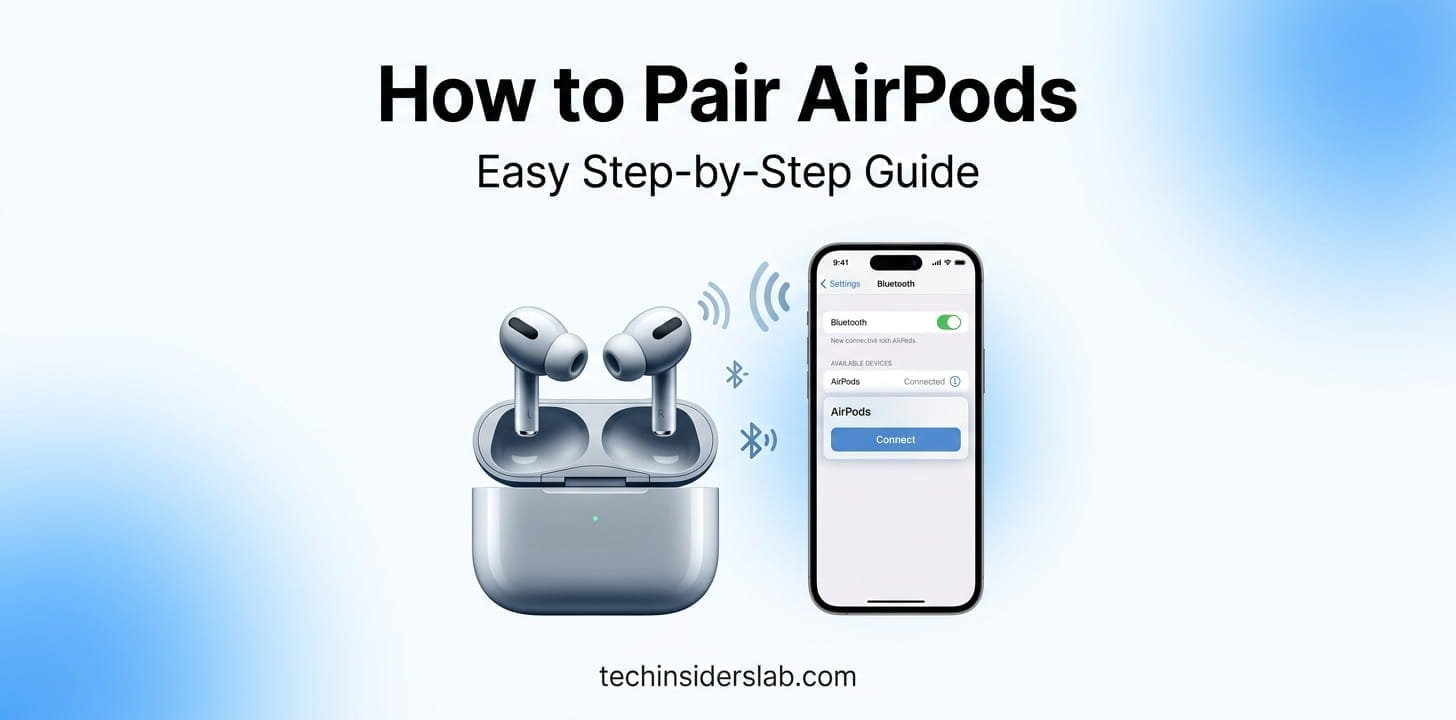
How to Pair AirPods: A Complete Step-by-Step Guide
introduction
AirPods are designed to make wireless audio simple, but pairing them for the first time can sometimes be confusing. Whether you have a new pair of AirPods, are connecting them to an iPhone for the first time, or want to use them with an Android phone or Mac, the basic process is straightforward once you know where to start.
In this guide, we will explain how to pair AirPods with different devices, how to manually connect them when automatic pairing does not appear, and what to do when your AirPods refuse to connect.
What Does Pairing AirPods Mean?
Pairing means creating a Bluetooth connection between your AirPods and another device. Once the devices are paired, your phone, tablet, computer, or another compatible device can recognize the AirPods and send audio to them wirelessly.
AirPods are especially convenient with Apple devices because they can integrate with the Apple ecosystem. After AirPods are set up with one Apple device, they can become available on other compatible Apple devices signed in to the same Apple Account.
However, AirPods are not limited to Apple products. They can also work as Bluetooth headphones with Android phones, Windows PCs, and other Bluetooth-compatible devices. Some Apple-specific features may not be available outside the Apple ecosystem.
Before You Start Pairing AirPods
Before learning how to pair AirPods, it helps to check a few basic things.
First, make sure your AirPods and charging case have enough battery. If the earbuds are completely discharged, they may not appear during the pairing process.
Next, make sure Bluetooth is enabled on the device you want to connect. On an iPhone or iPad, Bluetooth can be found under Settings. On a Mac, it is available through System Settings and Bluetooth.
It is also a good idea to keep your AirPods close to the device during setup. A short distance can make the initial Bluetooth connection easier.
For Apple devices, keeping the operating system updated can also help prevent compatibility and connection problems. Apple recommends using current software when setting up AirPods.
How to Pair AirPods With an iPhone
For most people, the iPhone is the easiest device to pair with AirPods.
Step 1: Turn On Bluetooth
Open Settings on your iPhone and select Bluetooth. Make sure Bluetooth is turned on.
Step 2: Put the AirPods in the Case
Place both AirPods inside their charging case and open the lid.
Keep the case close to your iPhone.
Step 3: Put AirPods Into Pairing Mode
The exact method depends on your AirPods model.
For many AirPods models, you need to press and hold the setup button on the back of the case until the status light flashes white.
Newer models, including AirPods 4 and AirPods Pro 3, use a different interaction: with the case open and AirPods inside, double-tap the front of the case until the status light flashes white.
Step 4: Follow the Setup Animation
When the AirPods are ready, an onscreen setup animation can appear on your iPhone.
Tap the option to connect and follow the instructions.
Once the setup is completed, your AirPods should be ready for music, calls, videos, and other audio.
How to Pair AirPods With an iPad
The process for an iPad is very similar to the iPhone.
Open Settings, select Bluetooth, and make sure Bluetooth is enabled.
Put your AirPods in their case and open the lid. Keep the case close to the iPad and place the AirPods into pairing mode.
When the setup animation appears, follow the onscreen instructions.
If the automatic animation does not appear, you can use the Bluetooth menu to connect manually. Apple also recommends keeping the iPad updated when setting up AirPods.
How to Pair AirPods With a Mac
AirPods can also be connected to a Mac for music, video calls, meetings, and other audio activities.
Start by opening System Settings on your Mac.
Select Bluetooth and make sure Bluetooth is enabled.
Put both AirPods into their charging case and open the lid.
Depending on your AirPods model, place the earbuds into pairing mode. Older and several existing models use the setup button on the back of the case, while newer models such as AirPods 4 and AirPods Pro 3 use the front-of-case double-tap method.
When your AirPods appear under available Bluetooth devices, select them and choose Connect.
If you have already configured your AirPods with an iPhone and your Mac uses the same Apple Account, the AirPods may be available automatically on the Mac.
How to Pair AirPods With Android
One of the most common questions is whether AirPods work with Android phones.
The answer is yes. AirPods can work as Bluetooth headphones with Android and other non-Apple devices. However, Apple-specific functions such as Siri are not available in the same way on a non-Apple device.
To connect AirPods to Android:
- Open your Android phone’s Settings.
- Go to Bluetooth or the Bluetooth section under Connections.
- Turn Bluetooth on.
- Open the AirPods charging case with the earbuds inside.
- Put the AirPods into pairing mode.
- Wait for the AirPods to appear in the Bluetooth device list.
- Tap the AirPods name.
- Wait for the connection to complete.
Once connected, you can use the AirPods for listening and talking through your Android phone.
The exact Bluetooth menu can vary between Android manufacturers, so the names of individual settings may look slightly different.
How to Pair AirPods With a Windows PC
AirPods can also be used with a Windows computer as Bluetooth headphones.
First, open the Bluetooth settings on your Windows PC and make sure Bluetooth is enabled.
Next, put the AirPods into pairing mode. Keep the charging case open and make sure the status light indicates that the AirPods are ready to pair.
On the Windows Bluetooth device screen, look for your AirPods in the list of available devices.
Select them and complete the pairing process.
Afterward, you may need to select the AirPods as your audio output device if Windows continues playing sound through the built-in speakers.
The exact Windows menus can differ depending on the version of Windows and the computer manufacturer, but the fundamental process remains Bluetooth pairing.
How to Manually Pair AirPods
Sometimes the automatic setup animation does not appear. This does not necessarily mean something is wrong with your AirPods.
You can pair them manually.
Open the charging case and put the AirPods into pairing mode. On models with a rear setup button, press and hold the button until the status light flashes white. On newer models that use the front touch interaction, double-tap the front of the case until the light flashes white.
Then open the Bluetooth settings on your device and look for your AirPods.
Select them from the available devices list.
Manual pairing is particularly useful when you are connecting AirPods to a device that does not display Apple’s automatic setup animation.
What Does the White Flashing Light Mean?
The status light provides useful information during pairing.
A flashing white light generally indicates that the AirPods are ready to connect to a Bluetooth device.
If the AirPods do not appear even though the light is flashing white, check that Bluetooth is turned on and that the AirPods are close to the device.
The status-light behavior can vary depending on the AirPods model, so it is important to consider which model you have when troubleshooting.
Why Are My AirPods Not Showing Up?
There are several reasons why AirPods may not appear in the Bluetooth device list.
Bluetooth Is Turned Off
This is one of the easiest problems to fix. Open your device’s Bluetooth settings and make sure Bluetooth is enabled.
AirPods Are Not in Pairing Mode
Simply opening the case may not always be enough when connecting to a new device.
Put the AirPods into pairing mode and look for the white flashing status light.
The AirPods Battery Is Too Low
Low battery can interfere with pairing. Put both earbuds into the charging case and make sure they are charging.
Another Device Is Using the AirPods
Your AirPods may already be connected to another nearby device. Check your other phones, tablets, computers, or Apple devices and disconnect them if necessary.
Software Needs an Update
If you’re using an iPhone, iPad, or Mac, updating the operating system can resolve compatibility and connection issues. Apple specifically recommends keeping the device software current when troubleshooting AirPods connection problems.
What to Do When AirPods Connect but No Sound Plays
Sometimes AirPods successfully connect but audio continues coming from the phone or computer’s built-in speakers.
First, check the selected audio output.
On Apple devices, open the audio controls and make sure your AirPods are selected as the output device.
If you are using a Mac, Apple recommends checking the Sound controls if audio continues playing through the Mac’s speakers.
On Android or Windows, open the device’s audio settings and select the AirPods as the active output device.
Also check the volume on both the device and the AirPods.
How to Reconnect Previously Paired AirPods
After AirPods have been paired with a device, reconnecting is normally easier.
Open the AirPods case or place the AirPods in your ears, depending on the situation, and check the Bluetooth or audio-output menu on your device.
On Apple devices using the same Apple Account, AirPods can provide convenient access across compatible devices. AirPods can also switch between certain Apple devices automatically when the required software and account conditions are met.
If automatic connection does not happen, manually select the AirPods from the Bluetooth or audio menu.
How to Forget and Pair AirPods Again
If an AirPods connection keeps failing, removing the existing Bluetooth pairing and starting again can help.
On your device, open Bluetooth settings and find your AirPods.
Choose the option to forget, remove, or disconnect the device, depending on the operating system.
After removing the existing connection, place the AirPods back into pairing mode and connect them again.
This creates a fresh Bluetooth pairing and can resolve problems caused by an old or corrupted connection.
When Should You Reset AirPods?
Resetting should generally be considered after simpler troubleshooting steps have failed.
Before resetting, check the battery, Bluetooth settings, software updates, and pairing mode.
Apple’s troubleshooting guidance recommends attempting the pairing process again and checking these basics before moving toward a reset.
A reset can be useful when AirPods repeatedly fail to connect, do not appear correctly, or behave differently after being paired with another device.
The reset procedure can vary by AirPods generation, so users should follow the procedure appropriate for their specific model.
Tips for a Better AirPods Connection
A few simple habits can make pairing and everyday use more reliable.
Keep your AirPods charged and make sure both earbuds are properly seated in the charging case.
Keep Bluetooth enabled when you expect to use the AirPods.
When pairing with a new device, keep the AirPods case close to the device.
Avoid repeatedly attempting to connect without checking whether the AirPods are already connected somewhere else.
If a connection suddenly stops working, restarting Bluetooth and attempting the pairing process again can sometimes solve the issue.
For Apple devices, keeping iOS, iPadOS, or macOS updated is another useful step.
AirPods Pairing: iPhone vs Android
The basic Bluetooth concept is similar on both platforms, but the experience is different.
With an iPhone, AirPods benefit from Apple’s integrated setup process and ecosystem features. The setup animation can make first-time pairing quick, and compatible Apple devices signed into the same Apple Account can provide additional convenience.
Android devices can still use AirPods for wireless audio and calls, but the experience is primarily based on standard Bluetooth functionality. Apple notes that Siri is not available when AirPods are used with a non-Apple device.
This means AirPods can be useful outside the Apple ecosystem, but some platform-specific features may not be available.
Conclusion
Learning how to pair AirPods is usually simple once you know the correct pairing process for your device. Whether you are using an iPhone, iPad, Mac, Android phone, or Windows PC, Bluetooth makes it possible to connect AirPods quickly and enjoy wireless audio.
If your AirPods do not connect, check their battery, Bluetooth settings, pairing mode, and existing connections before trying more advanced troubleshooting. With the right steps, most common AirPods pairing problems can be resolved without much difficulty.