Odin: A Complete Guide to Samsung’s Firmware Flashing Tool
introduction
Samsung Galaxy devices are known for their software updates, security features, and One UI experience. Normally, users receive software updates automatically through the device itself. However, there are situations where a manual firmware installation becomes useful. This is where Odin comes into the picture.
Odin is a specialized firmware flashing utility associated with Samsung Galaxy smartphones and tablets. It allows firmware packages to be transferred from a computer to a compatible Samsung device while the device is running in Download Mode. The tool works at a much deeper level than a normal over-the-air software update, which makes it useful for advanced maintenance, firmware restoration, and certain repair situations.
Although Odin is widely discussed in the Android community, it is important to understand what it actually does before using it. The wrong firmware, an incorrect procedure, or an interrupted flashing process can create serious software problems.
What Is Odin?
Odin is a firmware flashing utility designed for Samsung devices. It communicates with a compatible Galaxy device through USB while the device is in a special pre-boot environment commonly called Download Mode or Odin Mode.
The software is primarily associated with Windows-based Samsung firmware workflows. Publicly available versions of the classic Odin have historically circulated outside Samsung’s normal consumer software distribution channels. Samsung’s official support ecosystem provides firmware, drivers, manuals, and recovery resources, but Odin itself has not been presented as a typical consumer download product in the same way as Samsung’s other software.
The basic purpose of Odin is straightforward: it sends firmware components from a computer to the appropriate areas of a Samsung device. This can be useful when someone needs to manually reinstall official firmware rather than waiting for an automatic update.
How Does Odin Work?
Odin works by communicating with a Samsung device in Download Mode. After the device is placed into this mode and connected to a computer, Odin can recognize the connection and allow compatible firmware packages to be loaded.
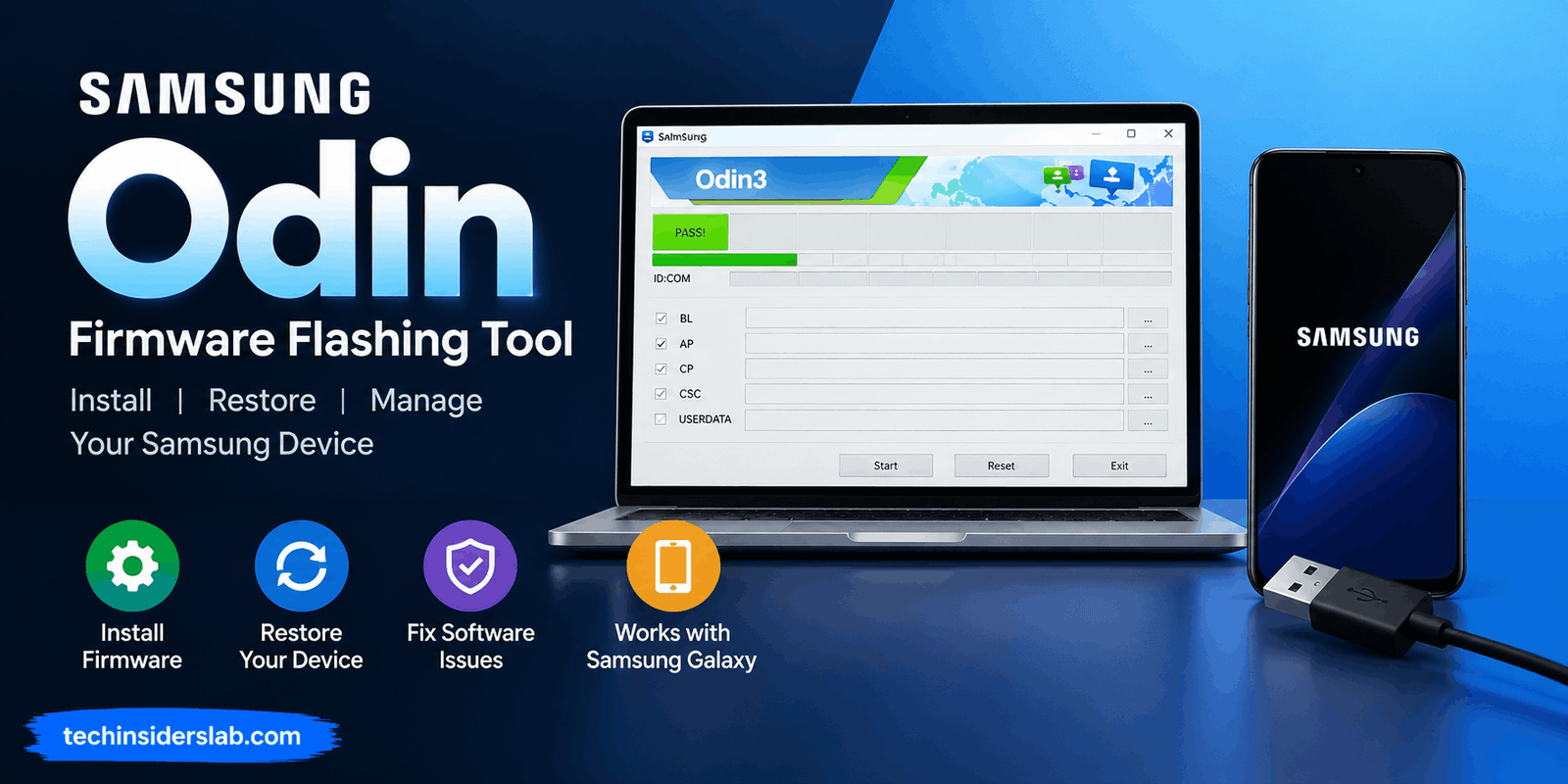
Samsung firmware packages are commonly divided into several components. Depending on the device and firmware package, users may encounter files associated with BL, AP, CP, and CSC.
- BL: Generally associated with the bootloader.
- AP: Usually contains major Android system and software components.
- CP: Generally relates to the modem or communications software.
- CSC: Contains region, carrier, and customization-related information.
The exact contents and supported files can vary between devices and firmware packages, so users should never assume that every Samsung model uses an identical flashing procedure. Modern Samsung firmware can also include different CSC-related options, and choosing the wrong option can have consequences for user data.
What Is Samsung Download Mode?
Download Mode is a special pre-boot environment that allows certain low-level communication between a Samsung device and a computer. It is also frequently called Odin Mode because Odin uses this environment to communicate with the device.
When a Galaxy phone is placed into Download Mode, the normal Android operating system does not need to be fully running. Instead, the device waits for compatible commands and firmware data from a connected computer.
This is particularly useful when Android itself is unable to start correctly. For example, a device experiencing a software-related boot problem may still be able to enter Download Mode even though it cannot successfully reach the home screen.
The exact method for entering Download Mode differs between Samsung models and generations. Therefore, users should check instructions specifically intended for their model rather than relying on an old button combination. Samsung also provides support information for devices that become stuck on a Downloading or Odin Mode screen.
Why Do People Use Odin?
There are several reasons why Odin remains relevant to Samsung users and Android enthusiasts.
Manual Firmware Installation
One of the primary uses of Odin is installing Samsung firmware manually. Instead of waiting for an OTA update, an experienced user can use a compatible firmware package and computer to perform the installation.
This can be useful for testing a particular software build or restoring the device to an official firmware version.
Firmware Recovery
Software problems can sometimes prevent a Galaxy phone from starting normally. A compatible stock firmware installation may help restore software when the underlying problem is related to corrupted or failed system software.
However, Odin cannot repair physical hardware damage. If a phone has a defective storage chip, damaged motherboard, broken USB port, or another hardware problem, flashing firmware may not solve the issue.
Reinstalling Stock Software
Advanced users sometimes need to return a device to stock Samsung software after experimenting with modifications. Odin can be part of that restoration process when the correct official firmware is available.
Advanced Android Modifications
Odin has also been used in Android development and modification workflows involving custom recovery images and modified firmware. Such operations are more complicated than simply reinstalling official firmware and can have additional security, warranty, and data implications.
Understanding Odin Firmware Files
Understanding the common firmware slots is one of the most important parts of learning Odin.
BL normally represents the bootloader component. The bootloader is involved in the early stages of device startup, so using an incorrect bootloader package can create serious problems.
AP is generally the largest firmware component. It can contain major Android system components, the kernel, recovery-related components, and other software required by the device.
CP is associated with communication functions such as the modem or baseband software. It is especially relevant to the cellular communication side of a Galaxy device.
CSC is connected with regional and carrier-specific configuration. Firmware packages can include different CSC choices, and one option may be designed to preserve user data while another can perform a cleaner installation.
Because these files interact with different parts of the device software, users should always verify that the firmware package is specifically intended for the exact model and appropriate configuration of the device.
Odin and Firmware Compatibility
Compatibility is one of the most important considerations when using Odin.
A Samsung Galaxy phone may have several variants that look almost identical but use different model numbers. Firmware designed for one model should not automatically be assumed to work with another.
Users should check:
- Exact device model number
- Region or CSC information
- Firmware build
- Bootloader compatibility
- Android or One UI generation
- Carrier requirements where applicable
A firmware package that appears similar to the correct one can still be inappropriate for a particular device. This is why firmware verification should happen before any flashing process begins.
Is Odin Safe to Use?
Odin itself is a specialized utility, but the safety of a flashing operation depends heavily on how it is used.
The biggest risks usually come from incorrect firmware, unreliable software copies, incompatible files, or interruptions during the flashing process. A bad firmware selection can leave a device unable to boot, while interrupting a critical operation can potentially cause additional software problems.
Another issue is that unofficial Odin downloads can be difficult to verify. Since publicly circulating classic Odin binaries have historically not been distributed by Samsung as a normal consumer download, users should be especially careful with unknown download sites and modified executables.
For this reason, it is sensible to verify firmware sources, scan downloaded files, maintain a reliable USB connection, and avoid unnecessary modifications.
Does Odin Delete Data?
Odin does not automatically mean that every flashing operation will erase everything on the phone. However, users should always prepare for possible data loss.
The behavior can depend on the firmware files and options being used. CSC-related choices can have different effects, and a clean installation may remove user data.
A backup is therefore an important preparation step. Photos, contacts, documents, authentication information, and other important files should be secured before beginning an advanced firmware procedure.
It is also important to understand that a file designed to preserve user data should not be treated as a guaranteed backup. A separate backup is much safer than relying on the flashing process to protect personal information.
Odin vs Normal Samsung Updates
For most everyday users, normal Samsung software updates are considerably simpler than manual flashing.
An OTA update is delivered through the device’s standard software-update system. The phone handles much of the compatibility and installation process automatically.
Odin, on the other hand, requires a computer, USB connection, appropriate firmware, Download Mode, and a greater understanding of the device’s software structure.
This makes Odin more relevant to advanced users, technicians, repair workflows, and people who have a specific reason to install firmware manually.
If a normal Samsung update is working correctly, there is usually no need to introduce the additional complexity of manual firmware flashing.
Common Odin Mistakes to Avoid
Several mistakes repeatedly cause problems during firmware flashing.
Using the Wrong Firmware
This is one of the most important mistakes. Always verify the exact model and firmware compatibility before starting.
Using an Unreliable USB Cable
A poor-quality or charge-only cable may prevent the computer from communicating properly with the phone. A stable data connection is essential.
Interrupting the Flash
Users should never disconnect the phone or shut down the computer during an active flashing operation unless a reliable recovery procedure specifically requires it.
Ignoring Backups
Important personal data should be backed up before attempting firmware-related operations.
Downloading Random Odin Versions
Search results can lead to modified or repackaged files. Users should be cautious about unknown executables and avoid assuming that every website offering an Odin download is trustworthy.
Flashing Without Understanding the Files
BL, AP, CP, and CSC have different roles. Loading files randomly into slots is not a safe way to experiment with firmware.
Odin for Troubleshooting Samsung Devices
Odin can be valuable when a Samsung device has a software problem that cannot be resolved through normal Android tools.
For example, a phone that repeatedly crashes during startup or remains stuck during the boot process may have a corrupted software installation. If the hardware is functioning correctly and the appropriate official firmware is available, reinstalling compatible firmware can sometimes restore normal operation.
However, Odin should not be considered a universal repair tool. It cannot fix every boot problem, and it cannot repair damaged hardware.
It is also important to understand that firmware flashing does not automatically remove account protections, Factory Reset Protection, carrier restrictions, or other security mechanisms. Those issues require the appropriate account recovery, carrier, seller, employer, or official support process.
Modern Alternatives and Related Tools
Odin is not the only tool associated with Samsung firmware work. The Android ecosystem also includes alternatives such as Heimdall, an open-source project that implements Samsung’s communication protocol and provides cross-platform functionality.
More recently, open-source Odin/Thor implementations have also appeared, including projects designed to provide Linux-native workflows. These projects are separate from Samsung and should not automatically be considered official Samsung products.
For ordinary Samsung customers, official support resources and standard update mechanisms remain important options before moving toward advanced flashing tools.
Conclusion
Odin is a powerful Samsung firmware flashing tool designed for users who need more control over the software installed on compatible Galaxy devices. It can be useful for manually installing official firmware, restoring software, troubleshooting certain software-related issues, and supporting advanced Android workflows.
However, Odin requires careful handling. Choosing the correct device firmware, maintaining a stable USB connection, creating a backup, and understanding the purpose of firmware files are important before starting any flashing process. When used correctly and with compatible files, Odin can be a valuable tool for Samsung device maintenance.