introduction
Animated GIFs are one of the most popular ways to share short animations, reactions, tutorials, memes, and visual messages online. They are simple to use and supported across many platforms, but large GIF files can sometimes create problems. A GIF may be too wide for a website, too large for social media, or unnecessarily heavy for mobile users.
This is where a GIF Resizer becomes useful.
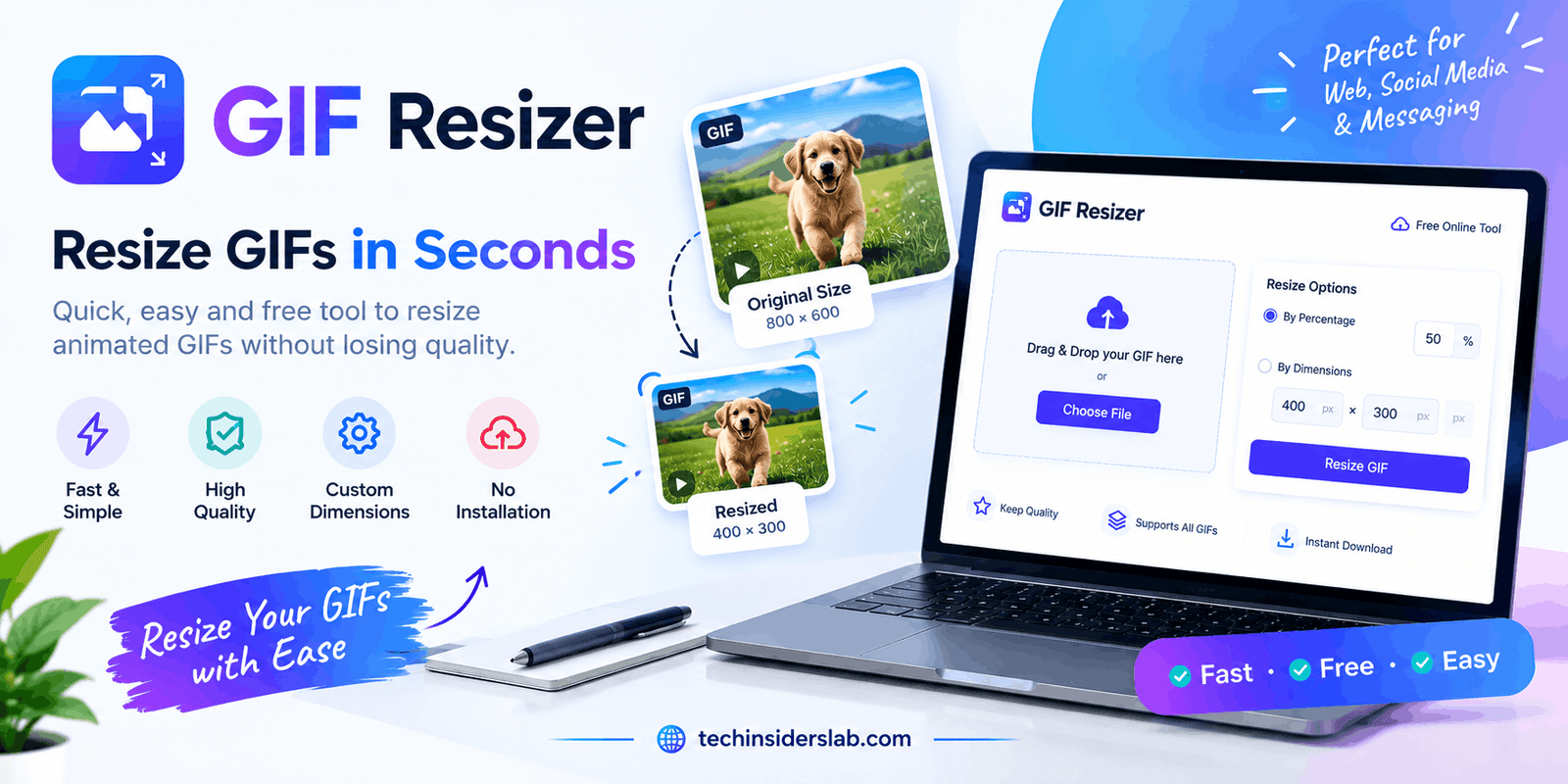
A GIF Resizer is an online utility tool that allows users to change the width and height of animated GIF files. Instead of recreating an animation from scratch, you can resize an existing GIF to better match your website, social media post, blog, presentation, or other digital content.
Resizing is not simply about making an image smaller. Animated GIFs contain multiple frames, and each frame contributes to the final animation. A good resizing process should therefore preserve the animation while maintaining reasonable image quality and keeping the file as efficient as possible.
In this guide, we will explore what a GIF Resizer is, how it works, why it is useful, how to resize GIFs correctly, and what you should consider when trying to maintain quality.
What Is a GIF Resizer?
A GIF Resizer is a digital image tool designed to change the dimensions of GIF files.
For example, imagine you have an animated GIF measuring 1200 × 800 pixels, but you only need it to be 600 × 400 pixels. Instead of opening complicated editing software and manually processing every frame, a GIF Resizer can perform the task automatically.
Most GIF resizing tools work with animated and static GIF files. For animated files, the tool processes the individual frames and creates a new GIF using the selected dimensions.
Depending on the tool, you may also find additional options such as:
- Custom width and height
- Automatic aspect ratio
- GIF cropping
- File compression
- Quality adjustment
- Frame optimization
- Background options
- Preview before downloading
This makes a GIF Resizer a convenient option for people who need quick image adjustments without advanced editing knowledge.
Why Do You Need a GIF Resizer?
There are several reasons someone may need to resize an animated GIF.
1. Large GIF Dimensions
A GIF created on a high-resolution screen may have dimensions much larger than necessary.
For example, a 1920-pixel-wide GIF may look impressive, but it may be unnecessary if it will only be displayed inside a 500-pixel-wide website section.
Resizing the GIF can make it more suitable for its actual purpose.
2. Smaller File Requirements
GIF dimensions and file size are closely related, although they are not the only factors that determine file size.
An animated GIF contains multiple frames. When each frame contains a large number of pixels, the resulting file can become very large.
Reducing the dimensions can therefore help create a more manageable file.
3. Better Website Performance
Large animated files can consume additional bandwidth and may take longer to load, particularly for users with slower internet connections.
If an animation is displayed at a small size, there is often little reason to keep an unnecessarily large version.
Resizing GIFs to appropriate dimensions can therefore be part of a broader website image optimization strategy.
4. Social Media Content
Social media platforms display content across different screen sizes.
A GIF designed for a desktop screen may not be ideal for a mobile interface.
Resizing allows creators to prepare animations that better fit the space where they will be displayed.
How Does a GIF Resizer Work?
Although different tools have different interfaces, the general process is simple.
First, you upload your GIF.
The tool reads the file and identifies its dimensions and animation frames.
You then choose your desired width and height. Some tools automatically calculate the second dimension when you change the first one.
After that, the tool processes the animation and creates a resized version.
A typical workflow looks like this:
Upload GIF → Choose Dimensions → Maintain Proportions → Resize → Preview → Save
The important difference between GIF resizing and ordinary image resizing is that an animated GIF can contain many frames.
The resizing system needs to apply the new dimensions consistently across those frames so the animation continues to play correctly.
Resize GIF Without Distorting It
One of the most important things to remember when resizing a GIF is the aspect ratio.
Aspect ratio describes the relationship between the width and height of an image.
For example, a GIF measuring 800 × 400 pixels has a 2:1 aspect ratio.
If you reduce the width from 800 pixels to 400 pixels, the proportional height should become 200 pixels.
So:
Original: 800 × 400
Resized: 400 × 200
If you instead change it to 400 × 300, the image will become distorted.
People and objects inside the animation may appear stretched or compressed.
For this reason, using the Keep Aspect Ratio option is generally the safest approach unless you specifically need custom dimensions.
GIF Resizer vs GIF Compressor
A GIF Resizer and GIF Compressor may sound similar, but they perform different jobs.
A GIF Resizer changes the physical dimensions of the animation.
A GIF Compressor focuses primarily on reducing the file size.
For example:
Original GIF: 1000 × 700 pixels
Resized GIF: 500 × 350 pixels
The main change here is the image dimensions.
Compression, on the other hand, may attempt to reduce the number of colors, optimize frames, remove unnecessary information, or otherwise make the file smaller.
For the best results, resizing and compression can sometimes be used together.
First resize the GIF to an appropriate display size, then optimize it if the file is still too large.
Does Resizing a GIF Reduce Quality?
It can.
Whenever you reduce an image’s dimensions, some visual information is removed.
However, the amount of visible quality loss depends on how dramatically the GIF is resized.
Reducing a large GIF moderately may produce an excellent result.
For example:
1200 × 800 → 800 × 533
may still look sharp.
But an extreme reduction such as:
1200 × 800 → 150 × 100
can make text, facial details, and other small elements difficult to see.
GIF also has a limited color palette compared with many modern image formats. This means certain animations can develop visible color or edge artifacts after processing.
For that reason, it is always a good idea to preview the resized animation before using it publicly.
How to Resize an Animated GIF
Resizing a GIF usually requires only a few steps.
Step 1: Select Your GIF
Choose the animated GIF you want to resize.
Before making changes, keep the original file somewhere safe.
Step 2: Upload the GIF
Open your GIF Resizer and upload the selected file.
The tool should identify the original width and height.
Step 3: Enter the New Size
Enter the desired width or height.
If the tool supports automatic proportions, enabling that option will calculate the corresponding dimension.
Step 4: Process the GIF
Start the resizing process.
The tool will process the animation and generate a new version.
Step 5: Preview the Result
Check the entire animation.
Don’t only inspect the first frame. Some problems may appear later in the animation.
Look for:
- Blurry details
- Flickering
- Missing frames
- Incorrect positioning
- Transparency issues
- Distorted objects
Step 6: Save the Resized GIF
If the output looks good, save the new version.
Keep the original GIF in case you need to create another size later.
GIF Resizing for Websites
Website owners frequently use GIFs for tutorials, demonstrations, reactions, and small animations.
However, website performance should always be considered.
If a GIF is displayed at 400 pixels wide, using a 2000-pixel-wide version may be unnecessary.
A better approach is to create a version that matches the maximum display size.
For example:
Website display width: 500 pixels
Recommended GIF width: Around 500 pixels
The exact choice depends on the design, responsive behavior, and intended use.
It is also important to remember that GIF is not always the most efficient format for animation. For longer or more complex animations, modern formats or video may provide better compression and performance.
GIF Resizer for Mobile Devices
Mobile users often have less screen space and may use slower or limited connections.
A large GIF can therefore be inconvenient on mobile devices.
Resizing an animation to appropriate dimensions can help reduce unnecessary data usage.
For mobile-focused content, consider:
- Smaller dimensions
- Shorter animations
- Fewer unnecessary frames
- Simple visual elements
- Optimized file size
- Clear text
A smaller GIF is especially useful when the animation does not need to occupy the entire screen.
Resizing vs Cropping a GIF
Resizing and cropping are not the same thing.
Resizing changes the overall dimensions while keeping the complete image.
Cropping removes part of the image.
Suppose your GIF is 1200 × 800 pixels but the main subject occupies only the center.
Simply resizing the entire GIF could make the important subject too small.
Cropping the unnecessary space first may produce a better result.
For example:
Original: 1200 × 800
Crop: 1000 × 600
Resize: 600 × 360
This approach can preserve more useful visual space.
However, cropping an animation requires care because the subject may move during the animation.
Common GIF Resizing Problems
Although GIF resizing is generally straightforward, several issues can occur.
Blurry Output
This usually happens when a GIF is reduced significantly or processed with poor-quality resizing settings.
Distorted Animation
This can happen when the width and height are changed independently without maintaining the aspect ratio.
Flickering Frames
Some animated GIFs use optimized frames rather than complete frames. Incorrect processing can cause visual inconsistencies.
Transparency Problems
Transparent areas may develop unwanted backgrounds or rough edges after resizing.
Large File Size
A smaller GIF is not necessarily a tiny GIF. A long animation containing many frames can remain large even after its dimensions are reduced.
Loss of Small Text
Text inside a GIF can become difficult to read when the animation is resized too aggressively.
Best Practices for GIF Resizing
For consistent results, keep these tips in mind.
Maintain the Original Aspect Ratio
Unless you have a specific design requirement, avoid stretching the animation.
Don’t Resize More Than Necessary
Choose dimensions based on where the GIF will actually appear.
Keep the Original File
Never overwrite your only copy of the original animation.
Check Every Part of the Animation
Review the complete GIF rather than only its first frame.
Consider File Size
After resizing, check whether the resulting file is appropriate for your intended platform.
Use Compression When Necessary
If the GIF remains too large, optimization can provide additional savings.
Avoid Extremely Small Dimensions
A tiny GIF may load quickly but can lose important details and readability.
Advantages of a GIF Resizer
A GIF Resizer offers several benefits:
- Easy to use
- No advanced editing skills required
- Quick resizing
- Useful for animated files
- Helps create platform-friendly dimensions
- Can reduce unnecessary image data
- Useful for websites and blogs
- Helpful for social media content
- Convenient for mobile optimization
- Saves time compared with manual frame editing
For casual users and content creators, the simplicity of a dedicated GIF tool is often its biggest advantage.
Limitations of GIF Resizers
GIF Resizers are useful, but they cannot solve every GIF-related problem.
Resizing cannot magically restore lost details.
If the original GIF has poor quality, making it smaller will not make the source animation sharper.
Similarly, reducing dimensions does not guarantee a dramatic file-size reduction.
The final file size can still depend on factors such as:
- Number of frames
- Animation duration
- Color complexity
- Compression
- Transparency
- Frame changes
- Metadata
For particularly large animations, converting the content to a more efficient modern format may be a better solution.
Is GIF Still a Good Format?
GIF remains popular because it is simple, widely recognized, and useful for short animations.
However, it has limitations.
Modern formats such as WebP and AVIF can provide advantages for many web use cases, while video formats can be much more efficient for longer animations.
This does not mean GIF is obsolete.
It means that the best format depends on the purpose.
For a short reaction animation or simple looping graphic, GIF can still be perfectly practical.
For a large website animation, however, it is worth considering whether another format would provide better performance.
What Makes a Good GIF Resizer?
If you are choosing a GIF resizing tool, look for useful features such as:
- Support for animated GIFs
- Custom dimensions
- Aspect-ratio locking
- Preview functionality
- Reasonable processing speed
- Quality preservation
- File-size optimization
- Simple interface
- Secure file handling
- Compatibility with common browsers
A good tool should make the process straightforward rather than forcing users through complicated editing steps.
Conclusion
A GIF Resizer is a simple but valuable tool for anyone working with animated images. Whether you are preparing content for a website, adjusting a GIF for social media, creating mobile-friendly graphics, or simply trying to make an oversized animation more manageable, resizing can make a significant difference.
The most important thing is to choose dimensions based on the GIF’s actual purpose. Avoid unnecessary oversized files, maintain the aspect ratio, inspect the complete animation, and consider optimization when the resulting file is still too large.
For websites and performance-focused projects, it is also worth considering modern image or video formats when they are better suited to the animation.
Ultimately, the goal is not simply to make a GIF smaller. The goal is to create an animation that has the right dimensions, acceptable quality, manageable file size, and a smooth viewing experience.
When used correctly, a GIF Resizer turns a potentially complicated editing task into a quick and practical part of your everyday digital-content workflow.