Introduction
Screen Shot Mac is a useful topic for anyone who wants to learn how to capture, save, edit, and share screenshots on a MacBook or iMac. Whether you are a student, office worker, content creator, or beginner, knowing how to take a screenshot can make everyday computer tasks much easier.
Mac computers include built-in screenshot features that allow users to capture the entire screen, a specific window, or a selected area. You can also copy screenshots to the Clipboard, change where they are saved, and record your screen without installing additional software.
In this guide, you will learn the easiest ways to take a screen shot on Mac, use keyboard shortcuts, find saved images, edit screenshots, and fix common problems.
What Is a Screen Shot on Mac?
A screen shot on Mac is an image that captures whatever is displayed on your computer screen at a particular moment. It can include a website, document, application window, error message, or any other visible content.
Screenshots are useful in many situations. For example, students can save notes, professionals can share work-related information, and technical support teams can use screenshots to understand software problems.
Mac computers provide several built-in methods for capturing screenshots. These tools make the process convenient for beginners and experienced users alike.
How to Take a Screen Shot on Mac
The easiest way to take a screen shot on Mac is by using keyboard shortcuts. You do not need to open a separate application or install additional software.
1. Capture the Entire Screen
If you want to capture everything visible on your Mac display, follow these steps:
- Press Shift + Command (⌘) + 3 simultaneously.
- Release the keys.
- Wait for the screenshot to be captured.
- Find the saved image on your Desktop or in your selected save location.
This method is useful when you need to save the complete desktop, including open windows and other visible information.
2. Capture a Selected Area
Sometimes you only need a small section of the screen instead of the entire display. macOS allows you to select the exact area you want to capture.
Follow these steps:
- Press Shift + Command (⌘) + 4.
- Your pointer will change into a crosshair.
- Click and drag to select the desired area.
- Release the mouse button or trackpad to take the screenshot.
The selected portion will be captured as an image.
This option is particularly helpful when saving a paragraph, chart, image, or specific section of a website.
3. Capture a Specific Window
Mac users can also take screenshots of individual application windows. This method is useful when you want a clean image without capturing the entire desktop.
To capture a window:
- Open the application window you want to capture.
- Press Shift + Command (⌘) + 4.
- Press the Space bar.
- Move the camera-shaped pointer over the desired window.
- Click the window to capture it.
This technique works well for tutorials, software demonstrations, and work documents.
How to Use the Screenshot Tool on Mac
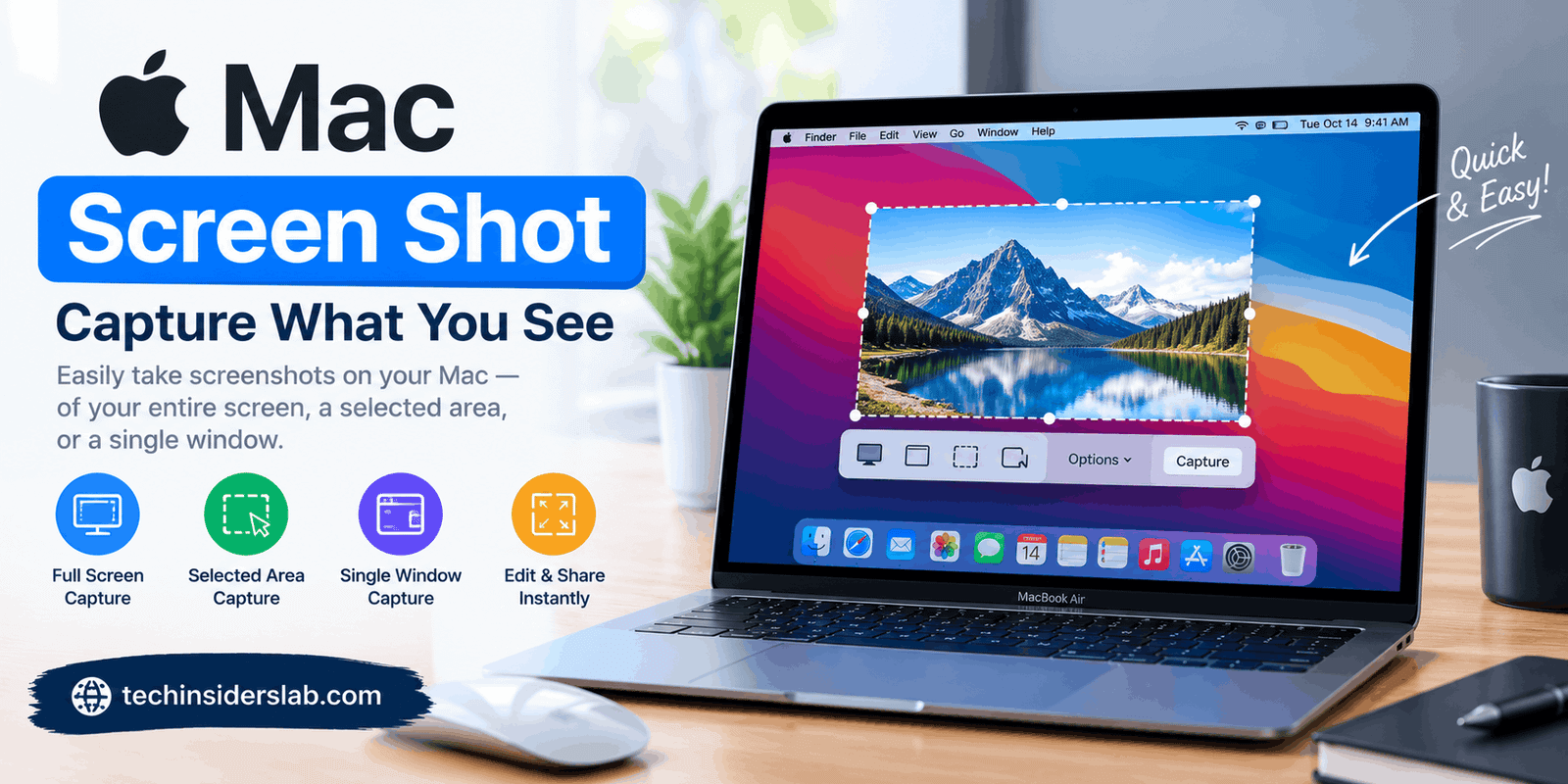
macOS includes a built-in Screenshot toolbar that provides several capture options in one place.
To open it, press Shift + Command (⌘) + 5.
The toolbar allows you to choose between capturing the entire screen, a selected window, or a selected portion of the display. It also provides options for recording your screen.
You can open the Options menu to adjust available settings, such as the save destination, timer delay, and whether the mouse pointer appears in the capture.
The Screenshot toolbar is a convenient choice for users who prefer selecting options visually rather than memorizing keyboard shortcuts.
How to Take a Timed Screen Shot on Mac
A timed screenshot allows you to prepare your screen before the image is captured. This feature is helpful when you need to open a menu or arrange a window that would otherwise disappear when you click elsewhere.
Here is how to use it:
- Press Shift + Command (⌘) + 5.
- Click Options.
- Select an available timer delay, such as 5 or 10 seconds.
- Choose your preferred screenshot type.
- Start the capture and prepare your screen.
Your Mac will take the screenshot after the selected delay.
Timed screenshots are useful for educational tutorials, presentations, and technical documentation.
Where Are Screenshots Saved on Mac?
By default, Mac screenshots are generally saved to the Desktop. However, the save location may be different if you have changed the settings.
To find your screenshots, check your Desktop for the newly created image file. You can double-click the file to open and view it.
If you cannot find the screenshot, follow these steps:
- Press Shift + Command (⌘) + 5.
- Open the Options menu.
- Check the selected save destination.
- Open that folder to locate your image.
You can select another destination, such as Documents or a dedicated screenshots folder.
Keeping screenshots organized can save time when you need to find important images later.
How to Copy a Screenshot on Mac Without Saving It
Sometimes you want to paste a screenshot directly into an email, document, or messaging application without creating a separate image file.
macOS provides a simple way to do this by copying the screenshot to the Clipboard.
To copy the entire screen, press:
Control + Shift + Command (⌘) + 3
To copy a selected area, press:
Control + Shift + Command (⌘) + 4
For a selected area, drag your pointer over the part of the screen you want to capture.
Next, open the application where you want to insert the image and press Command (⌘) + V.
The screenshot can then be pasted into a compatible application. This method is useful for quickly sharing information with coworkers, friends, or classmates.
How to Edit a Screen Shot on Mac
After capturing a screenshot, you may want to crop it, highlight important information, or add annotations.
When you take a screenshot, a thumbnail may appear temporarily in the bottom-right corner of the screen. Clicking this thumbnail opens the available editing tools.
You can use these tools to make simple changes before saving or sharing the image.
Common editing options include:
- Crop: Remove unnecessary parts of the image.
- Markup: Add notes, shapes, or markings.
- Highlight: Draw attention to important details.
- Share: Send the screenshot through a supported application.
- Save: Keep the edited image for future use.
You can also open a saved screenshot in Preview and use its available markup features.
For example, if you are reporting an application error, cropping the image and marking the affected area can make the problem easier to understand.
How to Record Your Screen on Mac
Sometimes a still image is not enough to explain a process. In such situations, recording your Mac screen can be more useful.
The built-in Screenshot toolbar provides screen-recording options.
Follow these steps:
- Press Shift + Command (⌘) + 5.
- Choose to record the entire screen or a selected portion.
- Adjust the available options if necessary.
- Click Record.
- Perform the actions you want to demonstrate.
- Stop the recording when you finish.
Your recording will normally be saved as a video file in the selected destination.
This feature is useful for creating tutorials, demonstrating software, explaining technical issues, and showing someone how to complete a task.
Common Screen Shot Mac Problems and Solutions
Although taking screenshots is usually straightforward, some users experience occasional problems.
Screenshot Shortcuts Are Not Working
Check that you are pressing the correct keys together. Try Shift + Command + 3 to test a full-screen capture.
If the shortcut still does not work, open System Settings and check the Keyboard Shortcuts settings. Make sure the screenshot shortcuts are enabled and have not been changed.
Screenshots Are Not Appearing on the Desktop
Your Mac may be saving images to another location. Open the Screenshot toolbar and check the selected destination in Options.
Also, remember that shortcuts containing the Control key copy screenshots to the Clipboard instead of using the normal file-saving process.
The Screenshot Captures the Wrong Area
If you accidentally select the wrong section, repeat the process using Shift + Command + 4. Carefully drag the crosshair around the desired area before releasing the pointer.
If you need the whole display, use Shift + Command + 3 instead.
The Screenshot Is Not Showing Certain Content
Some applications restrict the capture of protected content. If a screenshot appears incomplete, try capturing a different application window to determine whether the problem is specific to that application.
The Screenshot Is Difficult to Share
Large screenshots may be inconvenient to upload or send. You can crop unnecessary areas or export the image in a suitable format using an image-editing application.
These solutions can help resolve many common screenshot problems without installing extra tools.
Tips for Taking Better Screenshots on Mac
A few simple practices can help you capture clearer and more useful screenshots.
Choose the correct shortcut: Use the full-screen option for the entire display, the selected-area option for specific information, and the window option for a cleaner capture.
Organize your files: Save screenshots in a dedicated folder if you take them frequently.
Use the timer when needed: A delayed capture gives you time to arrange windows or open menus.
Check privacy before sharing: Make sure screenshots do not reveal passwords, private messages, personal information, or confidential work documents.
Edit before sending: Crop unnecessary content and highlight important details to make your screenshots easier to understand.
Use screen recording for demonstrations: If you need to explain several actions, a short video may communicate the process more clearly than a single image.
Conclusion
Taking a screen shot on Mac is simple once you understand the available keyboard shortcuts and built-in tools. Press Shift + Command + 3 to capture the entire screen, Shift + Command + 4 to select an area, or Shift + Command + 5 to access additional screenshot and recording options.
You can also copy screenshots to the Clipboard, change their save location, edit images, and record your screen. By learning these methods, you can work more efficiently and capture important information whenever you need it.