introduction
Copying and pasting is one of the most useful skills for anyone using a Chromebook. Whether you are working on a school assignment, writing an email, researching online, or moving information between documents, these simple actions can save time and effort.
Chromebooks make copying and pasting easy with keyboard shortcuts, touchpad gestures, mouse controls, and touchscreen options. If you have recently switched from a Windows laptop or are using a Chromebook for the first time, you may need a little guidance to understand how these features work.
In this guide, you will learn how to copy and paste text, links, images, and other content on a Chromebook, along with useful shortcuts and solutions to common problems.
What Does Copy and Paste Mean?
Copy and paste are basic computer functions that help you move or duplicate information from one place to another.
Copying creates a temporary copy of selected content without removing the original. For example, you can copy a paragraph from a webpage and paste it into a document while keeping the original paragraph on the website.
Pasting inserts the copied content into a new location, such as a text field, document, email, or supported application.
There is also a related function called cutting. Unlike copying, cutting removes selected content from its original location when the change is completed and allows you to paste it somewhere else.
These functions work through the Chromebook clipboard, which temporarily holds copied or cut information.
How to Copy and Paste on Chromebook Using Keyboard Shortcuts
The keyboard is the quickest way to copy and paste on most Chromebooks. The standard shortcuts are similar to those used on Windows computers.
Step 1: Select the Content
Open the webpage, document, or application containing the information you want to copy.
To select text, place your cursor at the beginning of the desired sentence or paragraph. Hold down the touchpad or mouse button and drag across the text. Release when the required content is highlighted.
You can also select text using your keyboard by holding Shift and pressing the arrow keys.
Step 2: Copy the Selected Content
Once the content is highlighted, press:
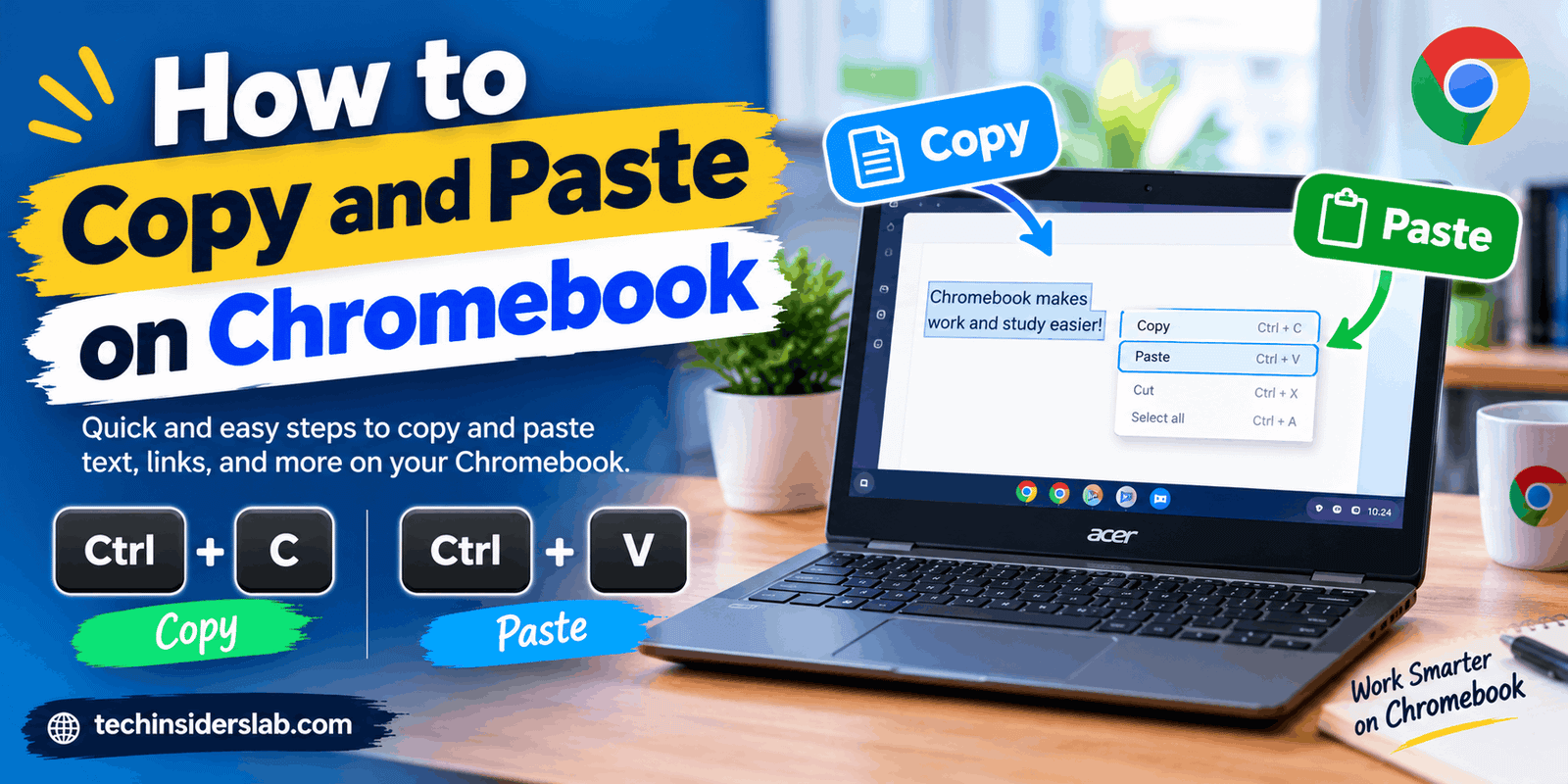
Ctrl + C
Hold the Ctrl key and press C. The selected content will be copied to your Chromebook’s clipboard. The original text remains in its location.
Step 3: Choose Where to Paste
Open the destination, such as Google Docs, an email message, a search box, or another supported application.
Click or tap the area where you want the copied content to appear. If you are working in a document, position the cursor at the correct location.
Step 4: Paste the Content
Press:
Ctrl + V
The copied content should appear at the cursor’s position. You can repeat this process to paste the same content into multiple places while it remains available on the clipboard.
For most users, Ctrl + C and Ctrl + V are the only shortcuts needed for everyday copying and pasting.
How to Copy and Paste on Chromebook Without a Mouse
You do not need a separate mouse to copy and paste on a Chromebook. The built-in touchpad provides the controls required to select content and open menus.
First, move your cursor to the beginning of the text you want to copy. Press down on the touchpad and drag your finger across the text until it is highlighted.
Next, use the keyboard shortcut Ctrl + C to copy the selected text.
Move the cursor to the destination and click the appropriate area. Press Ctrl + V to paste.
You can also open the context menu by tapping the touchpad with two fingers, provided your touchpad settings and application support this gesture. Choose Copy from the menu, then repeat the gesture at the destination and choose Paste.
The keyboard method is generally more consistent because some websites and applications handle touchpad menus differently.
How to Copy and Paste Using a Mouse
If you use an external mouse with your Chromebook, the process is straightforward.
- Open the page or document containing the content.
- Click and drag across the text to highlight it.
- Right-click the selected content.
- Choose Copy from the context menu.
- Navigate to the destination and right-click in the appropriate area.
- Select Paste.
Some applications may hide or restrict clipboard options in their right-click menus. If Copy or Paste is missing, use Ctrl + C and Ctrl + V instead.
You can also use a mouse with the keyboard shortcuts. Select content with the mouse, copy it using Ctrl + C, and paste it using Ctrl + V. This combination is convenient when working with long documents or multiple browser tabs.
How to Copy and Paste on a Chromebook Touchscreen
Some Chromebooks have touchscreens that allow you to perform these tasks without a mouse or touchpad.
To copy text using the touchscreen, tap and hold a word until the text selection handles appear. Drag the handles to select the desired word, sentence, or paragraph. Depending on the application, a small menu may appear with options such as Copy, Select all, and Share.
Tap Copy to place the selected content on the clipboard.
Next, open the destination application and tap the location where you want to insert the content. If a Paste option appears, tap it.
The exact controls can vary depending on the website, application, and ChromeOS version. Some pages do not support selecting text in the same way as regular documents.
If the touchscreen method does not work, use the keyboard shortcuts whenever a physical keyboard is available.
How to Copy and Paste Links on Chromebook
Copying a webpage link is useful when you want to share an article, save a website address, or insert a URL into an email.
To copy a link, locate the hyperlink on the webpage. Right-click it using your mouse or touchpad, then select Copy link address if that option is available.
You can also open the webpage and copy its address directly from the browser’s address bar.
To do this, click the address bar and press Ctrl + L to select the current URL. Then press Ctrl + C.
Open the destination, such as a message or document, and press Ctrl + V to paste the link.
Keep in mind that copying a link address is different from copying the linked text. If you copy the text of a hyperlink, you may only copy its visible words rather than the destination URL.
How to Copy and Paste Images on Chromebook
Chromebooks can copy and paste images in applications that support clipboard image content.
To copy an image from a website, right-click the image and look for the Copy image option. If available, select it.
Open a supported application, such as Google Docs or another compatible editor, and press Ctrl + V.
The image should appear if the destination accepts pasted images.
If you want to move an image file rather than paste an image from a webpage, you may need to download the file first. You can then use the Files app to manage or move it to another folder.
Not every website permits direct image copying, and some applications may not accept images through the clipboard. In those cases, use the available download or insert-image feature.
Always respect copyright and usage permissions when copying images for websites, school projects, or commercial content.
Useful Chromebook Copy and Paste Shortcuts
Learning a few additional keyboard shortcuts can make everyday tasks easier.
| Action | Keyboard shortcut |
| Copy selected content | Ctrl + C |
| Paste copied content | Ctrl + V |
| Cut selected content | Ctrl + X |
| Select all content in the current field or document | Ctrl + A |
| Paste without formatting | Ctrl + Shift + V |
| Undo the last action | Ctrl + Z |
| Open clipboard history | Search/Launcher + V |
These shortcuts are useful for writing, editing, researching, and organizing information. Their availability may depend on the application and the type of content selected.
How to Paste Without Formatting on Chromebook
Sometimes copied text brings unwanted formatting into your document. For example, text copied from a website may include a different font, text color, or background styling.
To paste text without carrying over its original formatting, use:
Ctrl + Shift + V
This shortcut pastes plain text in supported applications. The inserted content generally adopts the formatting of the destination instead of preserving the source’s font and styling.
This is especially helpful when preparing assignments, blog posts, reports, and professional emails.
However, plain-text pasting removes formatting by design. If you need to preserve headings, hyperlinks, bold text, or other styling, use the standard Ctrl + V shortcut instead.
How to Use Clipboard History on Chromebook
The Chromebook clipboard can offer more than a single copy-and-paste action. ChromeOS includes a clipboard history feature that lets you access recently copied items.
To open it, press the Search or Launcher key + V. The Search or Launcher key is usually located on the left side of the keyboard and may display a magnifying glass or a launcher symbol.
If supported on your device, a clipboard menu will appear with recently copied items. Select the item you want to paste.
This can be useful when collecting several pieces of information from different webpages. Instead of returning to each page to copy an item again, you can select a recent item from clipboard history.
Google’s Chromebook keyboard documentation notes that users can select up to five items to copy to the clipboard. The clipboard history interface and available options can vary by ChromeOS version.
Remember that clipboard history is intended for convenience, not permanent storage. Do not rely on it to preserve important information indefinitely, and be careful when copying passwords or other sensitive information.
Why Is Copy and Paste Not Working on Chromebook?
Copying and pasting usually works without additional setup, but occasional problems can occur. Here are several common causes and possible solutions.
1. The Text Is Not Selected
If you press Ctrl + C without selecting text or another copyable item, there may be nothing to copy.
Solution: Highlight the content first and make sure the selection is visible before pressing Ctrl + C.
2. The Destination Does Not Accept the Content
Some websites, forms, remote desktop sessions, and applications restrict pasting or support only certain content types.
Solution: Try pasting into another supported application. If it works there, the issue may be related to the original destination.
3. The Keyboard Shortcut Is Not Working
A faulty key, an external keyboard issue, or a customized shortcut may prevent the normal combination from working.
Solution: Try another keyboard if available, check whether the Ctrl key works elsewhere, and review the Chromebook’s keyboard shortcut settings.
4. The Clipboard Contains Different Content
If you copy something new before pasting the previous item, the clipboard’s current content may change.
Solution: Copy the desired item again, then immediately paste it into the correct location. Alternatively, open clipboard history to see whether the previous item remains available.
5. The Browser or Application Is Temporarily Unresponsive
A frozen webpage or application may prevent normal input.
Solution: Wait briefly, reload the page if appropriate, or close and reopen the application. Save your work before reloading or closing anything.
6. Right-Click Does Not Open the Expected Menu
Touchpad gestures and right-click settings can differ between devices.
Solution: Try tapping the touchpad with two fingers, use the configured right-click method, or use Ctrl + C and Ctrl + V as an alternative.
If the problem continues across several applications, check for ChromeOS updates and consult your Chromebook manufacturer’s support information.
Tips for Copying and Pasting More Efficiently
A few habits can make copying and pasting faster and more reliable.
- Use keyboard shortcuts: Ctrl + C and Ctrl + V are usually faster than opening menus.
- Check the highlighted text: This helps prevent copying an incomplete sentence or the wrong paragraph.
- Use plain-text paste when needed: Ctrl + Shift + V can help maintain consistent formatting in supported apps.
- Keep related content organized: Paste copied information into clearly named documents or folders.
- Use clipboard history carefully: It can help retrieve recent items, but it should not replace permanent file storage.
- Verify the pasted result: Check links, formatting, and text placement before sharing or submitting a document.
These small practices can improve productivity, particularly for students, writers, office workers, and anyone who frequently transfers information between applications.
Conclusion
Learning how to copy and paste on a Chromebook is simple once you understand the basic shortcuts and available controls. Press Ctrl + C to copy selected content and Ctrl + V to paste it into another location. You can also use a mouse, touchpad, or touchscreen, depending on your device and application.
Additional features, including plain-text pasting and clipboard history, make it easier to manage content and work efficiently. If copying and pasting stops working, check your selection, keyboard, clipboard, and the destination application’s settings.
With these techniques, you can handle everyday Chromebook tasks more confidently and save time while browsing, studying, writing, and working online.