Convert JPG to PDF Free: Complete Guide
introduction
Converting JPG images into PDF files is one of the most useful everyday digital tasks. People regularly save photographs, scanned documents, receipts, forms, assignments, certificates, screenshots, and other images as JPG files. However, when these files need to be submitted, printed, shared, or organized, PDF is often a more convenient format.
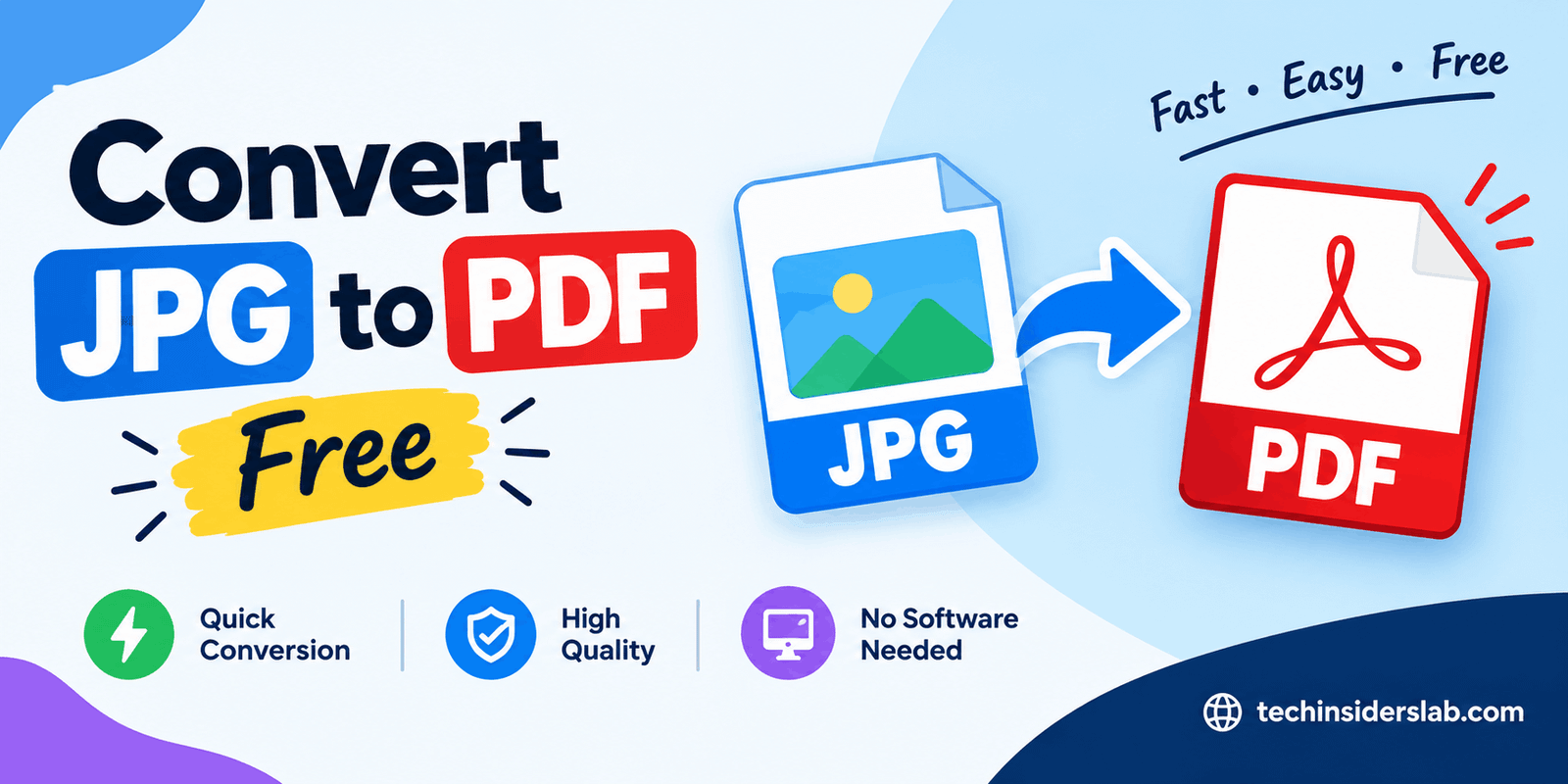
The phrase “Convert JPG to PDF Free” refers to converting JPG or JPEG images into PDF documents without paying for expensive software or subscriptions. Free conversion methods are available through online tools, desktop features, mobile applications, and built-in operating system functions.
The process is generally simple: select a JPG image, choose the PDF option, adjust the available settings, and create the final document. Multiple images can also be combined into one PDF, making the format especially useful for scanned documents and multi-page files.
What Is JPG?
JPG, also known as JPEG, is one of the most widely used image formats. It is particularly common for photographs and images containing many colors.
JPG uses compression to reduce file size, which makes it practical for websites, smartphones, digital cameras, social media, and everyday file sharing. Because JPG files are usually smaller than some other high-quality image formats, they are convenient for storing and transferring pictures.
However, JPG is primarily an image format. If several images represent different pages of the same document, managing them individually can become inconvenient. This is one reason users often convert JPG files into PDF documents.
What Is PDF?
PDF stands for Portable Document Format. It is a document format designed to preserve the appearance and structure of content when it is shared between different devices and platforms.
A PDF can contain text, images, graphics, links, forms, and other document elements. It is widely used for assignments, reports, applications, invoices, receipts, manuals, certificates, forms, and business documents.
When a JPG is converted to PDF, the image becomes part of a PDF page. The resulting document can then be viewed, printed, stored, or shared like other PDF files.
Why Convert JPG to PDF?
There are many reasons people choose to convert images into PDFs.
Easier File Sharing
If you have several JPG images, sending them separately can be inconvenient. Converting them into a single PDF allows you to share one organized file.
For example, someone who photographs five pages of an assignment can combine all five images into one PDF instead of uploading five separate pictures.
Better Organization
A PDF can keep related images together. Instead of searching through multiple JPG files, users can open one document containing all pages.
This is particularly useful for scanned paperwork, receipts, invoices, notes, and educational documents.
Convenient Printing
PDF is commonly used for printable documents. When images are converted into PDF pages, users can select page sizes, orientations, and other printing settings depending on the software being used.
Professional Presentation
A collection of separate images may not look as organized as a properly arranged PDF. A single PDF can provide a cleaner way to present documents to teachers, clients, employers, or businesses.
Easier Storage
Combining multiple related images into one PDF can simplify file management. Instead of keeping ten separate files, you may be able to store them as one clearly named document.
How to Convert JPG to PDF Free Online
Using an online converter is one of the easiest methods for converting JPG images into PDF files.
The general process is straightforward.
Step 1: Select the JPG File
Open a JPG-to-PDF conversion tool and select the image you want to convert. Many tools allow users to upload one or several images.
Step 2: Add Multiple Images if Needed
If you want to create a multi-page PDF, add all the JPG images that belong in the document.
For example, if you have six scanned pages, you can select all six images and prepare them as one PDF.
Step 3: Arrange the Pages
Check the order of the images before conversion. Page order is especially important when converting scanned documents.
If the images represent pages one through six, make sure they appear in the correct sequence.
Step 4: Adjust Settings
Depending on the converter, you may be able to change page size, orientation, margins, image quality, or other settings.
Not every free tool provides the same options, so available features can vary.
Step 5: Convert the Images
Select the conversion option to create the PDF. The tool will process the JPG files and generate the resulting document.
Step 6: Save the PDF
Once the conversion is complete, save the PDF to your computer or mobile device.
Always open the finished document and check the pages before submitting or sharing it.
Convert JPG to PDF on Windows
Windows users may not always need a dedicated online converter. Depending on the Windows version and installed applications, a JPG can often be converted using a print-to-PDF function.
A typical process involves opening the JPG image, selecting the print option, choosing a PDF printer, selecting the desired page settings, and saving the output as a PDF.
This method can be useful when you do not want to upload your image to an external website.
It can also be a practical option for private documents because the conversion can take place directly on your computer.
Convert JPG to PDF on Mac
Mac users can also create PDFs from images using built-in system functionality.
A JPG can generally be opened in an appropriate image application and then saved or exported as a PDF. Another common approach is to use the system’s printing functionality and select the PDF option.
This means users can often perform basic image-to-PDF conversion without installing additional software.
Convert JPG to PDF on Mobile
Smartphones have made JPG-to-PDF conversion even more convenient because many users already keep photographs and scanned documents on their phones.
A typical mobile workflow is to select an image, choose a PDF creation or print option, and save the resulting document.
Dedicated PDF applications may also provide additional options such as combining multiple images, rearranging pages, compressing files, or adjusting document settings.
For people who regularly photograph documents with their phones, mobile JPG-to-PDF conversion can save considerable time.
Convert Multiple JPG Files Into One PDF
One of the most useful features of JPG-to-PDF conversion is the ability to combine multiple images into a single document.
Imagine you have several pages of a handwritten assignment. Each page may be stored as a separate JPG:
- Page 1
- Page 2
- Page 3
- Page 4
- Page 5
Instead of sharing five separate images, you can combine them into one five-page PDF.
This approach can also be useful for:
- Receipts
- Invoices
- Scanned forms
- Contracts
- Notes
- Certificates
- School assignments
- Business records
- Product documents
- Travel documents
Before creating the PDF, always verify the order of the images.
Does Converting JPG to PDF Reduce Quality?
The answer depends on the conversion method and settings.
A JPG that is already low quality will remain low quality after conversion. Converting it to PDF does not automatically restore details that were lost in the original image.
Some conversion tools may also resize or compress images during PDF creation. If aggressive compression is applied, text or small details may become less clear.
For everyday sharing, moderate compression may not be a problem. However, documents containing small text or images intended for professional printing may require higher quality.
How to Maintain Image Quality
Start with the highest-quality JPG available.
If possible, avoid repeatedly saving and recompressing the original image before conversion.
When the conversion tool provides quality settings, choose an appropriate level based on the purpose of the PDF.
For online sharing, a smaller file may be preferable.
For printing or archiving, preserving more image detail may be more important.
You should also inspect the final PDF before deleting the original JPG files.
JPG to PDF vs JPG
JPG and PDF serve different purposes.
JPG is generally better when you need an individual image. It is useful for photographs, graphics, website images, and digital pictures.
PDF is often better when you need a document containing one or more pages.
JPG is useful for:
- Photos
- Digital images
- Website graphics
- Social media images
- Individual pictures
PDF is useful for:
- Scanned documents
- Assignments
- Reports
- Receipts
- Forms
- Certificates
- Invoices
- Multi-page documents
The best format depends on how the file will be used.
Is a Free JPG to PDF Converter Safe?
Safety and privacy should always be considered when using an online conversion service.
Not every free website has the same privacy practices. Some services may upload files to their servers to process them.
For ordinary images, this may not be a major concern. However, users should be more careful with confidential documents.
Avoid uploading sensitive files such as private identification documents, financial records, confidential contracts, passwords, or other personal information to an unknown service.
For highly sensitive files, an offline conversion method can be a better option because the original image does not need to be uploaded to an external server.
Before using an online converter, users should also check its privacy information and understand how uploaded files are handled.
Common Problems When Converting JPG to PDF
Although the process is usually easy, several problems can occur.
Blurry Images
A blurry PDF may result from a low-quality original JPG or excessive compression.
Large PDF Files
High-resolution photographs can create large PDF documents. This may make the file difficult to upload or share.
Incorrect Page Order
When several JPGs are converted together, pages may appear in the wrong order if they were not arranged correctly.
Wrong Orientation
Portrait images may sometimes appear sideways or with incorrect orientation.
Cropped Images
Incorrect page-size or scaling settings can cause part of an image to be cut off.
Poor Text Readability
If a JPG contains small text, excessive compression can make the text difficult to read.
How to Reduce PDF File Size
A PDF containing high-resolution photographs can become quite large.
If file size is a problem, you can use a PDF compression feature after conversion. Some tools also provide compression settings during the conversion process.
Other ways to keep the file manageable include reducing unnecessary image resolution and avoiding extremely high-quality settings when they are not required.
However, compression should be used carefully. Reducing the file size too much can affect image quality.
Can JPG to PDF Make Text Searchable?
Simply converting a JPG into a PDF does not automatically make the text inside the image searchable.
For example, if you photograph a printed document, the words in the photograph remain image data.
To make the text selectable and searchable, an OCR, or Optical Character Recognition, process is generally required.
OCR software analyzes the image and attempts to identify characters and words.
This distinction is important for people who need to search, copy, or edit text from scanned documents.
JPG to PDF for Students
Students can benefit from JPG-to-PDF conversion in many ways.
Assignments are often photographed using smartphones, especially when students do not have access to a scanner. These individual photographs can be combined into one PDF before submission.
Students can also convert:
- Handwritten notes
- Homework pages
- Book pages
- Diagrams
- Project materials
- Research documents
into organized PDF files.
A single PDF can be easier to upload to an educational platform than multiple separate images.
JPG to PDF for Businesses
Businesses regularly handle documents that may begin as images.
Receipts, invoices, signed forms, delivery documents, and scanned paperwork can all be stored as PDFs.
Combining several related images into one document can make it easier to organize business records.
For example, a company could combine several receipt photographs from the same transaction period into a single PDF for easier storage.
JPG to PDF for Printing
PDF is a useful format for documents that need to be printed.
Before printing a converted PDF, check the following:
- Paper size
- Page orientation
- Margins
- Image scaling
- Image quality
- Page order
If the image contains important text or fine details, use a sufficiently high-quality source image.
You should also open the PDF before printing to make sure no content has been accidentally cropped.
How to Choose a Free JPG to PDF Tool
When selecting a free converter, consider more than just whether it costs money.
Easy Interface
A good tool should make uploading, arranging, converting, and saving files straightforward.
Multiple File Support
If you regularly work with several images, choose a converter that can combine multiple JPG files.
Quality Options
Quality and compression controls can be useful when you need to balance file size and image clarity.
Privacy
Check how the service handles uploaded files, particularly when working with private documents.
Mobile Compatibility
A mobile-friendly converter can be useful if most of your images are stored on a smartphone.
No Unnecessary Restrictions
Some free services may have limits on file size, number of files, or available features. Check these limitations before starting a large conversion.
Tips for Better JPG to PDF Conversion
Following a few simple practices can improve the final result.
Use clear images: Start with a sharp, readable JPG.
Check page order: Arrange multiple images correctly before conversion.
Choose the right orientation: Make sure portrait and landscape pages are positioned properly.
Avoid excessive compression: Smaller files are useful, but extremely aggressive compression can reduce readability.
Check the final PDF: Open the completed document and inspect every page.
Keep original files: Do not immediately delete your JPG images until you have confirmed that the PDF is correct.
Use trusted services: Be careful when uploading private or confidential documents.
Consider OCR: If you need searchable text, use a tool that supports OCR rather than basic image-to-PDF conversion.
Is Convert JPG to PDF Free Useful for Everyday Users?
Yes. JPG-to-PDF conversion is useful because images are frequently used as substitutes for scanned documents.
A smartphone can quickly capture a document, receipt, form, or handwritten page. Converting that image into PDF creates a more document-oriented file that can be submitted, printed, shared, or archived.
For occasional users, a free converter may provide everything necessary. Users who work with large numbers of documents may benefit from more advanced PDF features.
Conclusion
Convert JPG to PDF Free is a simple and useful solution for turning images into organized PDF documents. Whether you need to combine scanned pages, save receipts, submit assignments, or share multiple images, JPG-to-PDF conversion makes the process easier. With free online, desktop, and mobile options available, users can quickly create PDFs without expensive software.