Google Remote Desktop: Guide to Chrome Remote Desktop
introduction
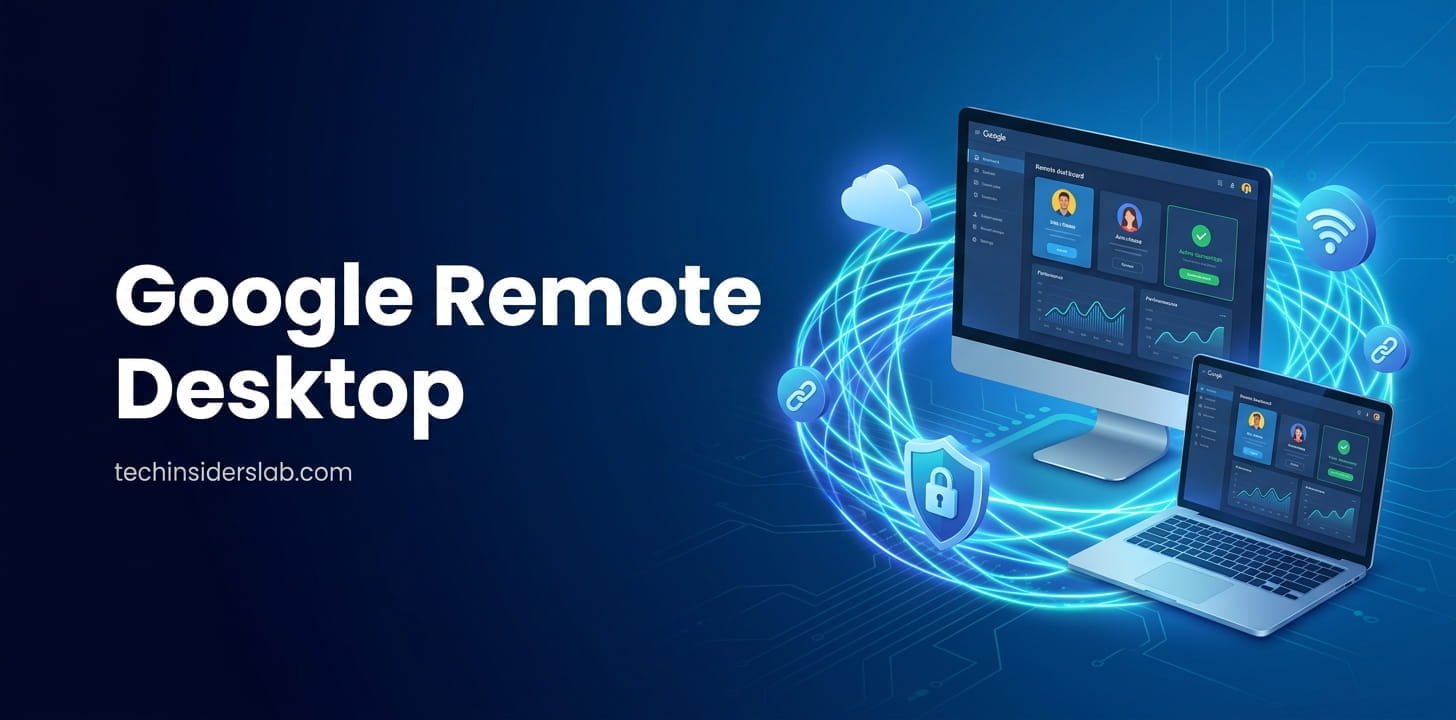
Google Remote Desktop, commonly known as Chrome Remote Desktop, is a remote-access tool that allows users to connect to and control a computer from another computer or mobile device. It can be useful when you need to access files on your home computer while traveling, use a work computer from another location, or provide remote technical support to someone.
The service is designed around a simple idea: instead of being physically present in front of a computer, you can interact with that computer remotely through an internet connection. Google provides Chrome Remote Desktop through the web, while mobile users can use the dedicated application for remote access. It supports remote connections to Windows, Mac, and Linux computers.
What Is Google Remote Desktop?
Google Remote Desktop is Google’s solution for remotely accessing computers. Although many people call it “Google Remote Desktop,” its official name is Chrome Remote Desktop.
The tool provides two main functions. The first is Remote Access, which lets you connect to your own computer from another device. The second is Remote Support, which allows another person to access your computer temporarily when you provide permission.
For example, imagine that you leave an important document on your office computer but are already at home. If remote access has been configured beforehand, you can connect to that computer and use its files or applications without physically returning to the office.
Google also describes the service as a way to share a screen and provide or receive remote assistance.
How Does Chrome Remote Desktop Work?
Chrome Remote Desktop creates a connection between the device you are using and the computer you want to access.
For permanent-style remote access to your own computer, you first configure the host computer and create a secure PIN. Once the computer is available for remote access, you can select it from another supported device and enter the required PIN.
For temporary support sessions, the process is different. The person who needs help generates a one-time access code and gives it to the support person. After the code is entered, the computer owner must approve the connection. Google states that the support access code works only once, and a shared session requires confirmation to continue after 30 minutes.
This separation between regular remote access and temporary support makes the service useful for both personal and technical-support situations.
Main Features of Google Remote Desktop
1. Remote Access to Your Computer
One of the most useful features is the ability to access your computer while you are away from it.
Once remote access has been configured, you can connect to the computer and work with its applications and files. This can be useful for people who regularly move between home, office, school, or other locations.
Google supports setting up remote access on Windows, Mac, and Linux computers.
2. Remote Support
Chrome Remote Desktop can also be used when another person needs technical assistance.
A user can generate a temporary support code and share it with a trusted person. The recipient enters the code and requests access, while the computer owner approves the connection.
This can make troubleshooting easier because the support person can see and interact with the computer rather than trying to explain every step over a phone call.
3. Access From Mobile Devices
Remote access is not limited to another desktop computer. Google provides Chrome Remote Desktop support for Android and iOS devices as well.
A mobile device can be used to select a configured computer, enter the required PIN, and control the remote machine. On mobile, the computer can be controlled using a virtual trackpad and other available input options.
This is particularly useful when you need quick access but do not have another laptop available.
4. Access Files and Applications
Remote desktop software becomes valuable when you need something that exists only on another computer.
For example, your main computer may contain:
- Work documents
- Personal files
- Installed software
- Photos and media
- Project folders
- Browser sessions
- Specialized applications
Instead of moving everything to another device, remote access allows you to interact with the original computer.
Google specifically states that Chrome Remote Desktop can be used to access files and applications on another computer.
5. Encrypted Remote Sessions
Security is an important part of any remote-access service because a remote session can provide significant control over a computer.
Google’s support documentation states that Chrome Remote Desktop sessions are fully encrypted. The service also uses Google’s infrastructure and modern web technologies such as WebRTC.
However, encryption does not mean users should share access information casually. A remote connection can provide extensive access to the computer, so access codes and PINs should be treated as sensitive information.
How to Set Up Google Remote Desktop
Setting up Chrome Remote Desktop is relatively straightforward.
Step 1: Prepare the Computer
On the computer you want to access remotely, open Chrome and go to the Chrome Remote Desktop service.
Choose the option for setting up remote access and follow the instructions to download and install the required host component.
Google currently supports remote-access setup for Windows, Mac, and Linux computers.
Step 2: Configure Remote Access
Follow the instructions displayed during setup. Depending on the operating system, you may need to provide your computer password or approve certain security settings.
After configuration, the computer becomes available through the remote-access section.
Step 3: Connect From Another Device
On another computer or supported mobile device, open Chrome Remote Desktop and select the computer you previously configured.
Enter the required PIN and initiate the connection.
If the host computer is offline or unavailable, it may appear as unavailable rather than allowing a connection.
How Remote Support Works
Remote support is slightly different from regular remote access.
Suppose a friend or family member has a computer problem. They can open the support section of Chrome Remote Desktop and generate an access code.
The code can then be provided to the person offering assistance. That person enters the code and requests a connection.
The computer owner sees the request and can approve the sharing session. Once the session is complete, the owner can stop sharing.
Google notes that the support code is designed for one-time use. This makes temporary support different from setting up permanent access to a computer.
Google Remote Desktop for Work
Chrome Remote Desktop can be useful in professional environments where employees occasionally need access to computers in another location.
For example, someone working from home may need to access a workstation located in an office. If the appropriate remote-access configuration and organizational policies are in place, remote access can provide a convenient way to reach that workstation.
Organizations can also manage Chrome Remote Desktop through Google administration tools. Administrators can control whether users are allowed to use the service and can apply network-related policies.
This makes the service relevant not only to individual users but also to managed business and educational environments.
Google Remote Desktop on Different Platforms
A major advantage of Chrome Remote Desktop is its cross-platform support.
Windows
Windows computers can be configured as remote-access hosts. Users can then connect to them from supported devices.
Mac
Mac computers can also be configured for remote access through Chrome Remote Desktop. The setup process may request appropriate system permissions.
Linux
Google provides support documentation for using Chrome Remote Desktop with Linux, including instructions for installing the required host components and configuring the remote environment.
Android and iOS
Mobile devices can be used as remote clients. This means a phone or tablet can provide access to a configured computer when a traditional laptop is not available.
Benefits of Google Remote Desktop
Chrome Remote Desktop offers several practical benefits.
Easy remote access: Users can access their computers without being physically present.
Cross-platform support: Windows, Mac, Linux, Android, and iOS can participate in the remote-access experience in different roles.
Remote troubleshooting: Temporary support sessions can make technical assistance easier.
Access to existing applications: Instead of installing every application on a second device, you can remotely use applications installed on the host computer.
Convenience: Remote access can be useful while traveling, working from home, or moving between locations.
Encrypted sessions: Google states that Chrome Remote Desktop sessions are fully encrypted.
Limitations to Consider
Although Chrome Remote Desktop is useful, it is not the perfect solution for every situation.
The first requirement is an internet connection. Google notes that users need network connectivity to share or access a computer. Network restrictions, antivirus software, firewalls, or organizational policies can sometimes interfere with connections.
Performance can also depend on network conditions. A slow or unstable connection may affect responsiveness, especially when interacting with applications that require frequent screen updates.
Another consideration is that remote access requires the host computer to be properly configured and available. If the computer is turned off, disconnected, or otherwise unavailable, you may not be able to connect.
Users should also remember that remote access can provide substantial control over a computer. Sharing access with unknown people can therefore create security and privacy risks.
Security Tips for Using Google Remote Desktop
Remote desktop tools should always be used carefully.
First, never give your remote-access PIN or temporary support code to an unknown person.
Second, only approve support requests from people you trust. Google explains that support sessions can provide the other person with access to apps, files, emails, documents, and history on the computer.
Third, stop a support session when the assistance is finished.
Fourth, remove computers from your remote-access list when they are no longer needed.
Finally, businesses and schools should consider appropriate administrator controls and network policies before deploying remote access widely. Google provides administrative controls that can enable or disable Chrome Remote Desktop and restrict its use in managed environments.
Troubleshooting Common Problems
Sometimes Chrome Remote Desktop may not connect as expected.
One common cause is an internet or network problem. Google recommends checking network settings when the remote-access page or connection does not work correctly.
Firewall and security software can also interfere with remote connections. Google documents network requirements involving HTTPS and specific traffic used for connection establishment.
On restrictive networks, administrators may need to configure firewall rules or Chrome policies. Google explains that Chrome Remote Desktop can use UDP where available and may fall back to TCP when UDP is blocked.
Another simple step is checking that the host computer is powered on, connected to the internet, and correctly configured for remote access.
Who Can Use Google Remote Desktop?
Chrome Remote Desktop can be useful for many different types of users.
Students can access files or software stored on a home computer.
Remote workers can connect to a computer located at another workplace or home.
Small businesses can use remote access for certain support and maintenance situations.
Families can use temporary support sessions when helping relatives with computer problems.
Developers and technical users can access machines that contain specialized development environments.
The most appropriate use depends on the user’s setup, security requirements, and network conditions.
Google Remote Desktop vs Traditional Remote Desktop
Traditional remote desktop solutions can require more configuration, specialized networking knowledge, or operating-system-specific setup.
Chrome Remote Desktop focuses on keeping the experience relatively straightforward. Its web-based access and Google account integration can reduce some of the complexity that users may encounter with more traditional remote-access systems.
That does not necessarily make it suitable for every enterprise environment. Organizations with advanced requirements may need additional management, authentication, monitoring, or policy features.
For personal users who primarily need straightforward remote access, however, the simpler approach can be useful.
Is Google Remote Desktop Free?
Chrome Remote Desktop is provided by Google as a remote-access service and can be used for accessing computers and providing remote support without the kind of subscription model associated with some commercial remote-support platforms.
Users should still consider indirect requirements such as internet access, compatible devices, and the time needed to configure the host computer.
The exact experience can also vary depending on the operating system, network, and administrator policies.
Conclusion
Google Remote Desktop, commonly known as Chrome Remote Desktop, is a convenient tool for accessing and controlling a computer from another location. It can be useful for remote work, accessing personal files, troubleshooting computer problems, and providing temporary technical support. Its support for multiple operating systems and mobile devices makes it flexible for different users.
However, remote access should always be used carefully. Users should protect their PINs and support codes and only allow trusted people to access their computers. With proper security practices, Google Remote Desktop can be a practical solution for everyday remote-access needs.