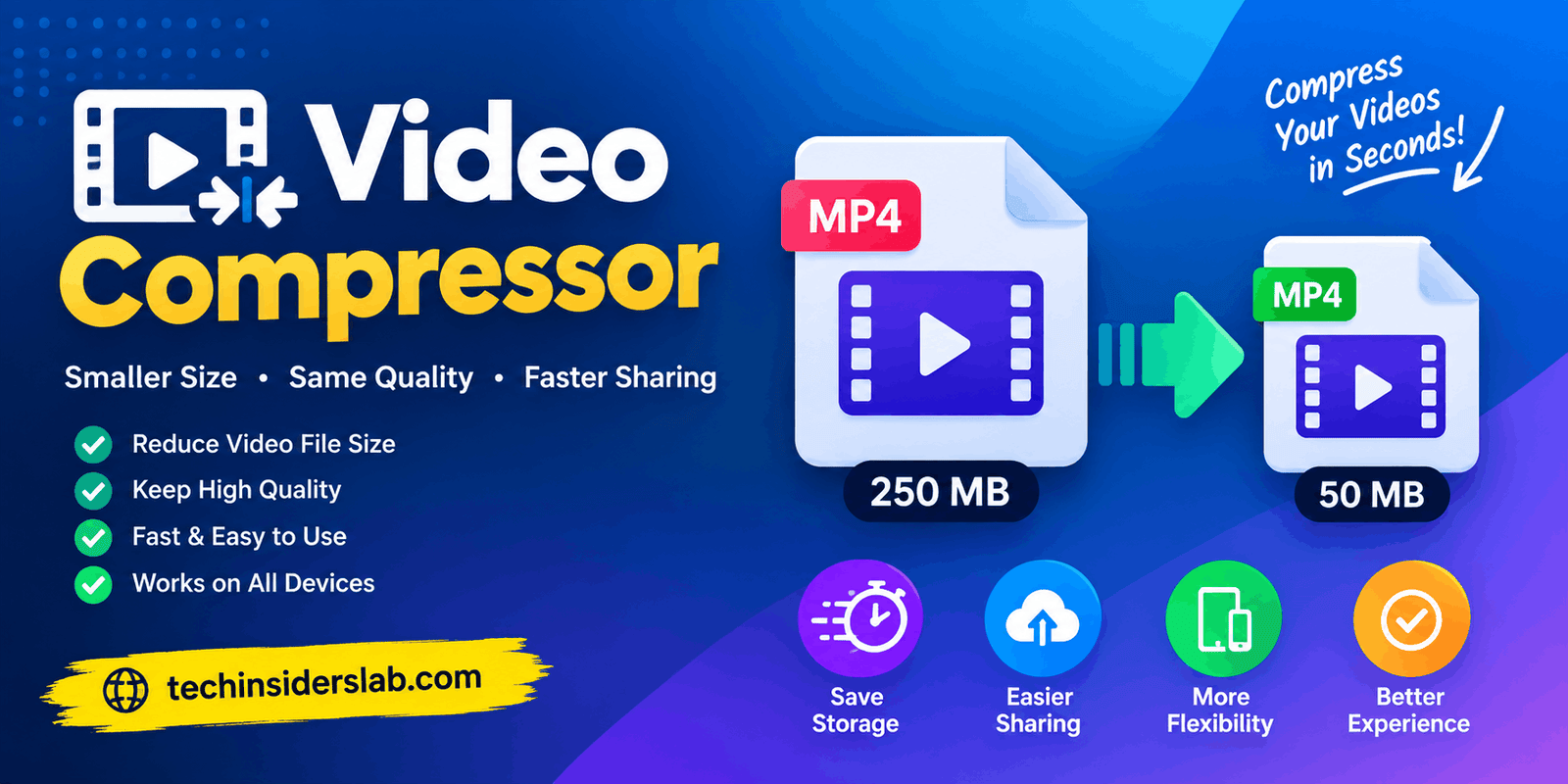
Video Compressor: A Complete Guide to Reducing Video File Size
introduction
Videos are one of the most useful forms of digital content, but they can also consume a large amount of storage space. High-resolution recordings, screen captures, social media videos, tutorials, and professional footage can quickly become hundreds of megabytes or even several gigabytes in size. A Video Compressor helps solve this problem by reducing the size of a video while attempting to maintain acceptable visual and audio quality.
Video compression is useful for people who need to upload videos to websites, send files through messaging platforms, save storage space, or optimize videos for faster online delivery. Modern compression technologies can significantly reduce the amount of data required to store and stream video.
What Is a Video Compressor?
A Video Compressor is a tool or software designed to reduce the file size of a video. It does this by encoding the video using compression techniques that remove redundant or less noticeable information from the original file.
A video is essentially a sequence of individual frames displayed rapidly one after another. Instead of storing every frame as a completely independent image, modern codecs can identify similarities between consecutive frames and store only the changes when appropriate. This technique, known as temporal compression, can dramatically reduce the amount of data required.
Compression can also work within individual frames. This is known as spatial compression. Fine details that may be less noticeable to viewers can be represented using fewer data points, helping reduce the overall file size.
The main objective is to find a practical balance between file size, video quality, compatibility, and processing time.
Why Do You Need a Video Compressor?
Large video files can create several practical problems. Uploading a large recording may take considerably longer, while sharing it through email or messaging services may be difficult because of file-size restrictions.
A Video Compressor can be useful when you want to:
- Reduce storage requirements
- Upload videos faster
- Share videos more easily
- Optimize videos for websites
- Prepare clips for social media
- Reduce bandwidth consumption
- Store more recordings on a device
- Make videos easier to transfer
- Prepare files for cloud storage
- Optimize video delivery for visitors
For websites in particular, video optimization can improve the overall delivery experience. Smaller files require less bandwidth and can be transferred more efficiently. Web development guidance also recommends compressing videos and preparing appropriate formats for web delivery.
How Does Video Compression Work?
Video compression may look simple from the user’s perspective: upload a file, select settings, and download the compressed version. Behind the scenes, however, sophisticated encoding processes are involved.
1. Analyzing the Video
The compressor first examines the source video. Important characteristics can include resolution, frame rate, codec, bitrate, audio stream, and overall video content.
For example, a 4K video contains substantially more visual information than a 720p video. Resolution and frame rate both influence the amount of data that must be encoded.
2. Removing Redundant Information
Modern codecs look for information that does not need to be stored repeatedly.
If two consecutive frames are almost identical, the encoder can store one frame as a reference and describe the changes in subsequent frames. This is one of the reasons video compression can achieve such significant reductions in data size.
3. Adjusting Quality and Bitrate
Bitrate determines how much data is allocated to the video over time. In general, a higher bitrate can preserve more visual detail but creates a larger file. Lowering bitrate can reduce file size but may introduce visible quality loss.
4. Encoding the Output
Finally, the selected codec and settings are used to create a new video file. The resulting file can then be played, uploaded, stored, or shared.
Lossy vs. Lossless Video Compression
One of the most important concepts to understand is the difference between lossy and lossless compression.
Lossy Compression
Lossy compression removes some information from the original video. The output does not perfectly match the source, but the file can become substantially smaller.
Most consumer video compression workflows use some form of lossy compression because it provides a practical balance between quality and file size. Increasing compression generally increases the possibility of visible artifacts or reduced detail.
Lossless Compression
Lossless compression attempts to preserve the original information so that the decoded video can reproduce the source without quality loss.
The downside is that lossless compression generally cannot reduce video files as dramatically as lossy compression. It is therefore more appropriate for certain professional, archival, or specialized workflows rather than everyday online sharing.
Understanding Video Codecs
A codec is an algorithm used to encode and decode video. Different codecs offer different combinations of compression efficiency, quality, processing requirements, and compatibility.
H.264
H.264, also known as AVC, is one of the most widely used video compression standards. It is commonly used with MP4 files and has broad compatibility across devices and platforms.
For users who prioritize compatibility, H.264 remains an important choice.
H.265
H.265, also called HEVC, was designed to provide more efficient compression than H.264. It can be useful for high-resolution video, but compatibility and licensing considerations can be more complicated depending on the environment.
VP9
VP9 is an open video codec commonly associated with WebM. It can provide efficient compression and is supported by modern browsers and platforms.
AV1
AV1 is a newer open video codec designed to deliver strong compression efficiency. It can provide better quality per bit than some older codecs, although encoding can require more computational resources. Hardware support has also been developing across modern devices.
What Is Bitrate and Why Does It Matter?
Bitrate is one of the most important settings when compressing a video.
It represents the amount of data used to represent the video over time. A higher bitrate generally means more information is available to reproduce visual detail, while a lower bitrate can produce a smaller file.
However, bitrate should not be considered independently. Codec efficiency, resolution, frame rate, motion, and content complexity all influence the final result.
For example, a fast-moving sports recording may require more data than a mostly static presentation with a talking head. Two videos with identical resolutions can therefore have noticeably different file sizes.
Resolution and Video File Size
Resolution refers to the dimensions of the video, such as 1920×1080 or 1280×720.
Higher resolutions provide more pixels and can preserve more visual detail, but they generally require more data. Reducing resolution is therefore one of the effective ways to reduce file size.
If a video is recorded in 4K but only needs to be viewed on a small mobile screen, exporting it at a lower resolution may provide a much better balance between quality and size.
For many everyday uses, there is little benefit in keeping an unnecessarily high resolution if the destination platform or viewing device does not require it.
Frame Rate and Compression
Frame rate indicates how many frames are displayed per second. Common values include 24, 30, and 60 frames per second.
Higher frame rates can create smoother motion, but they also mean more frames have to be processed. As a result, frame rate can influence the final compressed file size.
A 60 FPS recording may be useful for gaming, sports, or fast-moving content, while 24 or 30 FPS can be sufficient for many ordinary videos.
Reducing frame rate should therefore be considered based on the video’s purpose rather than simply selecting the lowest possible value.
How to Compress a Video
Using a Video Compressor is usually straightforward.
Step 1: Select the Video
Choose the original video file you want to reduce. Before compression, it is a good idea to keep an original copy in case you later need the highest-quality version.
Step 2: Choose the Output Format
Select a suitable format and codec. MP4 with H.264 is widely compatible, while WebM can be useful for certain web applications and workflows.
Step 3: Select Resolution
Choose a resolution appropriate for your intended destination. If the original video is unnecessarily large, reducing its dimensions can provide significant savings.
Step 4: Adjust Quality or Bitrate
Choose a quality level or bitrate that provides an acceptable balance between appearance and file size.
Step 5: Compress the Video
Start the encoding process. The amount of time required depends on the video’s length, resolution, codec, compression settings, and available hardware.
Step 6: Check the Result
Do not judge the compressed file only by its size. Watch the resulting video and inspect important scenes for artifacts, blurry details, blockiness, audio problems, or motion issues.
Online Video Compressor vs. Desktop Software
Video compression can be performed through online tools or desktop applications.
Online Video Compressors
Online compressors are convenient because they generally do not require complex installation. Users can upload a video, select settings, and download the result.
They can be useful for occasional compression tasks, especially when the video is not extremely large.
However, privacy and upload limitations should be considered. Users should understand how a service handles uploaded files before sending sensitive or private footage.
Desktop Video Compressors
Desktop software can provide more control over codecs, bitrate, frame rate, resolution, audio, and encoding parameters.
It can also be more practical for large files or frequent video-processing tasks because the source video can remain on the local computer.
Advanced tools such as FFmpeg are capable of encoding, decoding, converting, and optimizing video for different purposes.
Tips for Compressing Videos Without Losing Too Much Quality
The goal should not always be the smallest possible file. Instead, aim for the smallest file that still looks and sounds good enough for its intended purpose.
Here are some useful practices:
Choose the right resolution: Do not keep a 4K master when 1080p is sufficient for the final destination.
Use an efficient codec: Newer codecs can provide improved compression efficiency, although compatibility should always be considered.
Avoid excessive compression: Extremely low bitrates can produce obvious artifacts.
Keep the original: Always preserve an original copy when the video is important.
Check audio settings: Video compression is not only about the picture. Audio can also contribute to file size.
Consider the destination: A video intended for a website may require different settings from a high-quality archival copy.
Test before processing large batches: When compressing many videos, test your chosen settings on a sample first.
Common Video Compression Problems
Compression is not always perfect. Several problems can occur when aggressive settings are used.
Blurry Video
Very low bitrate or excessive resizing can remove fine details and make the image appear soft.
Blocky Artifacts
Strong compression can create visible blocks, especially in complex or fast-moving scenes.
Loss of Detail
Textures such as grass, hair, foliage, and small text may disappear when compression becomes too aggressive.
Banding
Smooth gradients can sometimes develop visible steps between colors, particularly when color information is heavily reduced.
Audio Quality Loss
If audio is also compressed heavily, voices may sound distorted or music may lose clarity.
These effects demonstrate the fundamental tradeoff of video compression: reducing data too aggressively can negatively affect the final presentation.
Video Compressor for Websites
Website owners often need compressed videos because large media files can increase bandwidth requirements and affect page performance.
A properly compressed video can reduce the amount of data that needs to be transferred to visitors. Web development guidance recommends compressing video and using suitable formats for web delivery.
For website use, it is also important to think about:
- Video dimensions
- Codec compatibility
- File format
- Bitrate
- Poster images
- Loading behavior
- Mobile playback
- Browser support
The objective is to deliver sufficient quality without sending unnecessarily large files to every visitor.
Is Video Compression Safe?
A Video Compressor itself is not inherently unsafe. However, the safety of an online compression service depends on how it handles uploaded files.
When using an online service, users should consider whether videos are uploaded to a remote server, how long files are retained, and whether sensitive footage should be processed online.
For private recordings, confidential business material, or personal footage, local desktop compression may provide more control because the source files can remain on the user’s device.
Choosing the Right Video Compressor
The best settings depend on the purpose of the video.
For social media, prioritize the platform’s supported resolution, format, and size requirements.
For websites, focus on efficient delivery, compatibility, and reasonable file size.
For email or messaging, prioritize reducing the file enough to meet sharing limitations while keeping text and faces recognizable.
For archiving, prioritize quality and preservation rather than maximum compression.
For mobile storage, a balanced reduction in resolution and bitrate can help save considerable space.
There is no universal compression setting that works perfectly for every video. The right choice depends on the original footage, destination, device, codec, and desired quality.
Conclusion
A Video Compressor makes it easier to manage large video files by reducing their size while maintaining a practical level of quality. Whether you need to save storage space, upload videos faster, share files online, or optimize media for a website, compression can make the process much more convenient.
The final file size and quality depend on factors such as resolution, bitrate, frame rate, codec, and compression level. Instead of always choosing the smallest possible file, it is better to find a balance between size, quality, and compatibility. With the right settings, video compression can make large media files easier to store, transfer, and use without an unnecessary loss of quality.