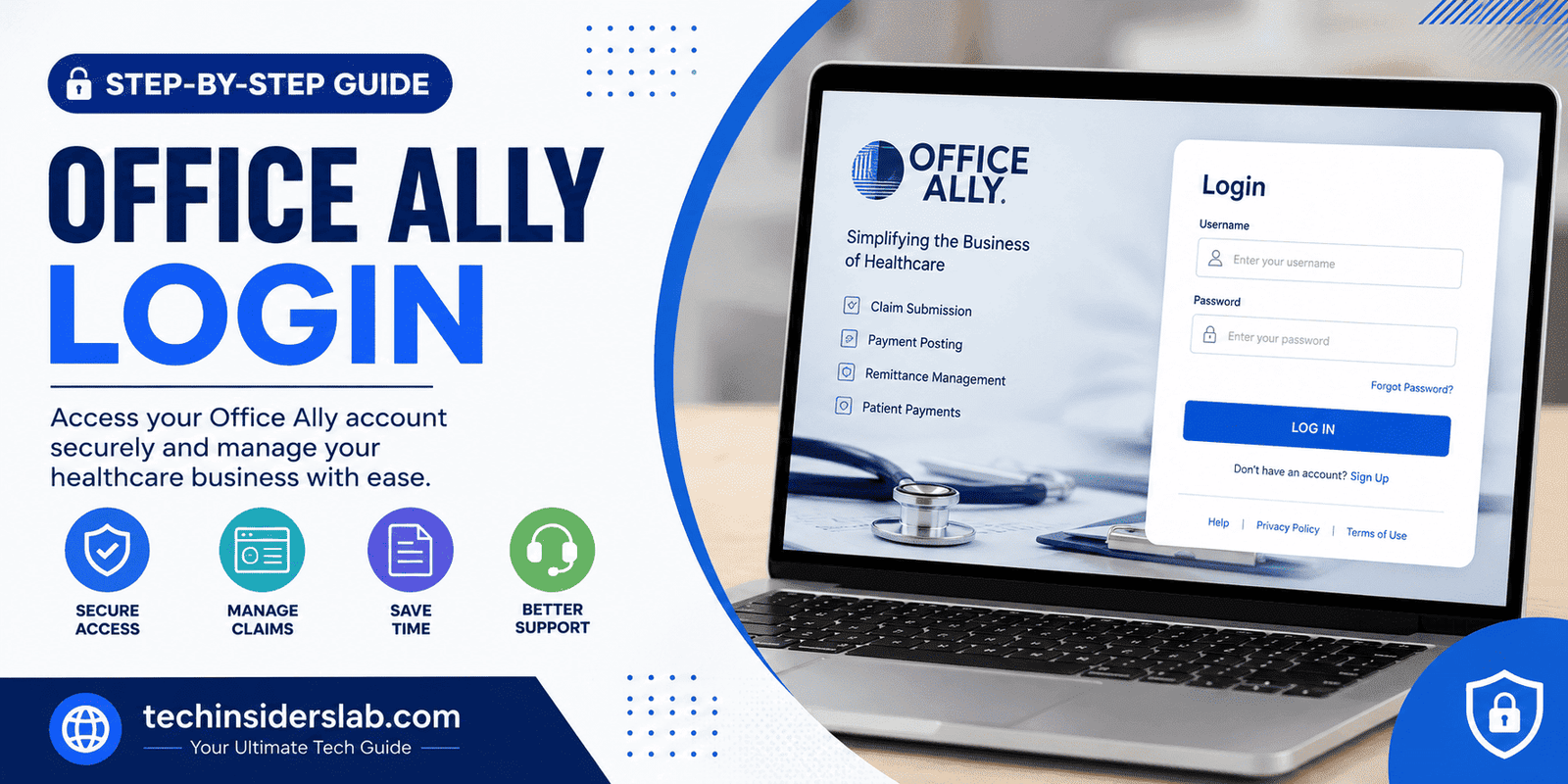
introduction
Office Ally Login is an important entry point for healthcare professionals, medical offices, billing teams, and other authorized users who rely on Office Ally’s online healthcare solutions. Office Ally provides web-based tools designed to simplify medical billing, electronic claims, eligibility verification, claim-status checking, electronic remittance, and other administrative healthcare processes. Its Service Center is described as a secure web portal and clearinghouse that supports electronic data interchange transactions.
For practices that handle insurance claims and administrative tasks electronically, knowing how the Office Ally login process works can save time and reduce unnecessary confusion. This guide explains what Office Ally Login means, how users can access their accounts, the different Office Ally applications, common login problems, account security, and practical tips for maintaining reliable access.
What Is Office Ally?
Office Ally is a healthcare technology company that provides software and electronic data exchange services for healthcare organizations. Its solutions are designed to help medical practices manage administrative workflows and communicate electronically with insurance payers.
According to Office Ally, its solutions are used by more than 80,000 healthcare organizations. Its products include Service Center, Practice Mate, EHR 24/7, EDI Clearinghouse, Payer Gateway, and several additional healthcare-focused services.
One of the most important parts of the platform is the Service Center. It functions as a web-based clearinghouse portal where healthcare organizations can manage claims and related transactions.
Depending on the user’s account and enabled services, Office Ally can support processes such as:
- Electronic healthcare claims
- Insurance eligibility verification
- Claim-status transactions
- Electronic remittance advice
- Healthcare billing workflows
- Patient and practice management
- Electronic data interchange
- Administrative user management
This makes Office Ally Login more than a simple website sign-in. It provides authorized users with access to healthcare administrative tools that may be essential to their daily operations.
What Is Office Ally Login?
Office Ally Login refers to the process of signing into an authorized Office Ally account through the appropriate Office Ally application.
Office Ally’s login area can provide access to different services, including:
Service Center: Used for clearinghouse and claims-related activities.
Practice Mate: A practice-management solution designed for healthcare offices.
EHR 24/7: An electronic health record platform.
Office Ally’s official documentation explains that users select the appropriate application from the Login menu and then provide their username and password.
Because Office Ally supports multiple products, users should make sure they select the correct application before entering their credentials.
How to Access Office Ally Login
The basic login process is straightforward.
Step 1: Visit the Official Office Ally Website
Start by going to the official Office Ally website rather than using an unfamiliar third-party login page.
Step 2: Select Login
Look for the Login option on the website. Office Ally provides separate login options for its supported applications.
Step 3: Choose Your Application
Depending on your account, select the appropriate service, such as:
- Service Center
- Practice Mate
- EHR 24/7
Selecting the correct application is important because Office Ally maintains different products and account environments.
Step 4: Enter Your Credentials
Enter your Office Ally username and password in the appropriate fields.
Office Ally’s documentation notes that the password is case-sensitive, so users should enter it exactly as it was created.
Step 5: Select Log In
After confirming your credentials, select the login button to access your account.
If the credentials are correct and the service is available, you should be taken to the appropriate Office Ally application.
What Can You Do After Office Ally Login?
The exact features available after logging in depend on the product and permissions assigned to the account.
For example, Service Center provides healthcare organizations with tools for claims submission, eligibility and benefits verification, and related transactions. Office Ally describes its Service Center as an all-payer, web-based clearinghouse portal.
Claims Management
Electronic claims are one of the major reasons healthcare organizations use Office Ally.
Instead of handling every claim manually, practices can use electronic workflows to submit information to participating payers. Office Ally’s payer resources include professional, institutional, and dental claim transactions.
Electronic claims can help practices organize billing operations and reduce the amount of paperwork associated with traditional processes.
Eligibility Verification
Insurance eligibility is another important feature.
Office Ally provides eligibility and benefits verification that can help healthcare offices determine whether a patient’s insurance coverage is active and identify relevant benefit information. The company explains that eligibility verification can help reduce claim rejections and improve administrative productivity.
The availability of eligibility services depends on the payer and account configuration. Office Ally also notes that certain payers may require enrollment before specific transactions can be performed.
Claim Status
Healthcare offices can also use supported Office Ally services to exchange claim-status transactions.
This can help billing teams monitor the progress of submitted claims instead of relying entirely on manual communication with individual insurance companies.
Electronic Remittance
Electronic remittance transactions can help healthcare organizations receive payment-related information electronically. Office Ally’s payer system includes remittance transactions and provides payer-specific enrollment information where applicable.
Office Ally Account Types
Understanding account types can make Office Ally Login easier, especially for organizations with multiple employees.
Office Ally documentation identifies three main username types:
- Parent
- Security Administrator
- Child
The Parent username is the primary username associated with an Office Ally account. The Security Administrator account is used for managing security and user access, while Child accounts can be created for individual users.
This structure can be useful for medical offices where multiple employees need access to the same organizational environment.
Instead of sharing one username and password among employees, administrators can manage individual users and permissions.
Managing Users After Login
Security administrators have additional controls for managing account access.
Office Ally explains that Security Administrators can add, edit, disable, or delete users depending on the application and account configuration.
Administrators may also be able to assign application access and permissions based on employee responsibilities.
This is particularly useful for larger healthcare organizations because not every employee needs access to every function.
For example, a billing employee may require claims access, while another employee may need practice-management or administrative permissions.
Using separate accounts also makes access management more organized.
What If You Forget Your Office Ally Username?
Forgetting a username is a common login problem.
Office Ally provides a username-recovery process. Users can select the appropriate application from the Login area and choose the option to retrieve their username. The recovery process uses the email address associated with the account.
If multiple usernames are associated with the same email address, Office Ally may require additional assistance from support.
The important point is that users should use the official account-recovery process rather than attempting to guess credentials repeatedly.
What If You Forget Your Password?
If you cannot remember your Office Ally password, use the official password-recovery option available through the login area.
Repeatedly entering incorrect passwords is not a good troubleshooting strategy. Instead, use the recovery process associated with your Office Ally application.
For organizational accounts, a Security Administrator may also have tools for managing user credentials. Office Ally documentation explains that Security Administrators can reset security credentials for child users.
Common Office Ally Login Problems
Several issues can prevent users from accessing their accounts.
Incorrect Username or Password
The most obvious problem is entering an incorrect username or password.
Remember that passwords are case-sensitive. Check capitalization, spelling, and unnecessary spaces before trying again.
Choosing the Wrong Application
Office Ally supports several applications. A user attempting to access Practice Mate through the Service Center login, for example, may become confused even if the account itself is active.
Always select the application associated with your account.
Browser Problems
Sometimes login problems can be related to browser settings, outdated software, cookies, or temporary browser issues.
Office Ally recommends modern browsers such as Google Chrome and Microsoft Edge for its web-based products.
Keeping your browser updated can therefore help provide a smoother experience.
Account Permissions
Another possible issue is insufficient account permissions.
Office Ally’s user-management system allows administrators to control application access and user permissions.
If a feature is unavailable after login, the problem may not be your password. Your account administrator may need to review your permissions.
Security and Office Ally Login
Healthcare platforms require strong security because they may handle sensitive administrative and patient-related information.
Office Ally maintains different account roles and security-management tools to help organizations control access. Its Security Administrator account can manage users and provide access to security-related settings and audit information.
Users should follow basic security practices, including:
- Never share passwords with coworkers.
- Avoid saving credentials on shared computers.
- Use strong, unique passwords.
- Log out when using shared devices.
- Keep browsers and operating systems updated.
- Avoid suspicious login links.
- Use only official Office Ally resources for account recovery.
- Contact an administrator if access appears incorrect.
Security becomes even more important when multiple employees use the same organizational account environment.
Office Ally and Healthcare Compliance
Office Ally operates in the healthcare technology and electronic data interchange space, so compliance is an important part of its services.
The company provides regulatory information related to healthcare requirements and states that it works with HIPAA and Affordable Care Act regulatory mandates. Office Ally also references CAQH-CORE certification for certain transaction standards.
Its documentation also describes security requirements around usernames, passwords, and, where applicable, certificates for accessing certain services.
For healthcare organizations, these security and compliance considerations are important when choosing and using electronic administrative platforms.
Why Office Ally Login Matters
For many medical practices, the login page is simply the starting point for a much larger workflow.
Once authenticated, authorized users may be able to manage claims, check eligibility, review transactions, access practice-management tools, or perform other administrative tasks depending on their subscription and permissions.
A reliable login process therefore contributes to smoother daily operations.
Instead of switching between numerous disconnected systems, healthcare organizations can use Office Ally’s ecosystem for several administrative functions.
Tips for a Better Office Ally Login Experience
To make account access easier, consider these practical tips:
Use the correct login page: Always start from the official Office Ally website.
Know your application: Determine whether you normally use Service Center, Practice Mate, or EHR 24/7.
Keep credentials secure: Never share your username or password unnecessarily.
Maintain browser compatibility: Office Ally recommends browsers such as Chrome and Edge for its web-based products.
Maintain administrator access: Organizations should know who their Security Administrator is so user-access problems can be resolved efficiently.
Use recovery tools: If you forget your username or password, use Office Ally’s official recovery process.
Check payer requirements: Some claims, eligibility, claim-status, or remittance transactions may require payer enrollment.
Conclusion
Office Ally Login provides authorized healthcare users with access to a broad collection of digital healthcare administrative services. From claims submission and insurance eligibility verification to claim-status transactions and electronic remittance workflows, Office Ally is designed to reduce manual administrative work for medical organizations.
The key to a smooth experience is understanding which Office Ally application you need, using the correct credentials, maintaining secure account practices, and knowing how user permissions and payer enrollment can affect access. Office Ally’s multiple account types also allow organizations to manage employee access instead of relying on one shared account.
For healthcare practices that depend on electronic billing and administrative workflows, understanding Office Ally Login is therefore more than learning how to enter a username and password. It is about understanding the gateway to a larger healthcare technology ecosystem and using its tools securely and efficiently.