Space Bar:Guide to Its Function, History, Uses, Types,Common
Introduction
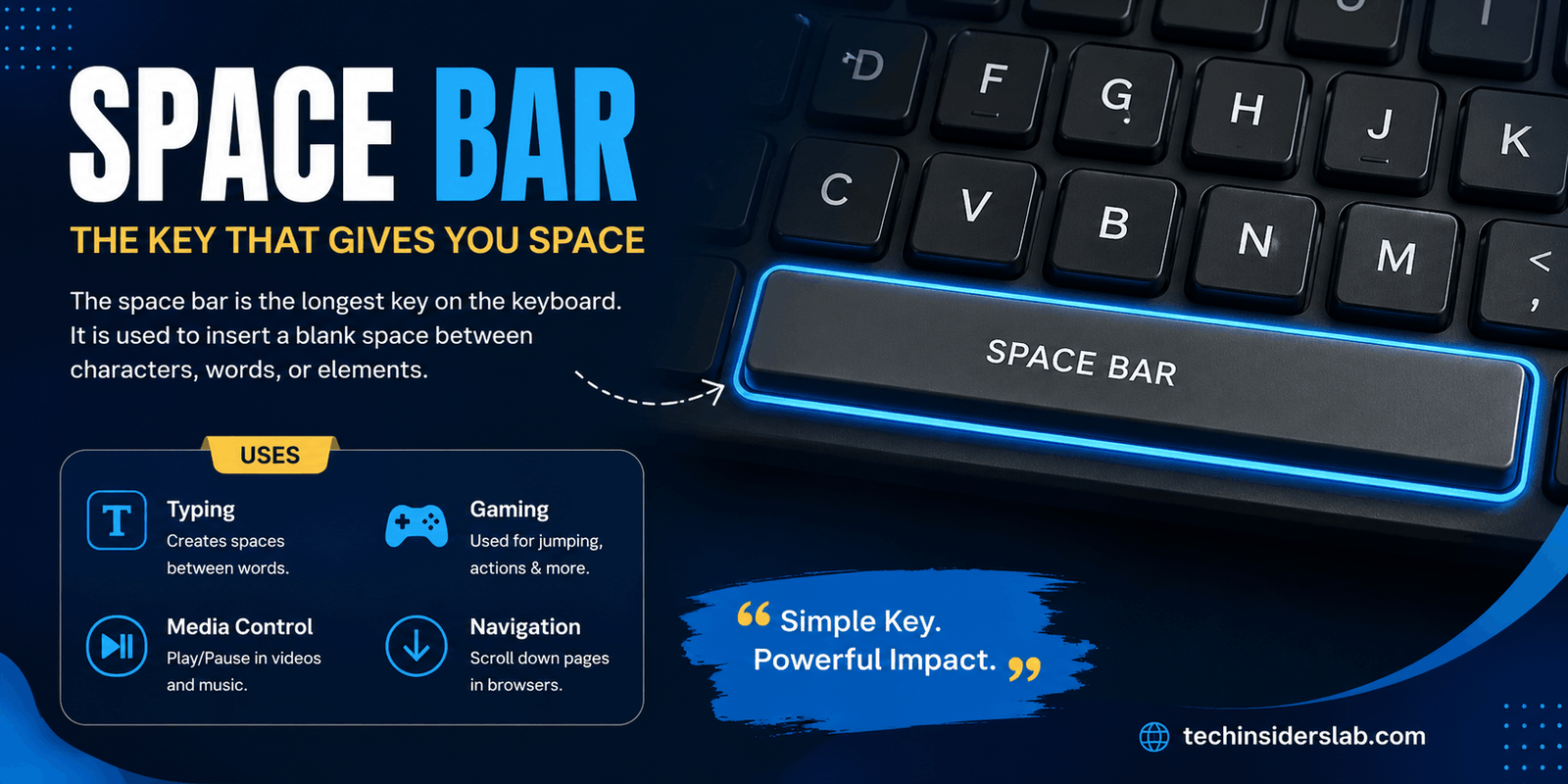
The space bar is one of the most frequently used keys on a computer keyboard, yet it is also one of the easiest to overlook. Positioned along the bottom row of most keyboards, this long horizontal key has a simple primary purpose: it inserts a blank space between characters, words, or other pieces of text.
Despite its simple function, the space bar plays an important role in typing, document formatting, programming, web browsing, gaming, media control, and many other computer activities. Its unusually large size is intentional because users generally operate it with a thumb while the other fingers remain positioned over the main typing keys.
The modern space bar is the result of decades of keyboard development. Its roots can be traced back to early typewriters, where mechanisms for creating spaces were quite different from today’s familiar key. Over time, keyboard designers developed the wide, centrally positioned bar that became standard on typewriters and later computer keyboards.
This guide explains what the space bar is, how it works, why it is so large, how it is used beyond normal typing, and what you can do when it stops working correctly.
What Is a Space Bar?
A space bar is the long key normally located at the bottom center of a keyboard. It is also commonly called the space key, spacebar, or simply space.
Its primary function is to insert a blank character between two pieces of text. For example, when you type:
Technology is changing
the space bar creates the gaps between “Technology,” “is,” and “changing.”
On a standard QWERTY keyboard, the space bar is located below keys such as C, V, B, N, and M, between the modifier-key area on the left and right sides. Its length can vary considerably depending on the keyboard layout and design.
Although its main purpose is inserting spaces, modern software frequently assigns additional functions to the key.
Why Is the Space Bar So Large?
The space bar is much wider than almost every other keyboard key for practical ergonomic reasons.
During touch typing, the four fingers of each hand generally operate the letter keys while the thumbs remain available for the space bar. Because either thumb may be used, the key needs to be large enough to reach comfortably from different hand positions.
A wide space bar also reduces the need for precise aiming. You can press its left, middle, or right section and normally get the same result.
There is also a technical reason for its construction. Because the key is long, simply placing one switch underneath its center could make the key wobble when pressed toward either end. Many keyboards therefore use stabilizers beneath the space bar. These mechanisms help keep the long key level and allow it to activate consistently even when pressure is applied away from the center.
History of the Space Bar
The history of the space bar is closely connected to the development of mechanical typing machines.
Early typewriters did not necessarily use the familiar wide bar found on modern keyboards. Some early designs used levers or smaller mechanisms for advancing the carriage and creating spaces. The Sholes and Glidden typewriter, for example, used a lever-based approach, with the development of the inset space bar occurring later in keyboard evolution.
By the late nineteenth century, some typewriters used a literal metal bar extending across a substantial portion of the keyboard. Pressing it advanced the carriage without striking a typebar.
As keyboard layouts became more standardized and designers focused increasingly on usability, the mechanism evolved into the wide central key familiar today.
The space bar then transitioned naturally from typewriters to computer keyboards. Although computer keyboards introduced many new keys and functions, the basic location and purpose of the space bar remained remarkably consistent.
How Does a Space Bar Work?
The exact mechanism depends on the type of keyboard.
Membrane Keyboards
In a typical membrane keyboard, pressing the space bar moves a rubber or plastic mechanism downward. This action causes electrical contacts inside the keyboard to connect, allowing the keyboard controller to recognize a space-key press.
These keyboards are generally inexpensive and common in offices, schools, laptops, and basic desktop setups.
Mechanical Keyboards
Mechanical keyboards use individual switches beneath their keys. When the space bar is pressed, the central switch detects the input.
Because the space bar is unusually long, mechanical keyboards normally use stabilizers to prevent uneven movement. The stabilizer system helps transfer movement across the key and keeps it from tilting when you press one side.
Laptop Keyboards
Laptop space bars are usually thinner and more compact because manufacturers need to fit the keyboard into a limited chassis. Their underlying mechanisms can differ between models.
Virtual Keyboards
On smartphones and tablets, the space bar appears as part of the touchscreen keyboard. Instead of a physical switch, tapping the displayed key sends a software input to the operating system. Lenovo also notes that virtual keyboards generally provide the same basic spacing function as physical keyboards.
Common Uses of the Space Bar
The space bar has many functions beyond inserting spaces.
1. Creating Spaces in Text
Its most important job remains creating spaces between words.
Without it, normal sentences would become difficult to read:
Without spaces:
Technologyischangingquickly
With spaces:
Technology is changing quickly
This makes the space bar fundamental to writing emails, articles, reports, messages, and documents.
2. Video and Music Playback
Many media players allow the space bar to pause and resume playback. This makes it convenient when watching videos because users can control playback without moving their hands toward a mouse.
3. Web Browsing
In many web browsers, pressing the space bar can move the page downward by approximately one screenful when the page has focus. Shift + Space can commonly move the page upward. Exact behavior can vary depending on the browser and active interface.
4. Gaming
The space bar is extremely popular in PC gaming.
It is frequently assigned to actions such as:
- Jumping
- Dodging
- Confirming actions
- Activating abilities
- Interacting with objects
- Pausing games
- Controlling vehicles
Its central position makes it easy to access while the player’s other fingers remain around movement keys such as WASD.
5. Software Shortcuts
Some applications use the space bar in combination with modifier keys. For example, certain programs may assign Ctrl + Space to specialized commands, although the exact function depends on the software.
Space Bar in Gaming
For gamers, the space bar can be much more than a typing key.
In many first-person and third-person games, the space bar is traditionally assigned to jump. This convention is partly due to its central location and large surface area.
Competitive players may also use the space bar for movement techniques, timing-based actions, or repeated commands.
Some games allow players to customize controls, meaning the space bar can be assigned to almost any available action. Rhythm games, browser games, and input-speed tests can also make extensive use of the key.
For this reason, the durability and responsiveness of a space bar can matter significantly to gamers.
Why Does the Space Bar Sometimes Make Noise?
A space bar can produce more noise than smaller keys for several reasons.
Its larger size creates more physical movement and surface area. On mechanical keyboards, the stabilizer mechanism can also produce sounds such as:
- Rattling
- Clicking
- Ticking
- Metallic noise
- Hollow bottom-out sounds
Poorly lubricated or misaligned stabilizers can make these sounds more noticeable. Since the space bar is one of the largest and most frequently pressed keys, even a small mechanical imperfection can become obvious.
Keyboard enthusiasts sometimes modify or tune stabilizers to achieve a smoother and quieter space-bar experience.
Common Space Bar Problems
Like any frequently used component, the space bar can eventually develop problems.
Space Bar Not Working
If pressing the key produces no space, possible causes include:
- Dust or debris underneath the key
- Damaged key mechanism
- Keyboard hardware failure
- Driver problems
- Software conflicts
- Accessibility settings
- Physical damage
Microsoft support discussions recommend testing another keyboard to help determine whether the problem is associated with the keyboard itself or the computer/software environment.
Space Bar Produces Double Spaces
If one press produces two spaces, the problem may involve switch chatter, software behavior, or another keyboard/input issue.
Testing the keyboard in a simple text field can help determine whether the problem occurs system-wide or only inside a particular application.
Space Bar Feels Sticky
A sticky space bar can result from:
- Dust
- Food particles
- Liquid residue
- Misaligned stabilizers
- Damaged mechanisms
Cleaning around the key carefully can sometimes restore normal movement.
Uneven Space Bar
If one side sits higher than the other or feels different when pressed, the stabilizer may be misaligned or damaged. Mechanical keyboards are particularly sensitive to stabilizer alignment because the long key relies on additional support.
How to Fix a Space Bar That Is Not Working
Before replacing the keyboard, try a few basic troubleshooting steps.
Step 1: Restart the Computer
A temporary software problem may disappear after restarting the system.
Step 2: Test in Another Application
Open a basic text editor and press the space bar. If it works there but not in one particular program, the problem may be application-specific.
Step 3: Clean the Keyboard
Turn off or disconnect the keyboard before cleaning it. Carefully remove dust and debris around the space bar using appropriate cleaning tools.
Compressed air can be useful for removing particles from around keyboard keys.
Step 4: Try an External Keyboard
If you are using a laptop, connect an external keyboard. If its space bar works normally, the laptop’s physical keyboard may have a hardware problem.
Step 5: Check Keyboard Settings
On Windows, accessibility features such as Filter Keys can affect keyboard input in some circumstances. Checking keyboard accessibility settings can therefore be worthwhile when a key behaves unexpectedly.
Step 6: Check Drivers
If the hardware appears fine but the key still does not respond, checking for keyboard driver or system-related problems may help.
Space Bar and Typing Ergonomics
Because the space bar is used so frequently, typing posture can influence the overall comfort of keyboard use.
A keyboard should be positioned so that your wrists remain as neutral as reasonably possible rather than being sharply bent upward, downward, or sideways. OSHA recommends adjusting the chair and keyboard/work surface so that the elbows are around keyboard height and the shoulders remain relaxed.
The space bar itself does not usually cause ergonomic problems. Instead, overall keyboard position, posture, repetitive typing, and hand positioning are more important factors.
Space Bar on Different Devices
The basic idea of the space bar appears across many modern devices.
Desktop keyboards: Usually have a large physical space bar.
Laptop keyboards: Use a slimmer space bar designed to fit the laptop chassis.
Mechanical keyboards: Often provide a more customizable space bar experience through different switches, keycaps, and stabilizers.
Mobile keyboards: Display a virtual space bar on the touchscreen.
Gaming keyboards: May feature specially designed keycaps, stabilizers, or materials intended for frequent use.
Although their designs vary, all of these implementations serve the same fundamental purpose: generating a space input.
Interesting Facts About the Space Bar
The space bar has several characteristics that make it different from ordinary keys:
- It is usually the widest key on a standard keyboard.
- It is normally operated using the thumb.
- It has a central role in ordinary text entry.
- It is frequently assigned to jumping in video games.
- Many media players use it for play/pause.
- Long mechanical space bars generally require stabilization mechanisms.
- The concept evolved from spacing mechanisms used in early typewriters.
- Virtual keyboards on smartphones also include a space bar.
- Its position has remained relatively consistent despite major changes in keyboard technology.
- Because it is pressed so often, it can be one of the first keys to show wear on heavily used keyboards.
Conclusion
The space bar may be one of the simplest components of a keyboard, but its importance should not be underestimated. From creating spaces between words to controlling videos, browsing webpages, and performing actions in games, this wide key has become an essential part of modern digital interaction.
Its design is also more sophisticated than it appears. The large surface is optimized for thumb-based typing, while many physical keyboards use stabilizers to keep the long key balanced and responsive. Its development from early typewriter spacing mechanisms to today’s mechanical, membrane, laptop, and virtual keyboards demonstrates how a simple input function has adapted alongside technology.
For anyone interested in keyboards, computer hardware, gaming, or everyday technology, understanding the space bar provides a useful look at how even the most familiar computer components are carefully designed around usability, reliability, and human interaction.