
Introduction
Working with text is a regular part of everyday digital life. Students write assignments, bloggers update articles, developers edit code, businesses revise documents, and professionals frequently work with multiple versions of the same content. One common problem appears when two versions of a document look almost identical but contain small differences. Finding those changes manually can take considerable time, especially when the content includes hundreds or thousands of words.
This is where a Text Compare tool becomes useful. It allows users to compare two versions of text and identify exactly what has changed. Instead of reading both documents repeatedly, users can paste their content into a comparison tool and receive a highlighted view showing added, removed, or modified words and sentences.
Text comparison tools are useful for proofreading, reviewing edited articles, checking document revisions, examining code changes, and managing written information. Many online tools also offer additional features such as line-by-line comparison, word-level highlighting, character detection, and options to ignore unnecessary formatting differences.
In this guide, we will explore what Text Compare means, how it works, its important features, practical applications, benefits, limitations, and how to choose the right comparison tool.
What Is Text Compare?
Text Compare is a digital process that examines two pieces of text and identifies the differences between them. It is commonly performed through an online text comparison tool, also known as a text diff checker or difference checker.
The basic idea is simple. Users provide two versions of text: the original version and the modified version. The tool analyzes both inputs and displays the changes in an easy-to-understand format.
For example, imagine that an original sentence says:
“The application provides useful features for students.”
After editing, the sentence becomes:
“The application offers powerful features for modern students.”
A Text Compare tool can highlight the words that were removed and the new words that were introduced. This makes it easier to understand how the sentence has changed without manually checking every word.
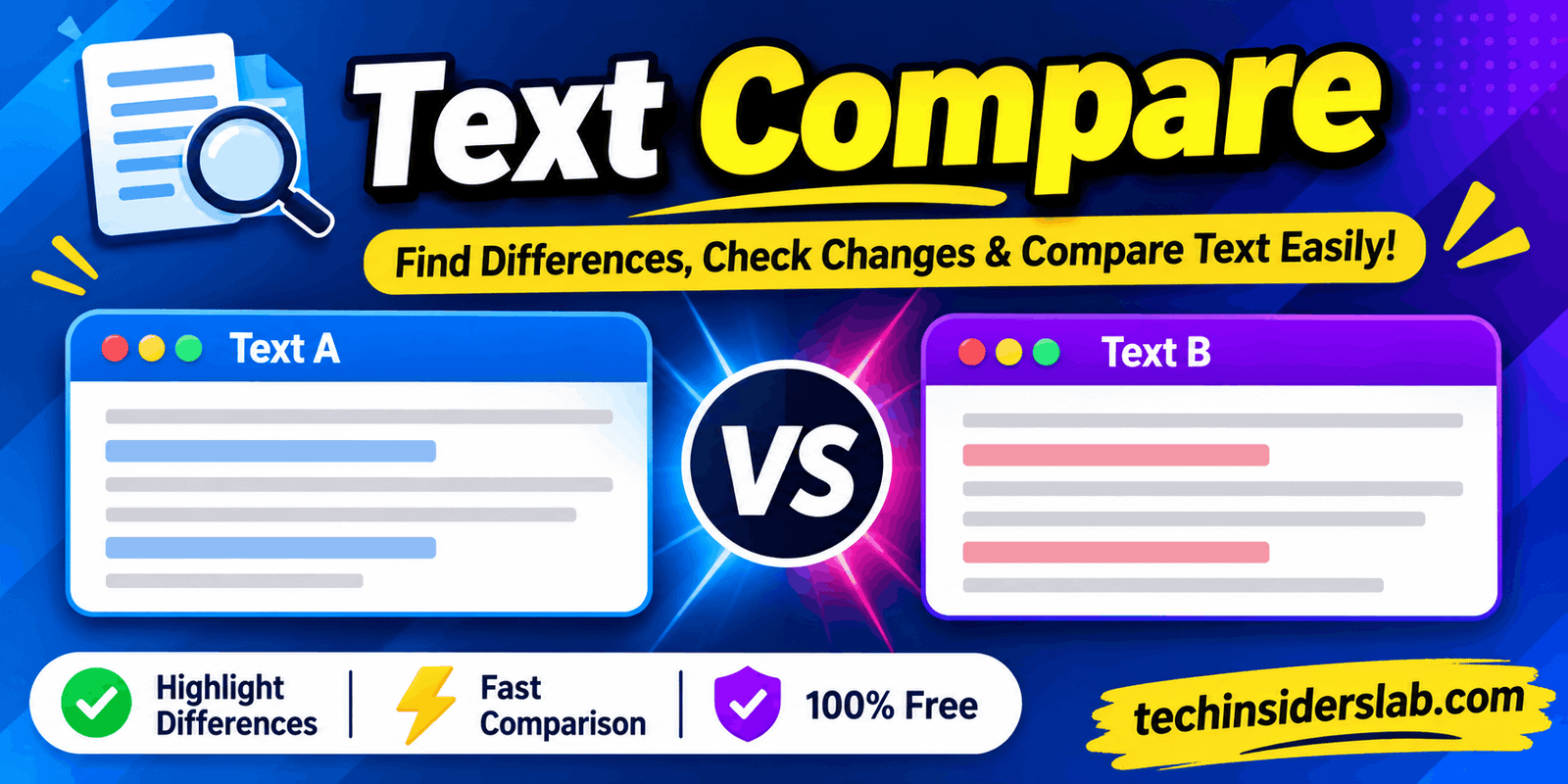
Some comparison tools display the original and updated versions side by side, while others combine both versions into a single view. Color highlighting is commonly used to distinguish additions from deletions.
Text Compare is not limited to ordinary paragraphs. Depending on the tool, users may also compare source code, configuration files, lists, reports, and other text-based information.
How Does a Text Compare Tool Work?
A Text Compare tool uses text-processing algorithms to examine two inputs and calculate their differences. Although the interface may look simple, the comparison process involves several technical steps.
1. Entering the Text
The first step is providing the two versions that need to be compared. Most online tools offer separate text boxes for the original and modified content.
Users can paste text directly into these fields. Some advanced tools also support uploading files, allowing people to compare documents without copying their entire contents manually.
2. Processing the Content
After receiving both inputs, the tool processes the text and separates it into smaller units. Depending on the selected comparison mode, these units may include individual characters, words, or complete lines.
This process helps the software examine the structure of each version and identify matching sections.
3. Identifying Differences
The comparison algorithm looks for unchanged content and determines which parts have been added, deleted, or modified.
Many diff tools use algorithms such as Myers’ difference algorithm to identify an efficient sequence of insertions and deletions between two text versions.
4. Highlighting Changes
Once the comparison is complete, the tool presents the results visually.
- Green highlighting: Commonly represents added text.
- Red highlighting: Commonly represents removed text.
- Unhighlighted text: Usually represents unchanged content.
The exact color scheme can vary between tools.
5. Reviewing the Results
Users can examine the highlighted differences and decide which changes are important. Some tools also provide navigation controls that allow users to move between individual changes.
Advanced comparison tools may support merging changes, exporting reports, or downloading comparison results.
Important Features of Text Compare Tools
Not every comparison tool offers the same functionality. Basic tools focus on finding differences between two text inputs, while advanced solutions provide additional controls for more detailed reviews.
Here are some important features worth understanding.
1. Word-by-Word Comparison
Word comparison is particularly useful when reviewing articles, essays, emails, and other written content. It identifies individual words that have been added, removed, or replaced.
For example, if someone changes a paragraph without rewriting the entire section, word-level comparison makes those small edits easier to identify.
2. Line-by-Line Comparison
Line comparison examines complete lines instead of individual words. It is especially helpful for programmers, technical writers, and people working with long documents.
It can quickly identify inserted, deleted, or modified lines without requiring users to examine every character.
3. Character-Level Comparison
Sometimes a single letter, number, or punctuation mark can make an important difference.
Character-level comparison identifies these small changes. It is useful for checking serial numbers, URLs, product codes, technical identifiers, and spelling corrections.
4. Side-by-Side View
A side-by-side layout displays the original text and updated version in separate columns. Users can examine both versions simultaneously and understand where changes have occurred.
This feature is particularly helpful when comparing lengthy documents.
5. Ignore Spaces and Formatting Differences
Extra spaces, blank lines, and capitalization differences can sometimes make a comparison difficult to understand.
Some tools provide options to ignore whitespace, letter case, or blank lines. These settings help users concentrate on meaningful content changes instead of minor formatting variations.
6. File Upload Support
Advanced comparison tools may allow users to upload documents instead of pasting text manually. Depending on the platform, supported formats can include TXT, DOCX, PDF, CSV, and other file types.
However, supported formats vary between services, so users should check the available options before uploading their documents.
7. Export and Sharing Options
Some tools allow users to download comparison results, generate reports, or share a comparison through a link.
These options are useful when multiple people need to review the same changes or maintain a record of document revisions.
Common Uses of Text Compare
Text comparison has applications across different industries and professional activities. It is not just a tool for writers; anyone who regularly edits, reviews, or manages text can benefit from it.
1. Comparing Articles and Blog Posts
Content creators frequently update their published articles to improve readability, correct errors, add information, or improve search engine optimization.
When an article has been edited several times, remembering every modification becomes difficult. A Text Compare tool helps writers identify which paragraphs were changed and whether important information was removed.
For website owners, this can be useful when reviewing updated content before publishing it.
2. Academic Assignments
Students often revise essays, research papers, reports, and assignments before submitting their final work.
Comparing different drafts helps them identify corrections and review feedback from teachers or editors. They can also check whether important sentences disappeared during the editing process.
However, comparing two drafts does not establish whether academic work is original or free from plagiarism.
3. Reviewing Business Documents
Businesses regularly update proposals, agreements, policies, reports, and internal documents.
Even a small change in a document can have important consequences. A comparison tool makes it easier to identify modified clauses, removed statements, and newly added information.
For sensitive legal or financial documents, users should select an appropriate secure comparison solution.
4. Software Development
Developers frequently modify source code while building applications, websites, and software systems.
A text diff tool can highlight changes between two versions of a code file. This makes it easier to review updates, identify accidental deletions, and understand what changed during development.
Specialized development tools may also provide syntax highlighting and integration with version control systems.
5. Editing Emails and Professional Messages
Before sending an important email, users may create several drafts to improve wording and clarity.
Comparing those drafts helps identify changes in tone, sentence structure, and information. This can be particularly helpful when preparing business proposals, customer communications, and professional announcements.
6. Checking Configuration Files
Technical professionals often work with configuration files containing settings, parameters, and system information.
A small change in a configuration file can affect how an application or service operates. Text comparison helps identify modified values and missing lines before changes are implemented.
7. Reviewing AI-Generated Content
AI writing tools can generate multiple versions of the same paragraph or article. Comparing these versions helps users understand what has changed between the original and rewritten content.
It is also useful when reviewing AI-assisted editing to ensure that important facts, explanations, and intended meanings have not been accidentally removed.
However, a text comparison tool cannot independently verify factual accuracy or determine whether content was generated by AI.
Text Compare vs. Plagiarism Checker
Many users confuse text comparison tools with plagiarism checkers because both involve examining written content. However, they serve different purposes.
A Text Compare tool identifies differences between two specific pieces of text supplied by the user. A plagiarism checker examines submitted content against external sources, such as indexed websites, academic publications, or other available databases.
| Feature | Text Compare | Plagiarism Checker |
| Main purpose | Find text differences | Identify matching content |
| Input | Usually two text versions | Usually one document |
| Added words | Identifies them | Not its primary purpose |
| Removed words | Identifies them | Not its primary purpose |
| External database | Usually unnecessary | Commonly used |
| Main users | Writers, developers, editors | Students, researchers, publishers |
For example, if a writer wants to know what an editor changed in an article, a Text Compare tool is appropriate.
If the same writer wants to investigate whether parts of the article match existing online publications, a plagiarism checker is more suitable.
These tools can complement each other, but they should not be treated as interchangeable.
Benefits of Using Text Compare
Text comparison tools provide several practical advantages that make document editing and reviewing easier.
Saves Time: Manually reading two lengthy documents can be exhausting. Automated comparison identifies differences much faster.
Improves Accuracy: Highlighting individual changes reduces the chance of overlooking small edits, missing sentences, or altered numbers.
Makes Editing Easier: Writers can review revised paragraphs and understand how their original content has been modified.
Supports Team Collaboration: Teams can use comparison reports to discuss document changes and review updates more efficiently.
Helps Developers: Programmers can identify modifications in code, configuration files, and technical documents.
Reduces Repetitive Work: Instead of repeatedly switching between two documents, users can view the differences in one organized interface.
Provides Better Document Control: Comparison results can help maintain a clearer record of revisions and updates.
How to Use a Text Compare Tool
Most online Text Compare tools follow a straightforward process. Even beginners can usually complete a comparison without technical knowledge.
Follow these steps:
- Open a Text Compare Tool: Visit a reliable online text comparison website using your preferred browser.
- Prepare Your Original Text: Copy the first version of the document or paragraph.
- Enter the Original Version: Paste it into the first text box, usually labeled Original Text or Text A.
- Enter the Updated Version: Paste the modified content into the second text box.
- Choose Comparison Settings: Select word, character, or line comparison if the tool offers these options.
- Start the Comparison: Click the Compare or Find Differences button.
- Review Highlighted Changes: Examine the added, removed, and unchanged sections.
- Save Your Results: If supported, download the report or copy the comparison for future reference.
Some tools perform the comparison automatically as soon as users enter their text. Others require clicking a button to begin the process.
How to Choose the Best Text Compare Tool
Choosing the right comparison tool depends on the type of content you work with and the level of detail you need.
Before selecting a tool, consider the following factors.
Ease of Use
A good comparison tool should have a simple interface. Users should be able to enter two text versions, start the comparison, and understand the results without following complicated instructions.
Supported Content Types
If you only compare paragraphs, a basic online tool may be sufficient. However, if you regularly work with Word documents, PDFs, spreadsheets, or programming files, look for a solution that supports those formats.
Comparison Accuracy
A useful tool should identify additions, deletions, and small modifications clearly. It should also handle punctuation, capitalization, and spacing differences appropriately.
Privacy and Security
Privacy is particularly important when comparing confidential documents. Check whether the service processes text locally in your browser or uploads it to an external server.
For example, some tools, including text.compare, advertise browser-based processing that keeps comparison content on the user’s device.
Avoid entering passwords, financial information, confidential business records, or sensitive personal information into an unfamiliar website.
Speed and Performance
A comparison tool should process ordinary documents quickly. If you regularly compare very large files, consider a desktop application that can handle larger workloads efficiently.
Free and Paid Features
Many online tools provide basic text comparison without requiring payment. Advanced features, such as document management, collaboration, specialized exports, and larger workflows, may require a paid plan.
Choose a tool based on the features you actually need rather than paying for unnecessary extras.
Popular Text Comparison Tools
Several tools are available for comparing text online and offline. Each offers a slightly different experience.
- Diffchecker: An online comparison service for text, code, and data. It provides side-by-side comparisons and additional editing and merging features.
Diffchecker - text.compare: A free, open-source comparison tool that supports text and several document formats, with options for identifying moved content and ignoring formatting differences.
text.compare - WinMerge: A desktop comparison application designed for examining files and folders, particularly useful for Windows users.
- Meld: A visual comparison and merging application commonly used for files, folders, and development projects.
- Draftable: A document comparison solution that helps users identify changes between document versions, including Word and PDF files.
The best option depends on whether you need a quick text check, detailed document review, or a more advanced development workflow.
Limitations of Text Compare Tools
Although Text Compare tools are useful, they are not perfect. Understanding their limitations can help users avoid mistakes.
They Do Not Understand Every Context: A comparison tool can identify that a word has changed, but it may not understand whether the new sentence communicates the correct meaning.
They Cannot Guarantee Plagiarism Detection: Comparing two documents does not reveal whether their content has been copied from other websites or publications.
Formatting May Be Ignored: Some basic tools compare text only and do not identify changes in fonts, colors, images, margins, or page layouts.
Large Documents Can Require More Processing: Very large files or documents containing thousands of changes may take longer to process, depending on the tool and device.
Moved Paragraphs Can Be Difficult to Interpret: Some basic comparison tools show moved content as a deletion in one location and an addition in another. More advanced tools may recognize moved blocks separately.
File Compatibility Varies: Not every service supports every document format, so users should check compatibility before starting a comparison.
Is Text Compare Useful for SEO and Content Writers?
Yes. Text Compare can be a helpful part of an SEO content workflow, especially for website owners, bloggers, and digital marketers.
Search engine optimization often requires regular content improvements. Website owners may update existing articles by adding new information, improving headings, correcting outdated details, and rewriting unclear paragraphs.
A comparison tool helps identify exactly what changed between the previous and updated versions.
For example, an SEO writer can use it to:
- Review changes made by a content editor.
- Compare old and updated blog posts.
- Check whether important paragraphs were accidentally deleted.
- Review rewritten product descriptions.
- Examine changes in meta descriptions and page titles.
- Verify updates before publishing an article.
- Maintain a clearer history of content revisions.
However, Text Compare does not directly measure keyword rankings, search intent, backlinks, or search engine performance. It should be used alongside other SEO tools rather than as a replacement for them.
For website owners, it is particularly useful when multiple writers and editors work on the same content.
Future of Text Comparison Technology
Text comparison technology is becoming more sophisticated as digital editing and collaboration continue to evolve.
Traditional comparison tools focus mainly on identifying additions, deletions, and modifications. Modern solutions are increasingly combining comparison features with document management, automation, and AI-assisted explanations.
One promising development is AI-powered change summaries. Instead of simply highlighting modified sentences, these features can explain the main differences between two versions in natural language.
Another development is improved support for different file formats. Users increasingly expect to compare documents, spreadsheets, source code, and structured data within a single workspace.
Privacy-focused processing is also an important consideration. Browser-based comparison allows certain tools to process documents locally, reducing the need to transmit sensitive content to external servers.
In the future, comparison tools may become even more useful for collaborative editing, automated document reviews, and large-scale content management.
Conclusion
Text Compare is a practical digital tool that makes identifying differences between two versions of text easier and faster. Whether someone is editing a blog post, reviewing an academic assignment, checking business documents, or examining programming code, text comparison can simplify the entire review process.
Its most useful features include word-level highlighting, line-by-line comparison, character detection, side-by-side viewing, and options to ignore unnecessary formatting changes.
Although it cannot replace plagiarism detection, proofreading, or human judgment, it provides an efficient way to understand document changes and maintain better control over revisions.
For students, writers, developers, businesses, and website owners, using a reliable Text Compare tool can save time, reduce manual effort, and make everyday editing tasks more organized.