How to Find My IP Address: A Complete Guide
introduction
An IP address is one of the basic components that allows devices to communicate across the internet. Whether you are browsing websites, using an online service, playing games, troubleshooting a network, or configuring a router, your device uses IP addressing to send and receive data.
If you have ever searched for “How to Find My IP Address,” you may have noticed that there can be more than one answer. Your device can have a private IP address inside your local network, while your internet connection can have a public IP address that websites and online services can see.
Understanding the difference between these addresses makes it much easier to troubleshoot internet problems and manage your network. This guide explains what an IP address is, how to find it on different devices, and what the information means.
What Is an IP Address?
IP stands for Internet Protocol. An IP address is a numerical or alphanumeric identifier used to identify a device or network endpoint and help route data to the correct destination.
A simple way to understand an IP address is to compare it with a mailing address. When you send a letter, the postal system needs a destination address. Similarly, internet traffic contains addressing information that allows network devices to determine where data should go.
For example, an IPv4 address can look like:
192.168.1.10
An IPv6 address looks considerably different, such as:
2001:db8:85a3::8a2e:370:7334
IPv4 uses a 32-bit address format, while IPv6 uses 128 bits and provides a much larger address space. Both technologies continue to be used across the internet.
Public IP vs. Private IP Address
One of the most important things to understand when learning how to find your IP address is the difference between a public IP and a private IP.
Public IP Address
Your public IP address is associated with your internet connection and is generally the address that internet services see when your traffic reaches them.
Your internet service provider, or ISP, assigns the public-facing address used by your connection. Depending on your service, this address may change over time.
A public IP can be useful when troubleshooting internet connectivity, configuring certain services, or checking how your connection appears to websites.
Private IP Address
A private IP address is normally used inside your local network. Your router can assign different private addresses to devices such as computers, phones, smart TVs, and printers.
Common private IPv4 addresses include ranges such as:
- 192.168.x.x
- 10.x.x.x
- 172.16.x.x through 172.31.x.x
For example, your laptop might have a private IP such as 192.168.1.25, while your router uses a different address to communicate with the wider internet.
This means the IP address you see in your computer’s network settings may not be the same IP address that an external website sees.
How to Find My Public IP Address
Finding your public IP address is usually the easiest part.
The simplest method is to open a search engine and type:
What is my IP address
Many search engines and online IP-checking tools can display the public IP associated with your current internet connection.
You can also use a browser-based IP lookup service. These tools may display additional information such as your general geographic region, ISP, IP version, and other network-related details.
Keep in mind that IP-based location is not the same as GPS location. An IP address can provide an approximate location, but it should not automatically be treated as an exact physical address.
How to Find Your IP Address on Windows
Windows provides several ways to find your local IP address.
Method 1: Using Windows Settings
- Open Settings.
- Select Network & Internet.
- Choose your active connection, such as Wi-Fi or Ethernet.
- Open the connection properties.
- Look for the IP address information.
Depending on your Windows version and connection type, you may see both IPv4 and IPv6 information.
Method 2: Using Command Prompt
You can also use Windows Command Prompt.
- Press Windows + R.
- Type cmd.
- Press Enter.
- Type:
ipconfig
- Press Enter.
Windows will display network configuration information for your adapters. Look for the IPv4 Address field to find the local IPv4 address assigned to that network adapter.
If IPv6 is enabled, you may also see an IPv6 address.
This method is especially useful when troubleshooting network problems because it provides information about your adapter, default gateway, and other configuration details.
How to Find Your IP Address on Mac
Mac users can find their local IP address through System Settings.
- Open System Settings.
- Select Network.
- Choose your active connection, such as Wi-Fi.
- Open the connection details.
- Look for the IP address information.
The exact appearance can vary between macOS versions, but the network settings provide information about the active connection.
You can also use Terminal if you are comfortable with command-line tools. Network commands can display information about active interfaces and assigned addresses.
How to Find Your IP Address on Android
Android devices can show their local network information through Wi-Fi settings.
A typical process is:
- Open Settings.
- Tap Network & Internet or Connections.
- Select Wi-Fi.
- Tap the connected Wi-Fi network.
- Open its network details.
- Look for the IP address.
The exact menu names vary between Android manufacturers and operating system versions.
For example, Samsung, Google Pixel, Xiaomi, OnePlus, and other Android phones may organize network information differently.
If you want to know your public IP, checking through a browser is generally easier than looking through the phone’s Wi-Fi settings.
How to Find Your IP Address on iPhone
On an iPhone, you can find the local IP address through the Wi-Fi settings.
- Open Settings.
- Tap Wi-Fi.
- Tap the information icon next to your connected network.
- Look for the IPv4 or IPv6 address information.
The address shown here is normally associated with your local network connection.
If you want to find your public IP address instead, open Safari and search for “What is my IP address.”
This distinction is important because your iPhone’s local Wi-Fi address and your public internet address can be completely different.
What Is IPv4?
IPv4 is the older and still widely used version of Internet Protocol addressing.
An IPv4 address contains four numerical sections separated by periods. For example:
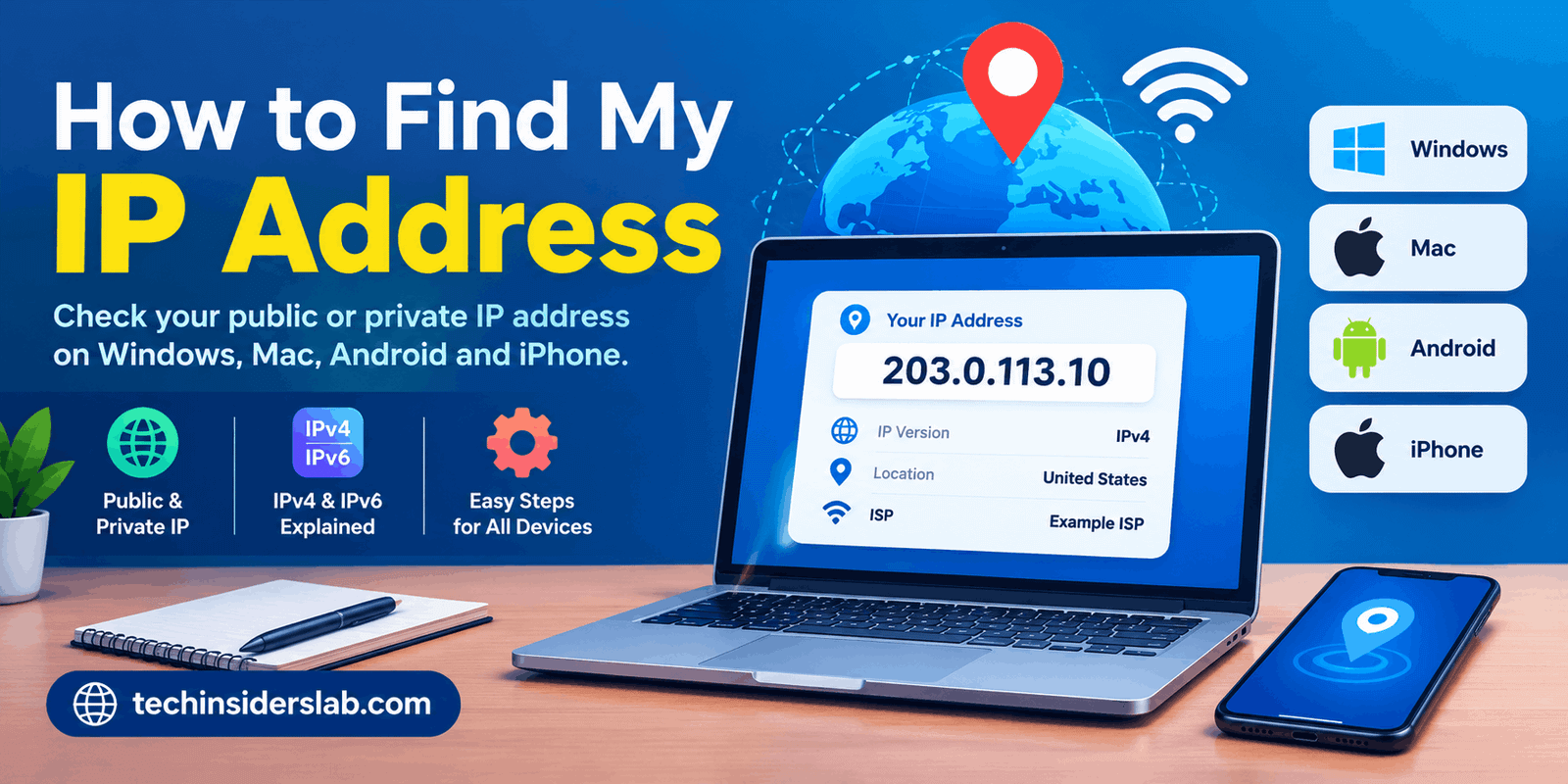
203.0.113.10
IPv4 uses 32 bits, providing approximately 4.3 billion possible addresses. The rapid growth of internet-connected devices contributed to the development and adoption of IPv6, which provides a much larger address space.
IPv4 remains extremely common, so most users will encounter IPv4 addresses when checking their network settings.
What Is IPv6?
IPv6 is the newer version of the Internet Protocol.
Instead of four decimal sections, IPv6 uses hexadecimal characters separated by colons. A simplified example is:
2001:db8::1
IPv6 uses 128-bit addresses, allowing an enormous number of unique addresses compared with IPv4.
Many modern devices and networks support both IPv4 and IPv6. This arrangement allows different parts of the internet to continue operating while IPv6 adoption expands.
Static vs. Dynamic IP Addresses
Another useful distinction is between static and dynamic IP addresses.
A dynamic IP address can change over time. This is common for ordinary residential internet connections because ISPs can assign addresses from available pools.
A static IP address is intended to remain consistent. Businesses and users operating certain servers or remote-access services may choose static addressing because having a predictable address can simplify configuration.
Dynamic addressing is perfectly normal for many home users and does not mean there is a problem with the internet connection.
Why Would You Need to Find Your IP Address?
There are many legitimate reasons to check your IP address.
Troubleshooting Internet Problems
Network technicians may ask for IP information when diagnosing connectivity issues. Your local IP, gateway, DNS configuration, and other network details can help identify where a problem is occurring.
Setting Up a Network
When configuring routers, printers, computers, cameras, or other network devices, knowing local IP addresses can make setup easier.
Remote Access
Some remote-access applications and network services may require information about your network configuration.
Checking Your Internet Connection
Checking your public IP can confirm which address your internet connection is currently using.
Understanding Your Network
Learning about IP addresses is useful for anyone interested in networking, cybersecurity, web development, or general computer technology.
Can an IP Address Reveal Your Exact Location?
An IP address can sometimes provide an approximate geographic location, but it normally should not be considered an exact GPS coordinate.
IP databases can associate addresses with countries, regions, cities, ISPs, and network organizations. However, the accuracy can vary significantly.
VPNs, mobile networks, corporate networks, proxies, shared connections, and other network technologies can make IP-based location even less precise.
Therefore, seeing a city associated with an IP address does not necessarily mean that the device is physically located at that exact place.
Does Your IP Address Stay the Same?
Not necessarily.
Many residential internet connections use dynamic addressing, meaning the public IP can change. A change can happen after a router reconnects, after a lease is renewed, or because of the ISP’s network management.
Mobile connections can also work differently from traditional home broadband connections.
If you require a consistent public IP for a specific service, you may need a static IP or another networking solution.
Is It Safe to Share Your IP Address?
An IP address is network information, so it is sensible to avoid sharing it unnecessarily with strangers.
A public IP address alone does not automatically reveal everything about you. However, it can be useful network information and may be used for activities such as approximate geolocation, traffic analysis, filtering, or security controls.
You should be particularly careful about sharing network details publicly when discussing security-sensitive configurations.
For normal troubleshooting, it is often better to share only the information that a trusted technician or service provider actually needs.
IP Address and VPNs
A VPN can change the public IP address that websites generally see by routing traffic through a VPN server.
For example, without a VPN, a website may see the public address associated with your internet connection. With a VPN enabled, the website may instead see the VPN server’s public IP.
This is one reason people use VPN services for privacy, remote access, or connecting through a different network location.
However, a VPN does not make someone completely anonymous online. Other information, such as account activity, browser characteristics, cookies, and other tracking mechanisms, can still exist.
Conclusion
Finding your IP address is a simple way to understand how your device connects to the internet. Whether you need your public IP for general information or your private IP for network troubleshooting, you can find it easily through your device settings or an online IP-checking tool. Understanding the difference between public and private IP addresses, as well as IPv4 and IPv6, can also help you manage your network more effectively.