PS1 BIOS: Guide to PlayStation BIOS Files and Emulation
Introduction
The original PlayStation, commonly known as the PS1, remains one of the most memorable gaming consoles ever released. Its library includes classic titles, memorable soundtracks, and games that helped shape modern console gaming. Even today, many retro gaming fans want to experience these games on computers and other supported devices.
Emulation makes this possible by reproducing the behavior of the original console through software. However, setting up a PlayStation emulator can sometimes be confusing, especially when terms such as BIOS, ROM, firmware, and emulator cores appear together.
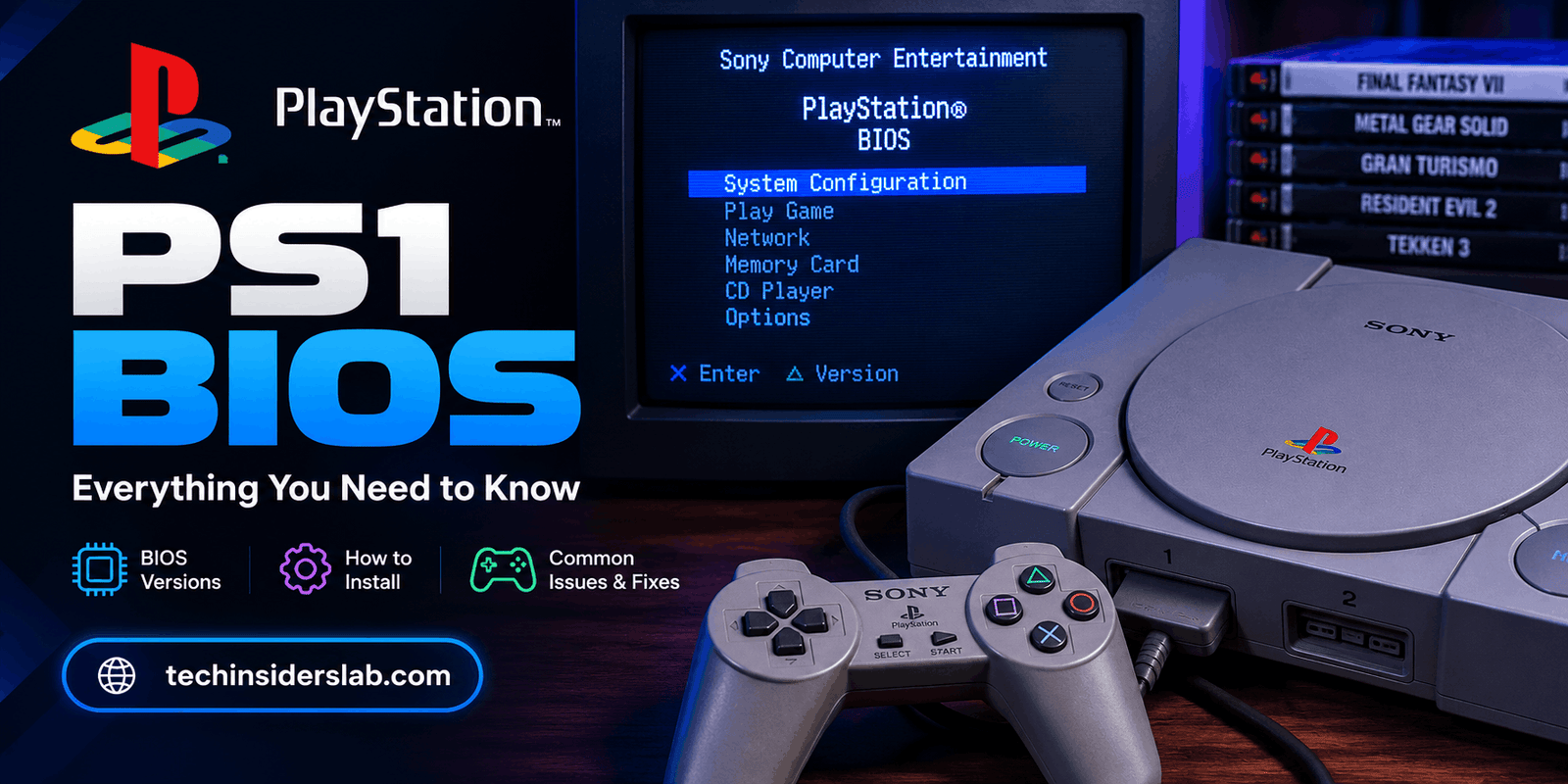
PS1 BIOS is one of the most important concepts to understand. A BIOS file is associated with the console’s firmware and may be required by certain emulators. It is not the same as a game, and it is not the emulator itself.
This guide explains what PS1 BIOS means, how it works, why different versions exist, and how to approach common compatibility problems. The goal is to make the subject understandable for beginners while still providing useful information for experienced retro gaming enthusiasts.
What Is a PS1 BIOS?
BIOS stands for Basic Input/Output System. In the original PlayStation, the BIOS is firmware stored in the console’s ROM. It is responsible for important low-level functions that help the system initialize and operate.
When a physical PlayStation is switched on, its firmware is part of the process that prepares the console to run software. An emulator attempts to reproduce the behavior of that hardware, and a compatible BIOS image can help reproduce the original system’s firmware behavior.
A simple way to understand the relationship is:
The emulator reproduces the console’s hardware, while the BIOS provides firmware behavior associated with the original system.
This distinction is important because many beginners confuse a BIOS file with a PlayStation game. A game contains the software that runs on the console, while the BIOS is part of the system software.
Why Is a BIOS Used in PlayStation Emulation?
The answer depends on the emulator. Some PlayStation emulators can use an HLE BIOS, which is a software-based replacement that reproduces certain BIOS functions. Other emulators support or recommend using an original BIOS image.
This means that a separate BIOS file is not always required for every emulator. Some setups can run games without an original BIOS, while others may offer better compatibility when a valid BIOS is available.
The difference is especially important when troubleshooting. If an emulator works without a BIOS, that does not mean BIOS files are useless. It simply means that the emulator has another way to provide the required functionality.
Original BIOS and HLE BIOS
| Type | Description |
| Original BIOS | Firmware image associated with an actual PlayStation |
| HLE BIOS | Software implementation of BIOS functionality |
| Emulator | Program that reproduces the console hardware |
| Game image | Software data for a particular PlayStation game |
An HLE BIOS can be convenient, but it may not reproduce every behavior of the original firmware. In some cases, that difference can affect compatibility.
Understanding PS1 BIOS Regions
The original PlayStation was released in different regions, and its BIOS versions reflect those regional differences. The most commonly discussed versions include:
- SCPH-5500 — Japan-region BIOS
- SCPH-5501 — North American or US-region BIOS
- SCPH-5502 — European-region BIOS
These are different firmware versions associated with different regional releases of the console.
Why Does the Region Matter?
Some games were designed for a particular regional version of the PlayStation. Using a BIOS that matches the expected region can help an emulator reproduce the original behavior.
For example, a Japanese game may be associated with a Japanese BIOS, while a North American game may be associated with a US BIOS. However, the exact requirements depend on the emulator and the game.
It is also important to understand that BIOS files are not simply interchangeable because their names look similar. Different revisions may contain different firmware behavior.
Common PS1 BIOS File Names
Different emulators support different BIOS revisions. Some commonly encountered filenames include:
| File name | General description |
| scph5500.bin | Japan-region BIOS |
| scph5501.bin | North American BIOS |
| scph5502.bin | European BIOS |
| scph1001.bin | Another commonly supported PS1 BIOS revision |
| scph7001.bin | Another commonly supported PS1 BIOS revision |
These names should not be treated as interchangeable labels for one identical file. They identify different firmware versions or regional variants.
A filename alone also does not prove that a file is valid. Two files can have similar names but contain different data.
PS1 BIOS and RetroArch
RetroArch is a popular frontend that can run different emulator cores. One commonly used PlayStation core is Beetle PSX.
In a typical setup, the BIOS file is placed in the core’s expected system directory. The exact location depends on the RetroArch installation and the platform being used.
A general setup process is:
- Install RetroArch from a legitimate source.
- Install a compatible PlayStation core.
- Check the core’s BIOS requirements.
- Place the legally obtained BIOS file in the correct system directory.
- Confirm that the filename and region match the documentation.
- Start the emulator and test a compatible game image.
The important point is that the correct location and filename depend on the emulator. A BIOS file placed in the wrong folder may not be detected even if the file itself is valid.
Why Correct File Names Matter
Emulators often look for specific filenames. If a file is renamed incorrectly, the emulator may not recognize it.
For example, changing a filename to make it look like a supported BIOS does not change the actual contents of the file. If the emulator expects a particular revision, the file must contain the correct firmware data.
This is why checking the emulator’s documentation is more useful than simply downloading a file and renaming it.
How to Check a PS1 BIOS File
One of the most useful technical checks is a hash. A hash is a value calculated from the contents of a file. If the file changes, its hash will usually change as well.
Emulator documentation may provide MD5 or SHA-256 hashes for known BIOS images. These values can help users verify whether their file matches a documented version.
A practical verification process is:
- Identify the BIOS filename.
- Check which revision the emulator expects.
- Compare the file’s hash with the documented hash.
- If the hash does not match, check whether the file is corrupted, mislabeled, or a different revision.
This is more reliable than judging a BIOS file by its filename alone.
Legal and Safe BIOS Sources
PS1 BIOS files are copyrighted firmware. The safest approach is to obtain them through a legitimate method that complies with the laws applicable to you.
For users who own an original console, the relevant concept is BIOS dumping. This means creating a backup of the firmware from hardware they own, using an appropriate method.
The legality of copying and using firmware can vary by jurisdiction, so users should check the rules that apply to them.
A responsible technology article should avoid presenting unauthorized BIOS downloads as official or guaranteed-safe files. It should also avoid claiming that every BIOS download website is trustworthy.
Instead, it is better to explain:
- What BIOS files are.
- Why they may be needed.
- How to verify a file.
- Where to find official emulator documentation.
- Why users should obtain firmware legally.
This approach provides useful information without encouraging copyright infringement.
Common PS1 BIOS Problems
1. The Emulator Cannot Find the BIOS
This is one of the most common setup issues. The file may be in the wrong directory, have an incorrect filename, or be unsupported by the selected emulator core.
What to check:
- Confirm the system directory.
- Check the exact filename.
- Review the emulator’s BIOS documentation.
- Make sure the file is not inside an extra folder.
2. The BIOS Is Not Compatible
A file may belong to another console, another region, or another revision. Some emulators may reject it or behave unexpectedly.
Solution: Check the emulator’s supported BIOS list and verify the file’s hash when available.
3. The Game Starts but Has Problems
A game may boot but experience black screens, glitches, or other compatibility issues. This does not always mean the BIOS is the only problem.
Other factors can include:
- Incorrect game image format.
- Unsupported emulator settings.
- A damaged game image.
- Region mismatch.
- Emulator core compatibility.
It is important to troubleshoot these possibilities instead of assuming that every problem is caused by the BIOS.
4. The Game Does Not Boot Without a BIOS
Some emulator cores can fall back to an HLE BIOS, but that may not provide the same compatibility as an original firmware image.
This is why a valid BIOS can be useful even when an emulator technically supports running without one.
PS1 BIOS and Game Compatibility
A BIOS is only one part of the emulation setup. A working emulator also needs a compatible game image and appropriate settings.
For example, a user may have:
- A valid BIOS.
- A correctly installed emulator.
- A game image that is damaged or incorrectly formatted.
In that case, the BIOS may be perfectly fine, but the game still may not work.
This is why troubleshooting should be systematic rather than assuming that every problem is caused by the BIOS.
Tips for Better PS1 Emulation
Use the Emulator’s Official Documentation
Documentation is usually the best place to find supported BIOS names, file locations, and configuration instructions.
Keep BIOS Files Organized
Store BIOS files in a dedicated folder or the emulator’s expected system directory. Avoid mixing unrelated files or renaming them without a reason.
Use the Correct Region
If an emulator expects a specific regional BIOS, use the appropriate one. Do not assume that a different region will always work.
Check Compatibility Before Changing Settings
If a game fails, check the emulator documentation first. Randomly changing settings can make troubleshooting harder.
Keep Your Setup Legal
Use legally obtained firmware and game images. This is important for both copyright compliance and the safety of your files.
Conclusion
PS1 BIOS is an important part of understanding PlayStation emulation. It is not a game, and it is not the emulator itself. Instead, it is firmware that can help an emulator reproduce the behavior of the original console.
The most important things to remember are:
- BIOS files are separate from game images.
- Different regions and revisions may matter.
- Some emulators support HLE BIOS.
- File names and hashes can help verify compatibility.
- Official documentation is the best source for setup instructions.
- Legal and safe firmware sources should always be preferred.
For anyone exploring retro gaming, learning about PS1 BIOS is a useful first step toward understanding how classic console software can run on modern devices.