introduction
Ooma Office Login is a useful topic for readers who want to access their business phone account, manage communication settings, or understand how Ooma’s office calling platform works. This guide explains the login process, account management, common problems, and practical tips for using the service.
Category: Tools → Business Communication Tools
What Is Ooma Office?
Ooma Office is a cloud-based business phone system designed to help companies manage calls, extensions, and communication from different devices. It combines traditional office-phone functions with online management tools, making it useful for small businesses and teams that need flexible communication.
The platform includes features such as virtual receptionists, ring groups, call forwarding, voicemail, and conference calling. Depending on the plan, businesses can also access desktop calling, text messaging, video meetings, call recording, and CRM integrations.
Ooma Office Login: Where to Start
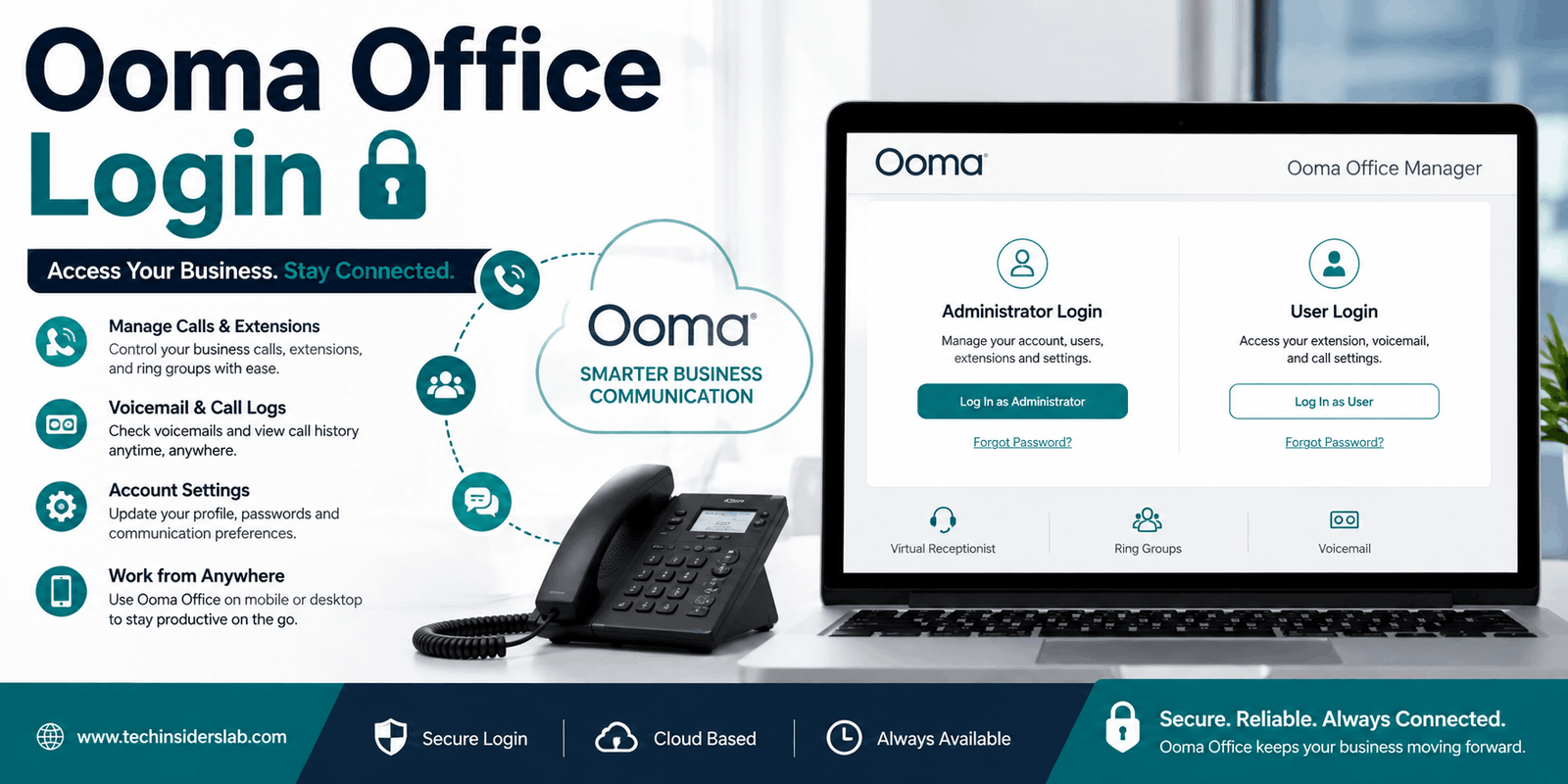
The official Ooma Office Manager login page is available at office.ooma.com . The page provides separate options for administrators and users, so the correct login method depends on your role.
Official login portal
Access your account through Ooma’s business phone management website.
Open Ooma Office Manager
For administrators: Manage company-wide phone settings, users, extensions, and other account features.
For users: Access your own extension, voicemail, call logs, and preferences.
How to Log In to Ooma Office
Administrator login
Administrators use the Ooma Office Manager portal to manage the business account. The current login page offers an account-based login and an email-based login option for users who have already set up email access.
- Open the official Ooma Office Manager website.
- Select the appropriate login option.
- Enter your account or email credentials.
- Complete the sign-in process to access the management dashboard.
The administrator portal is designed for managing company settings, including virtual receptionist menus, extensions, ring groups, conference lines, and account information.
User login
Employees generally use their Ooma Office credentials to access the End User Portal. Ooma’s support documentation identifies the required information as the country, phone number, extension, and extension password.
- Visit the official Ooma Office login page.
- Choose the For Users option.
- Enter your country, phone number, extension, and password.
- Sign in to open your personal account dashboard.
Your phone number and extension are typically provided in the welcome email, which also contains instructions for setting the initial password.
What Can You Do After Logging In?
The Ooma Office login is more than a simple sign-in page. It connects users to tools that help manage everyday business communication.
Call management
Manage extension preferences, call forwarding, and other calling options.
Voicemail
Listen to and manage voicemail messages from the portal.
Call logs
Review recent incoming, outgoing, and missed calls.
Account settings
Update profile information, passwords, and communication preferences.
These functions are documented in Ooma’s End User Portal support materials.
Ooma Office Login vs. Ooma Office Manager
The terms “Ooma Office login” and “Ooma Office Manager login” are often used interchangeably, but they can refer to different access levels.
| Portal | Main purpose |
| Ooma Office Manager | Company administration and phone-system configuration |
| End User Portal | Personal extension management and communication preferences |
| Ooma Office Mobile App | Business calling and extension access from a smartphone |
| Ooma Office Desktop App | Calling and phone-system access from a computer |
The administrator portal is intended for account management, while the user portal focuses on individual extension functions.
Ooma Office Mobile App Login
Ooma Office also supports mobile access for employees who need to make and receive business calls away from their desk. The mobile app uses the user’s Ooma Office credentials, including the country, phone number, extension, and extension password.
After signing in, users can make and receive calls, manage their extension, and access voicemail. The mobile app is especially useful for remote workers, traveling employees, and teams that need to stay connected outside the office.
Ooma Office Desktop App Login
The desktop app provides another way to access business calling features from a computer. Ooma’s support documentation explains that users can sign in with their Ooma Office credentials and then use the app to make calls, manage their extension, and adjust settings.
Depending on the service plan, desktop features may include softphone calling, call management, and other collaboration tools. Ooma Office Pro, for example, includes a desktop app, text messaging, video conferencing, and call recording.
Common Ooma Office Login Problems
Login issues can happen for several reasons, including incorrect credentials, an account that has not been fully activated, or confusion between administrator and user access.
1. Forgot your password
If you cannot remember your password, use the password-recovery option available on the login screen when applicable. Ooma’s support documentation also explains that users may need to contact their administrator or community manager to initiate a reset, depending on the account setup.
2. Welcome email not received
New users may need the welcome email to access their phone number, extension, and password setup instructions. If the email is missing, contact the account administrator or follow the recovery instructions provided by Ooma support.
3. Wrong login portal
A common mistake is trying to use the administrator portal when you need the user portal, or vice versa. Make sure you select the correct role on the official login page.
4. Mobile app not working
If the mobile app is not functioning correctly, Ooma recommends using its in-app Help section to contact support, report a problem, or send logs for troubleshooting.
5. Old portal or app version
Ooma’s support documentation notes that older versions of the desktop app or user portal may need to be updated to access the newest features.
Tips for a Smooth Login Experience
- Use the official website: Avoid entering account credentials on unfamiliar login pages.
- Keep your credentials secure: Do not share your password with coworkers or unknown individuals.
- Check your role: Administrators and users may have different access options.
- Use the correct extension: Your extension is part of the user login information.
- Keep the app updated: Updating the desktop or mobile app can help maintain compatibility.
- Contact support when needed: Use Ooma’s official support resources for account-specific issues.
These practices help reduce common access problems and make it easier to manage your business phone account.
Ooma Office Features That Make It Useful
One reason businesses use Ooma Office is that it brings several communication functions into one system. Instead of relying only on a traditional desk phone, employees can use supported devices and online tools to manage calls and stay connected.
Virtual receptionist
A virtual receptionist can greet callers and direct them to the appropriate employee or department. This is useful for businesses that want a more organized way to handle incoming calls without requiring someone to answer every call manually.
Extensions and ring groups
Extensions allow employees to have their own business phone identity, while ring groups help route calls to teams such as sales or customer service. These features can make it easier for callers to reach the right person.
Voicemail and call logs
Users can listen to voicemail, review call history, and manage communication preferences through the End User Portal. These tools are helpful for keeping track of missed calls and important messages.
Mobile and desktop access
Ooma Office supports mobile and desktop applications, allowing users to access business calling features from different devices. This flexibility can be valuable for remote work and employees who move between locations.
Collaboration features
Depending on the plan, Ooma Office may include video conferencing, text messaging, call recording, and other collaboration tools. These features can help businesses combine calling and teamwork in a single communication platform.
Is Ooma Office Login Free?
The login portal itself is an access point for an existing Ooma Office account. It is not a separate free phone service. Ooma Office is a subscription-based business phone platform, and the available features depend on the plan and account setup.
Businesses should check the official pricing and plan details before choosing a service. Ooma’s current business phone pages describe different plans and feature levels, including Essentials, Pro, and Pro Plus.
Who Can Use Ooma Office Login?
Ooma Office login is mainly useful for:
- Small business owners managing their phone system.
- Office administrators configuring users, extensions, and call settings.
- Employees accessing their personal business extension.
- Remote workers using mobile or desktop calling tools.
- Customer service teams managing calls and communication preferences.
The exact features available depend on the user’s role and the services enabled on the account.
How Ooma Office Supports Business Communication
A business phone system is most useful when it helps employees communicate consistently. Ooma Office combines calling features with online management, allowing businesses to configure settings and access communication tools from connected devices.
For example, a company can use a virtual receptionist to greet callers, ring groups to direct calls to departments, and voicemail to help employees manage messages. Users can also access their extension through supported mobile and desktop applications.
This makes Ooma Office a practical option for businesses that want more flexibility than a basic phone setup while still keeping their communication system organized.
Conclusion
Ooma Office Login is an important gateway for businesses that use Ooma’s communication services. It gives administrators access to phone-system management tools and allows employees to manage their own extensions, voicemail, and calling preferences. With mobile and desktop access also available, Ooma Office can support flexible communication for modern workplaces.
For anyone having trouble signing in, the best approach is to use the correct official portal, check the required credentials, and follow Ooma’s support instructions when needed. Understanding the difference between administrator and user access can make the login process much easier.
Overall, Ooma Office Login is a useful business tool for managing communication efficiently, and learning how to access it can help users get the most from their Ooma Office account.