introduction
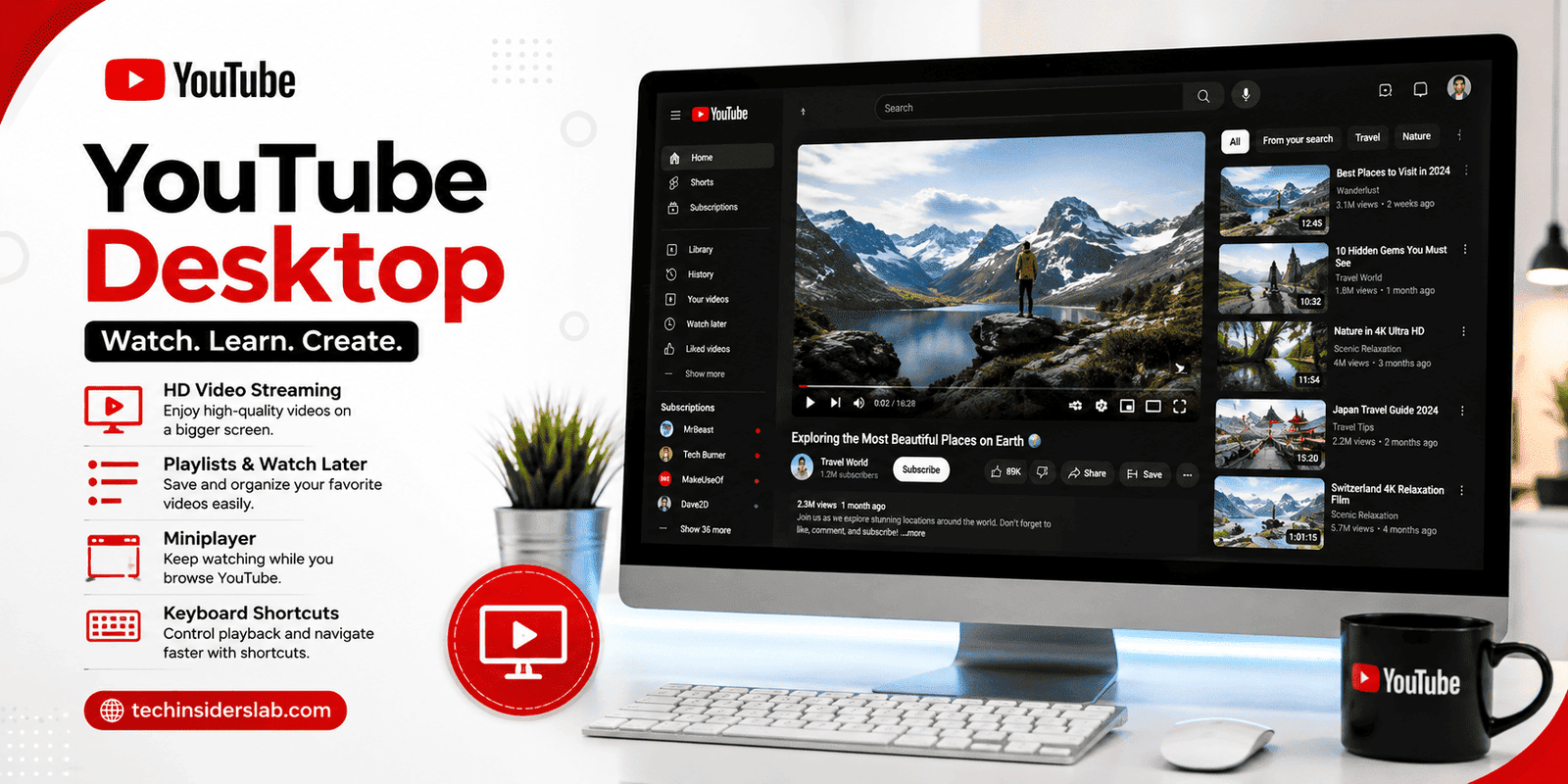
YouTube Desktop is the computer-based version of YouTube, designed for watching videos, organizing content, and managing your account through a web browser. It is a useful topic for a technology website because it combines video streaming, productivity features, accessibility, and creator tools in one platform.
This guide explains what YouTube Desktop offers, how its main features work, and how users can get more value from it. It also covers common limitations and practical tips for a smoother viewing experience.
What Is YouTube Desktop?
YouTube Desktop is the browser experience of YouTube on a computer. Instead of installing a separate desktop application, users generally open YouTube in a supported web browser and access videos, channels, playlists, and account features from there.
The desktop interface is particularly useful for people who prefer a larger screen, keyboard controls, and easier navigation between multiple videos. It also provides access to creator-focused features through YouTube Studio, making it relevant to both viewers and content creators.
Main Features of YouTube Desktop
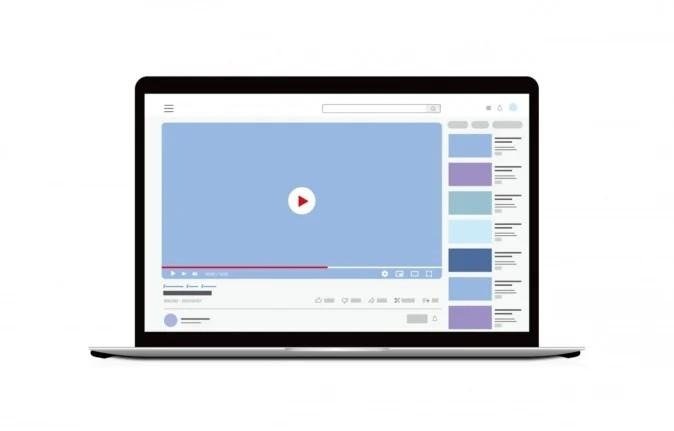
Video streaming
Watch educational videos, entertainment, tutorials, music, live streams, and other content directly in your browser.
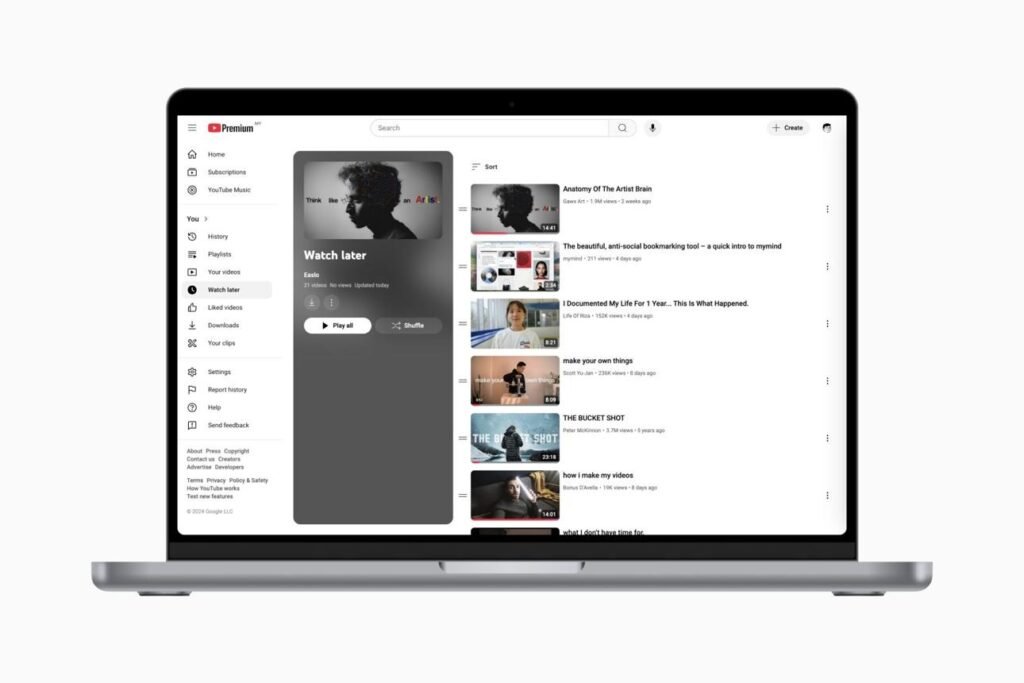
Playlists and Watch Later
Save videos into organized collections so you can return to them whenever you need.
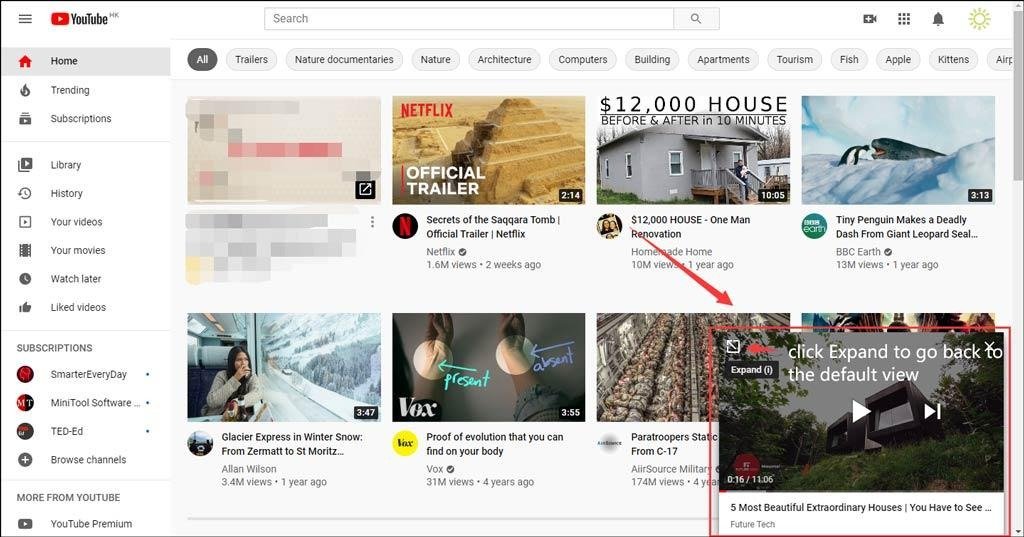
Miniplayer
Continue watching while browsing other parts of YouTube without leaving the current video.
1. Watch Videos on a Larger Screen
One of the biggest advantages of YouTube Desktop is the viewing experience. A computer screen provides more space for the video player, comments, recommendations, and playback controls. This can be especially helpful for tutorials, lectures, software demonstrations, and long-form content.
Users can also switch to full-screen mode for a more immersive experience. YouTube’s official help page explains that full-screen mode maximizes the available viewing area, and users can exit it through the player controls or by double-clicking the video.
2. Search and Discover Content
The desktop search box makes it easy to find videos by keyword, topic, channel, or title. After opening a video, users can explore related recommendations and continue discovering content.
For a better experience, search with specific phrases rather than very broad terms. For example, instead of searching for “technology,” try “Windows 11 keyboard shortcuts” or “beginner video editing tutorial.” More specific searches usually make it easier to find relevant content.
3. Create and Manage Playlists
Playlists are one of the most useful organizational features on YouTube Desktop. A playlist is a collection of videos that can be arranged around a topic, project, course, or personal interest.
You can create a playlist by opening a video, selecting More → Save → Create new playlist, and choosing a name and privacy setting. Existing videos can also be added to playlists such as Watch Later.
Practical playlist ideas:
- Study tutorials
- Software learning courses
- Favorite music videos
- Travel planning videos
- Fitness routines
- Technology news
- Videos for a future project
Playlists can be public, private, or unlisted, depending on how you want to share them. This makes them useful for both personal organization and content curation.
4. Use the Miniplayer While Browsing
The Miniplayer allows users to keep watching a video while navigating around YouTube. It is helpful when you want to browse recommendations, check another channel, or search for a different video without completely leaving the current viewing session.
On desktop, you can right-click a video and choose Miniplayer. The small player can be moved and resized, and playback can be controlled while you continue browsing. The feature is not available for Shorts or videos marked as made for kids.
5. Queue Videos for the Current Session
The queue feature lets you choose videos to play next without interrupting the current video. This is useful when you want to create a temporary viewing sequence.
You can add a video to the queue by selecting More → Add to queue, or by hovering over a video and choosing the queue option. However, YouTube notes that a queue does not automatically save after you close the browser. If you want to keep the videos for later, save them to a playlist instead.
6. Keyboard Shortcuts for Faster Navigation
YouTube Desktop supports keyboard shortcuts that can make playback and navigation faster. These are especially useful for people who watch tutorials, lectures, or long videos regularly.
| Shortcut | Function |
| K | Play or pause |
| J | Move backward 10 seconds |
| L | Move forward 10 seconds |
| M | Mute or unmute |
| F | Enter full-screen mode |
| C | Turn captions on or off |
| I | Open the Miniplayer |
| 0 | Go to the beginning |
| 1–9 | Jump to different points in the video |
| Shift + N | Move to the next video |
YouTube’s official keyboard-shortcut guide also explains that users can press Shift + ? to view the available shortcuts.
7. Manage Your YouTube Account
The You section brings together important account-related content. Depending on the account and available features, users may find their watch history, Watch Later playlist, created playlists, liked videos, uploaded videos, and other library items there.
This makes it easier to return to content without searching for it again. For example, if you watched a tutorial yesterday but did not finish it, you can often find it through your history or saved playlist.
YouTube Desktop for Students and Professionals
YouTube Desktop is not only an entertainment platform. It can also be a practical learning and productivity tool.
For Students
Students can use YouTube Desktop to:
- Watch educational lectures
- Learn new software
- Review difficult topics
- Follow programming tutorials
- Save revision videos into playlists
- Use captions when available
- Rewatch important sections
The larger screen is useful when a video contains code, diagrams, spreadsheets, or detailed instructions.
For Professionals
Professionals can use the platform for:
- Product demonstrations
- Industry updates
- Training videos
- Presentation skills
- Technical troubleshooting
- Marketing research
- Learning new digital tools
A well-organized playlist can turn YouTube into a personal learning library.
YouTube Desktop for Content Creators
YouTube Desktop is also important for creators who upload and manage videos. YouTube’s official help center includes resources for uploading videos, creating Shorts, customizing channels, analyzing performance, managing comments, and live streaming.
Creators can use the desktop experience to work on their channel from a larger screen, where tasks such as editing video details, reviewing analytics, and managing content may be more convenient.
For a technology website, this makes YouTube Desktop relevant to topics such as:
- YouTube Studio
- Video SEO
- Thumbnail design
- Channel management
- Audience analytics
- Content planning
YouTube Desktop vs. Mobile YouTube
Both desktop and mobile versions provide access to YouTube, but they serve different needs.
| Feature | Desktop | Mobile |
| Screen size | Better for larger viewing | Better for portability |
| Keyboard shortcuts | Extensive support | Limited |
| Miniplayer | Available while browsing YouTube | Mobile experience differs |
| Playlists | Easy to create and manage | Available |
| Multitasking | Convenient with multiple browser tabs | Convenient on a phone |
| Best for | Study, work, long viewing sessions | Watching on the go |
The desktop version is generally better suited to users who want a larger workspace and keyboard-based controls, while mobile is more convenient for portable viewing. Some features, such as background play and certain download options, depend on the device and YouTube Premium membership.
YouTube Premium on Desktop
YouTube Premium is an optional paid membership that provides additional benefits. According to YouTube’s official help page, Premium includes ad-free viewing across supported devices and platforms, along with other benefits such as offline downloads and background play on supported mobile apps.
It is important to understand that Premium is not required to use YouTube Desktop. Users can access the standard YouTube website without a Premium subscription. Premium benefits and availability may vary by location and content type.
Tips for a Better YouTube Desktop Experience
Use a Supported, Updated Browser
If videos do not play correctly or the interface behaves unexpectedly, make sure your browser is up to date. YouTube specifically recommends using the most up-to-date browser when troubleshooting full-screen issues.
Organize Your Saved Videos
Instead of saving every useful video into one large collection, create separate playlists by topic. This makes it easier to find content later.
Use Captions When Available
Captions can help users follow tutorials, lectures, and videos in noisy environments. The C keyboard shortcut can activate captions when they are available.
Save Important Videos for Later
If you do not have time to finish a video, use Watch Later or a playlist instead of relying only on the temporary queue. The queue is designed for the current session and may not remain after closing the browser.
Avoid Unnecessary Browser Clutter
Too many open tabs, extensions, or background processes can make browsing less convenient. Keeping your browser organized can help you focus on the video or task you are working on.
Common Problems and Basic Solutions
Video Is Not Playing
Check your internet connection, refresh the page, and make sure your browser is updated. If the issue continues, try another supported browser.
Full-Screen Mode Is Not Working
YouTube recommends checking that your browser is up to date. Also remember that videos embedded on other websites may not always provide a full-screen option.
Queue Disappeared
This is expected behavior if the browser was closed. Save important videos to Watch Later or a playlist instead.
A Feature Is Missing
Some YouTube features may vary depending on the device, account, location, or content type. YouTube’s help center provides separate guidance for different platforms and features.
Is YouTube Desktop Worth Using?
For most computer users, YouTube Desktop is a practical and convenient way to access YouTube. It is especially useful for people who watch educational content, manage playlists, use keyboard shortcuts, or create videos.
Its main advantage is not that it replaces the mobile app, but that it provides a different experience: a larger screen, easier navigation, and better support for tasks that benefit from a computer.
Conclusion
YouTube Desktop is more than a simple video-watching website. It combines streaming, playlists, search, account management, keyboard shortcuts, and creator tools into a useful browser-based experience.
For students, professionals, and everyday viewers, the desktop version can make YouTube easier to use and more organized. Features such as Miniplayer, playlists, and keyboard shortcuts help users save time, while YouTube Studio makes the platform valuable for creators as well.
If you regularly watch videos on a computer, learning the main YouTube Desktop features can help you get more value from the platform.