introduction
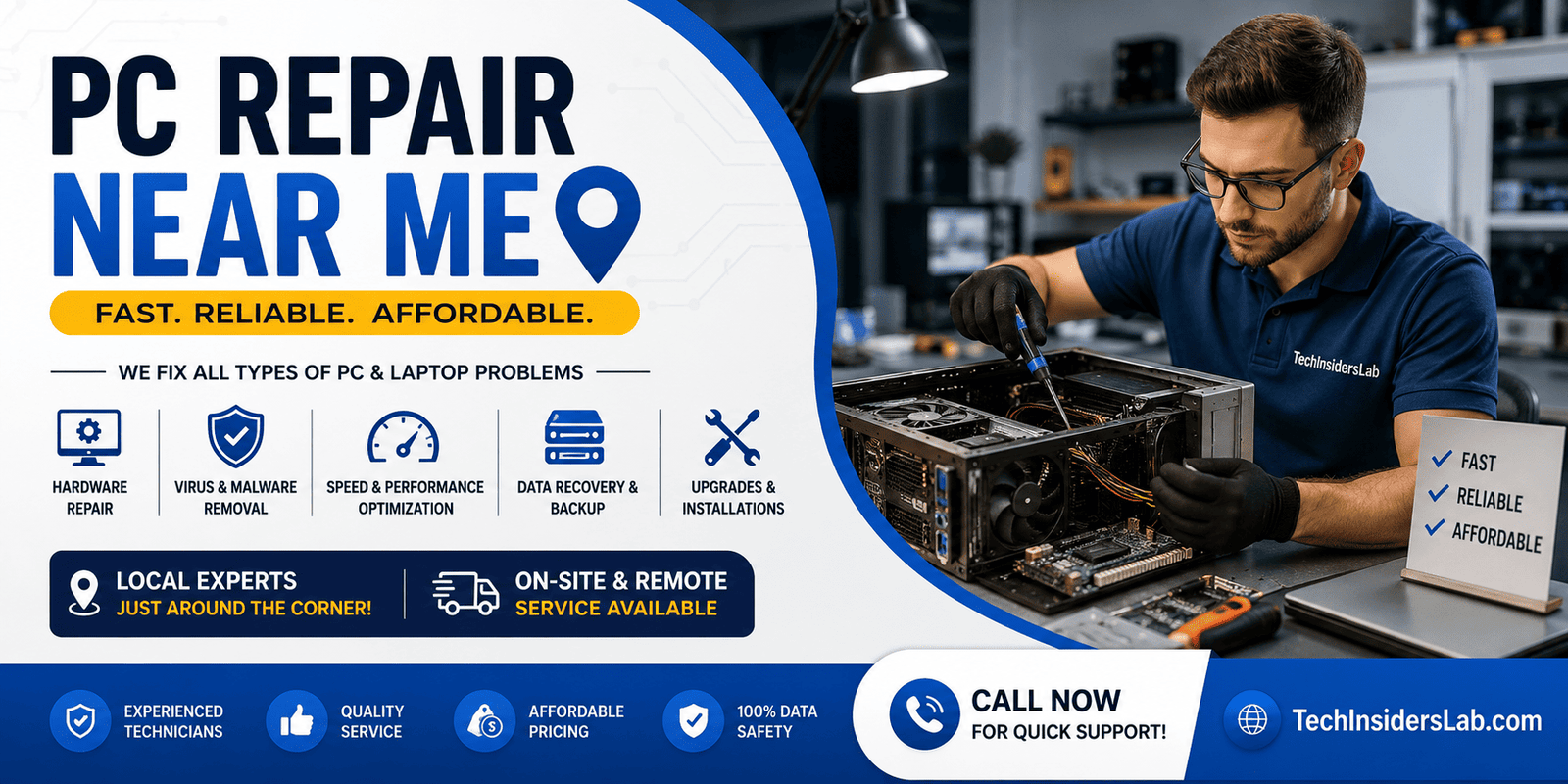
When a computer suddenly becomes slow, refuses to start, crashes frequently, or develops hardware problems, finding a reliable repair service becomes a priority. This is why the search term “PC repair near me” is widely useful for people looking for local computer technicians who can diagnose and fix problems quickly.
PC repair services can cover everything from simple software troubleshooting to hardware replacement, malware removal, operating system problems, data recovery, upgrades, and performance optimization. However, choosing the right repair provider is important because a computer may contain personal files, passwords, financial information, work documents, and other sensitive data.
This guide explains what PC repair near me means, the most common computer problems, services you can expect, how to choose a trustworthy technician, and what you should do before taking your PC for repair.
What Does “PC Repair Near Me” Mean?
The phrase “PC repair near me” is a local search keyword used by people who need computer repair services in their surrounding area. Instead of searching for general troubleshooting information, the user is usually looking for a nearby technician, repair shop, or IT service provider.
A local PC repair service may offer:
- Desktop computer repair
- Laptop repair
- Windows troubleshooting
- Hardware diagnostics
- Virus and malware removal
- SSD and RAM upgrades
- Operating system installation
- Driver troubleshooting
- Internet and networking assistance
- Data backup and recovery
- Computer cleaning
- Performance optimization
- Printer and peripheral setup
The advantage of finding a nearby repair service is convenience. A technician may provide in-store service, on-site assistance, or sometimes remote troubleshooting.
Why Do People Search for PC Repair Services?
Computers are complicated systems made up of hardware, software, drivers, operating systems, storage devices, and network components. A problem in one area can affect the entire machine.
For example, a computer that takes several minutes to start could have a software conflict, excessive startup programs, insufficient storage, malware, or a failing storage device.
Similarly, a PC that suddenly shuts down might have overheating, power-supply, motherboard, or hardware-related problems.
Windows itself provides several troubleshooting and recovery tools. For example, Windows Recovery Environment can help diagnose startup failures, while Startup Repair can attempt to resolve issues involving damaged system files, boot configuration data, incompatible drivers, and other startup problems.
When built-in tools aren’t enough, professional diagnosis can save time and prevent unnecessary replacement of working components.
Common PC Problems That Require Repair
1. Slow Computer Performance
One of the most common reasons people search for PC repair near me is poor performance.
A computer can become slow because of:
- Too many startup applications
- Low available storage
- Insufficient RAM
- Outdated drivers
- Background processes
- Malware
- Aging hardware
- Overheating
- Software conflicts
A technician can examine the system and determine whether the problem is software-related or whether a hardware upgrade would provide better results.
2. PC Won’t Turn On
A computer that doesn’t power on can have several possible causes. The issue could involve the power supply, motherboard, battery, cables, RAM, or another component.
Instead of immediately purchasing a replacement PC, professional diagnostics can determine whether the problem is repairable.
3. Windows Won’t Start
Sometimes a PC powers on but Windows doesn’t load correctly. It may display an error message, repeatedly restart, freeze on the logo, or enter a recovery screen.
Windows includes Startup Repair specifically for situations where the operating system cannot start properly. Microsoft explains that the tool can attempt to repair certain startup problems automatically.
If basic recovery options don’t solve the problem, a technician can investigate the underlying cause.
4. Overheating
Overheating can cause:
- Random shutdowns
- Performance throttling
- System crashes
- Loud fans
- Reduced hardware lifespan
Dust buildup, blocked ventilation, failing fans, and poor thermal contact can all contribute to high temperatures.
Professional PC cleaning and cooling-system inspection can help identify these problems.
5. Virus and Malware Problems
Malware can affect performance, privacy, and data security. Some malicious programs may attempt to steal information, damage files, or use the computer for unauthorized activities.
A reputable repair technician can scan the system, remove unwanted software, update security settings, and help secure the computer.
Windows Security includes Microsoft Defender Antivirus, firewall capabilities, and other protection features designed to help protect Windows systems from security threats.
PC Hardware Repair and Upgrades
Not every computer problem requires replacing the entire machine. Sometimes upgrading one component can significantly improve performance.
RAM Upgrade
Adding RAM can help when a computer struggles with multitasking or memory-intensive applications.
SSD Upgrade
Replacing an older hard drive with an SSD can dramatically improve boot times and application responsiveness.
Power Supply Replacement
Desktop computers with unstable power, unexpected shutdowns, or no power may require power-supply testing.
Graphics Card Issues
Gaming PCs and systems used for video editing may experience display problems caused by graphics cards, drivers, power problems, or overheating.
Cooling System Maintenance
Cleaning fans, vents, heatsinks, and other cooling components can help maintain appropriate operating temperatures.
A good technician should diagnose the problem before recommending a replacement. This prevents customers from spending money on hardware that isn’t actually responsible for the issue.
Software Repair Services
PC repair isn’t limited to physical components. Many computer problems are caused by software.
A repair technician may help with:
- Windows errors
- Driver problems
- Application crashes
- Startup issues
- Software conflicts
- Browser problems
- System configuration
- Updates
- Program installation
- Operating system recovery
Windows also provides built-in troubleshooters through its Get Help system for various common problems, including audio and other device-related issues.
For applications that aren’t working correctly, Windows can also provide repair or reset options for supported programs without necessarily requiring a complete reinstall.
PC Repair for Malware and Security Problems
Security should be an important part of modern PC maintenance.
If your computer suddenly displays unusual advertisements, redirects your browser, installs unknown programs, becomes extremely slow, or shows suspicious activity, malware could be involved.
Microsoft recommends downloading software from trusted sources and keeping security software and Windows updated.
A professional PC repair service may help with:
- Malware scanning
- Virus removal
- Unwanted software removal
- Browser cleanup
- Security configuration
- Firewall settings
- Software updates
- Backup recommendations
For serious infections, technicians may use specialized diagnostic and security procedures rather than simply deleting suspicious files.
How to Choose the Best PC Repair Near You
Finding a nearby technician is easy. Finding a reliable technician requires more research.
Check Reviews
Look for consistent reviews rather than relying on a single rating. Pay attention to comments about communication, pricing, repair quality, and customer service.
Ask About Diagnostics
A professional repair service should be able to explain how it will diagnose your computer before recommending expensive repairs.
Request a Price Estimate
Ask whether there is a diagnostic fee and whether the repair price includes labor and parts.
Ask About Data Privacy
Your PC may contain personal documents, saved browser sessions, photos, and other private information. Choose a repair provider that takes customer privacy seriously.
Avoid Unnecessary Upgrades
A trustworthy technician should explain why an upgrade is needed. Be cautious if someone immediately recommends replacing several components without performing proper diagnostics.
Ask About Warranty
If a component is replaced, find out whether the part and labor are covered by a warranty.
What to Do Before Taking Your PC for Repair
Before handing over your computer, take a few precautions.
Back Up Important Files
If the computer still works, back up important documents, photos, videos, and other files.
Record the Problem
Write down what happens when the problem occurs. For example:
“The computer freezes after 10 minutes of use.”
This can help the technician reproduce the issue.
Remove Sensitive Information When Possible
If practical, log out of sensitive accounts and protect important information before giving the computer to someone else.
Don’t Ignore Warning Signs
If you hear unusual clicking from a storage drive, see repeated blue screens, smell burning electronics, or experience repeated shutdowns, stop using the system and seek professional help.
Can You Repair a PC Yourself?
Some basic problems can be handled without professional assistance.
For example, users can sometimes:
- Restart the PC
- Install Windows updates
- Remove unnecessary applications
- Check available storage
- Run security scans
- Troubleshoot basic network problems
- Use Windows recovery tools
Windows Safe Mode can also be useful for troubleshooting because it starts the operating system with a limited set of drivers and services, helping users determine whether a problem is caused by normal startup software or drivers.
However, hardware repairs are different. Opening a computer and replacing components without knowing what you’re doing can create additional problems.
If important data is involved or the hardware appears damaged, professional assistance may be the safer choice.
PC Repair vs. Buying a New Computer
Sometimes repair is the better option, while in other situations replacement makes more sense.
Repair may be appropriate when:
- The computer has good specifications
- The problem is relatively minor
- An SSD or RAM upgrade can improve performance
- The device is otherwise in good condition
- Your software and files are already configured
A replacement may make more sense when:
- Multiple major components are failing
- The system is extremely old
- Replacement parts are difficult to find
- Repair costs approach the price of a suitable new PC
- The computer cannot support your current requirements
The best decision depends on the computer’s age, condition, specifications, repair cost, and intended use.
The Importance of Data Recovery and Backup
Data can sometimes be more valuable than the computer itself. Important business documents, photographs, educational work, and personal files should not exist in only one location.
A good maintenance strategy includes regular backups. If a computer’s storage device fails, having a recent backup can make recovery much easier.
For systems that are already showing signs of storage failure, avoid repeatedly experimenting with questionable repair methods. Further use can potentially make recovery more difficult.
Windows 10 and Modern PC Repair
Operating-system support is also important when maintaining an older computer. Microsoft states that support for Windows 10 ended on October 14, 2025, meaning it no longer receives free security fixes and technical support through the normal support lifecycle.
For users still running Windows 10, checking whether the PC can move to Windows 11 may therefore be an important part of deciding between repair, upgrade, or replacement.
A professional technician can help check hardware compatibility and explain the available options.
How Much Does PC Repair Cost?
The cost of PC repair varies considerably depending on the problem and location.
Simple software troubleshooting may cost less than hardware replacement, while complicated repairs, data recovery, motherboard problems, or advanced diagnostics can cost more.
Before approving work, ask:
- Is there a diagnostic charge?
- What is the estimated labor cost?
- How much will replacement parts cost?
- Is there a warranty?
- Will my data remain intact?
- Will I be contacted before additional work is performed?
Getting these details in advance can help avoid unexpected charges.
Conclusion
Finding a reliable PC repair near me service can save time, money, and unnecessary frustration when your computer develops hardware or software problems. Whether the issue involves slow performance, Windows errors, overheating, malware, startup failures, damaged components, or the need for an SSD or RAM upgrade, a professional technician can identify the actual cause and recommend the right solution.
Before choosing a repair service, compare reviews, ask about diagnostic and repair costs, check warranty options, and make sure your important data is protected. With the right technician and regular maintenance, you can often extend the life of your computer and keep it performing reliably.