introduction
RAM is one of the most important components of modern computers, laptops, smartphones, and other digital devices. It helps devices run applications, handle multiple tasks, and access the information they need quickly. Whether you are browsing the internet, playing games, editing videos, or working with software, RAM plays a significant role in your device’s performance.
Understanding RAM can help you choose the right computer, troubleshoot performance problems, or decide whether a memory upgrade is worthwhile. In this guide, you will learn what RAM is, how it works, its different types, how much memory you need, and how it compares with storage.
What Is RAM?
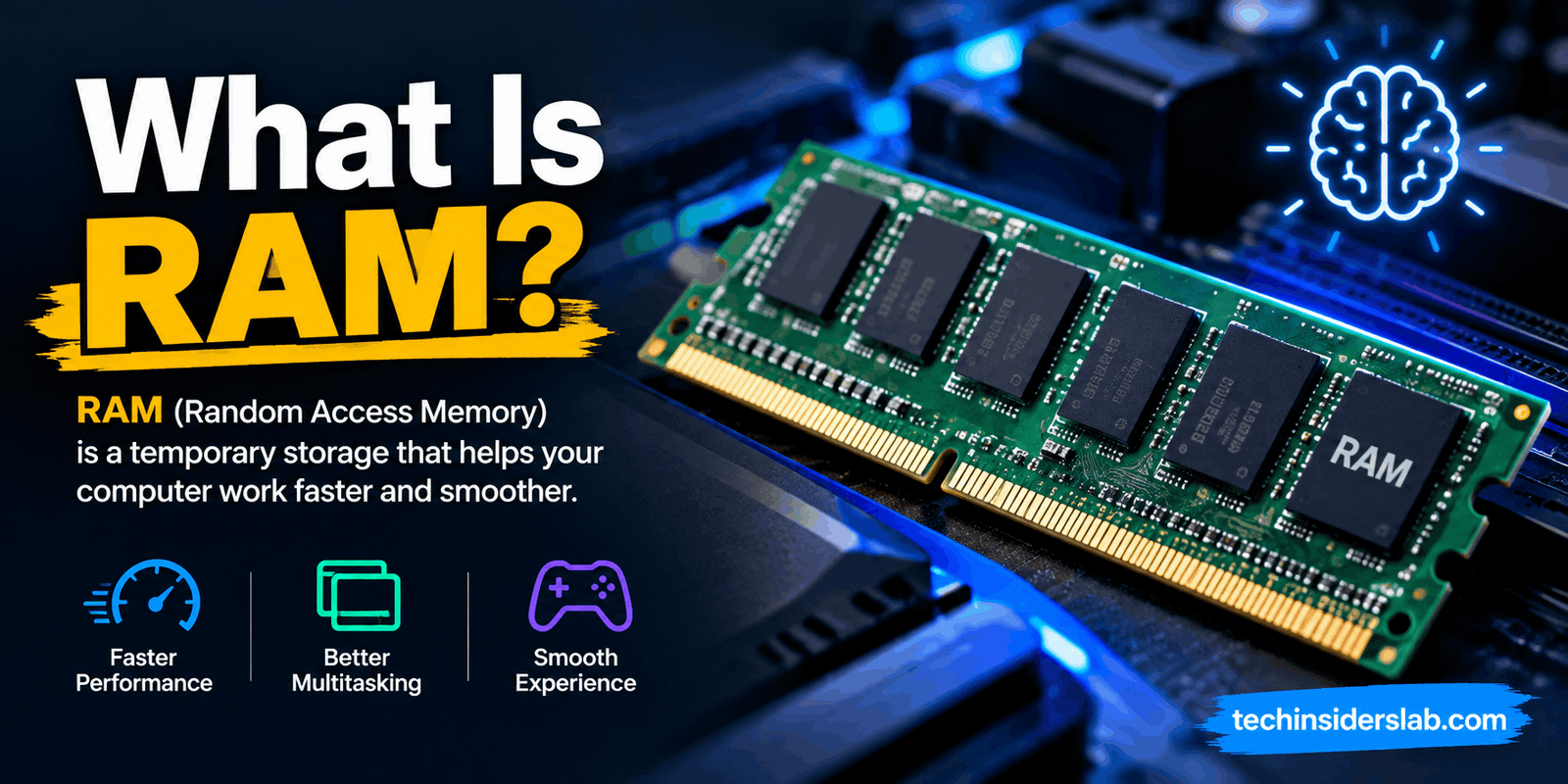
RAM stands for Random Access Memory. It is a type of computer memory that temporarily stores the data and instructions a device needs while performing tasks. The processor can access this information quickly, allowing applications and the operating system to work efficiently.
RAM is often described as a computer’s short-term memory. For example, when you open a web browser, launch a game, or edit a document, your device loads the relevant data into RAM so it can be accessed while you work.
Unlike an SSD or hard drive, RAM normally does not retain its contents when the device loses power. This characteristic is known as volatile memory. Files saved to permanent storage remain available after shutdown, but unsaved information held only in working memory may be lost.
RAM is commonly measured in gigabytes (GB). Computers may have 4GB, 8GB, 16GB, 32GB, or more, depending on their intended use and hardware configuration.
How Does RAM Work?
RAM works alongside the processor and storage drive to keep a computer running smoothly. Each component has a different responsibility, but they work together whenever you use an application.
When you launch a program, the computer loads the necessary files and instructions from its SSD or hard drive into RAM. The processor then accesses the information it needs to execute instructions and complete calculations. As you continue working, RAM holds active application data, system processes, and other information that may be needed again.
Consider opening a browser with several tabs. Each tab may require memory for website content, images, scripts, and other resources. If you open additional applications, they also consume memory. When sufficient RAM is available, the computer can manage these tasks more comfortably.
If RAM becomes insufficient, the operating system may move some less-active data to a storage drive using a feature commonly called virtual memory. Because storage is generally slower than physical RAM, relying heavily on this process can cause delays and reduced responsiveness.
This is why having enough RAM matters. However, additional memory does not automatically make every task faster. The processor, storage drive, graphics hardware, and software also affect overall performance.
Why Is RAM Important?
RAM helps a device manage active tasks without repeatedly retrieving information from slower storage. Its importance becomes clear when you use demanding software or perform multiple activities at the same time.
1. Better Multitasking
More available RAM allows a computer to handle several applications and browser tabs more comfortably. You can switch between a document editor, browser, messaging app, and other programs without putting as much pressure on memory resources.
2. Smoother Gaming
Games use RAM to hold game data, level information, assets, and other resources needed during gameplay. Adequate memory can reduce slowdowns caused by memory shortages, although gaming performance also depends heavily on the processor and graphics card.
3. Improved Creative Workflows
Photo editing, video editing, animation, and design applications may use considerable memory. Larger projects, high-resolution media, and complex editing timelines often benefit from additional RAM.
4. More Responsive Software
When enough memory is available, applications have more room to keep their working data accessible. This can improve responsiveness, especially when several programs are running simultaneously.
5. Support for Modern Operating Systems
Operating systems use memory for background services, security features, system processes, and everyday applications. More demanding software generally requires more resources than basic computing tasks.
What Are the Different Types of RAM?
RAM technology has evolved over time. Two important categories are Static Random Access Memory (SRAM) and Dynamic Random Access Memory (DRAM). Modern computers also use different generations of DDR memory.
Static RAM (SRAM)
SRAM stores data using electronic circuits that maintain their state while power is available. It does not require the periodic refreshing used by DRAM, and it is typically very fast.
Because SRAM is relatively expensive and uses more chip area per bit, it is not usually used for a computer’s main memory in large capacities. Instead, it is commonly used for processor cache, where extremely fast access to small amounts of data is valuable.
Dynamic RAM (DRAM)
DRAM stores each bit using a memory cell built around a transistor and capacitor. These cells need regular refreshing to preserve their data while powered.
DRAM is more economical to manufacture at higher capacities than SRAM, making it the standard choice for main memory in most desktop computers and laptops.
DDR RAM
DDR stands for Double Data Rate. DDR memory is a form of synchronous DRAM designed to transfer data efficiently in coordination with a memory clock.
Several generations have been introduced, including DDR, DDR2, DDR3, DDR4, and DDR5. Each generation brings changes to data transfer rates, power requirements, capacity options, and memory architecture.
DDR4 remains relevant in compatible systems, while DDR5 is used by many newer computer platforms. The correct generation depends on the processor and motherboard.
DDR4 vs. DDR5 RAM
DDR4 and DDR5 are two common generations of memory, but they are designed for different compatible platforms. DDR5 generally offers higher data-transfer rates and improved power efficiency, while DDR4 can remain a practical choice for older or budget-conscious systems.
Here are the main differences:
| Feature | DDR4 RAM | DDR5 RAM |
| Generation | Older | Newer |
| Data-transfer capability | Lower overall ceiling | Higher potential bandwidth |
| Power requirements | Typically 1.2V standard voltage | Typically 1.1V standard voltage |
| Compatibility | DDR4-supported systems | DDR5-supported systems |
| Best fit | Compatible existing PCs and upgrades | Compatible newer systems |
DDR5 is not automatically the best upgrade for every computer. A motherboard designed for DDR4 cannot normally accept DDR5 modules, and the reverse is also true. The physical notch and electrical design differ.
Before purchasing memory, check the motherboard specifications, processor support, and existing RAM configuration. Compatibility matters more than simply choosing the newest generation.
How Much RAM Do You Need?
The right amount of RAM depends on what you do with your device, which applications you use, and how many tasks you run simultaneously. The following recommendations provide a useful starting point rather than strict requirements.
4GB RAM
Four gigabytes may be enough for some older systems or very basic tasks, but it can feel restrictive when running modern operating systems, multiple browser tabs, and several applications. It is generally not a comfortable target for a new general-purpose computer.
8GB RAM
Eight gigabytes can work for basic browsing, document editing, online learning, and everyday productivity. It may be suitable for light users, although demanding applications and heavy multitasking can exceed this capacity.
16GB RAM
Sixteen gigabytes is a practical target for many general-purpose computers. It provides room for multitasking, office applications, web browsing, moderate creative work, and many games, depending on their individual requirements.
32GB RAM
Thirty-two gigabytes is useful for demanding games, professional creative software, software development, virtual machines, and users who regularly work with many applications at once.
64GB RAM or More
Higher capacities are valuable for specialized workloads such as large video-editing projects, complex 3D scenes, scientific computing, large datasets, and multiple virtual machines. Most casual users do not need this much memory.
The best choice is the amount that comfortably supports your workload while fitting your budget and device’s hardware limits.
What Is the Difference Between RAM and Storage?
RAM and storage are both essential, but they serve different purposes.
RAM holds active data that the processor needs during current tasks. An SSD or hard drive stores the operating system, applications, documents, photos, videos, and other files for long-term use.
For example, installing a video-editing application requires storage space. Opening the application uses RAM to hold its active code and working data. Saving an edited video writes the finished file to storage.
RAM is generally much faster to access than an SSD or hard drive, but it is temporary and usually has less capacity. Storage is designed to retain information when the device is switched off.
This distinction is important when upgrading a slow computer. More storage does not directly replace insufficient RAM, and more RAM does not provide extra permanent space for saved files.
What Is RAM Speed?
RAM speed describes how quickly memory can transfer data. It is commonly advertised using data-transfer rates measured in megatransfers per second (MT/s). Some product listings use MHz informally, but MT/s is the more precise unit for DDR memory’s effective transfer rate.
Higher transfer rates can increase memory bandwidth, helping the processor access data more efficiently in suitable workloads. However, the real-world difference depends on the application, processor architecture, memory timings, and system configuration.
Memory latency also matters. It describes the delay involved in accessing data, so a useful comparison should consider both transfer rate and latency rather than focusing on one number alone.
A higher-rated memory kit may not run at its advertised speed automatically. Supported settings, motherboard firmware, and processor capabilities can affect the final operating speed.
What Is Dual-Channel RAM?
Dual-channel memory allows a compatible system to use two memory channels to increase the bandwidth available between the processor and RAM.
For example, a compatible desktop with two 8GB modules may operate in dual-channel mode, depending on the motherboard layout and configuration. This can provide more memory bandwidth than a comparable single-channel setup.
The performance benefit varies by workload. Some integrated graphics configurations and memory-sensitive applications can benefit noticeably, while other tasks may show smaller differences.
For best results, follow the motherboard manufacturer’s recommended memory-slot arrangement. Installing two modules does not guarantee the intended configuration if they are placed in unsupported slots or the system has other limitations.
Signs That Your Computer May Need More RAM
Insufficient RAM can contribute to performance problems, particularly when several memory-intensive programs are open. Common warning signs include:
- Applications becoming slow when you open more browser tabs.
- Frequent delays when switching between programs.
- Games stuttering while background applications are running.
- Editing software struggling with large projects.
- High memory usage in the operating system’s performance monitor.
- Frequent use of virtual memory alongside noticeable slowdowns.
These symptoms do not always mean you need additional RAM. Malware, excessive background processes, overheating, an aging processor, or a slow storage drive can also cause poor performance.
Check memory usage while performing your normal tasks before deciding to upgrade. This helps you determine whether RAM is actually the limiting factor.
How to Check RAM on Your Computer
You can check the installed memory using the operating system’s built-in settings.
On Windows:
- Open Settings.
- Select System, then About.
- Look for the installed RAM information.
You can also open Task Manager by pressing Ctrl + Shift + Esc and selecting the Performance section, followed by Memory. This provides additional details about memory usage and, on supported systems, speed and slot information.
On macOS:
- Open the Apple menu.
- Select About This Mac.
- Check the Memory information or system specifications displayed for your model.
Some newer Mac models use unified memory integrated into the system and do not support conventional user-installed RAM upgrades. Always check your particular model before planning a hardware change.
Can You Upgrade RAM?
Many desktop computers and some laptops allow RAM upgrades, but not every device does. Some laptops have memory soldered directly onto the motherboard, and many modern compact devices do not offer replaceable memory.
Before buying an upgrade, confirm the supported memory generation, maximum capacity, module type, supported speeds, and available slots. Desktop computers commonly use DIMM modules, while many laptops use smaller SO-DIMM modules. Some systems use different designs or integrated memory.
If you plan to install memory yourself, shut down the computer, disconnect its power source, and follow the manufacturer’s instructions. Use suitable anti-static precautions and never force a module into a slot.
If the device is under warranty or the installation is unfamiliar, consult the manufacturer or a qualified technician. A compatible upgrade is more important than choosing a module with impressive specifications that your computer cannot support.
Common Myths About RAM
Several misconceptions can make it harder to understand memory performance.
More RAM always makes a computer faster. Not necessarily. Extra RAM helps when the system needs more working space, but it may provide little improvement if the computer already has enough memory for its tasks.
RAM stores files permanently. RAM is normally volatile. Permanent files should be saved to an SSD, hard drive, or another appropriate storage location.
RAM speed is the only specification that matters. Capacity, compatibility, memory channels, timings, and processor support all influence the result.
Every laptop supports a RAM upgrade. Some laptops have soldered memory or other hardware limitations that prevent upgrades.
DDR4 and DDR5 are interchangeable. They are not physically or electrically interchangeable in standard desktop and laptop memory slots.
Understanding these facts helps you make better decisions when buying a new device or improving an existing one.
Conclusion
RAM is the temporary working memory that helps computers, laptops, and smartphones run applications and manage active data efficiently. It works closely with the processor and storage system to support everyday activities, multitasking, gaming, and professional workloads.
Choosing the right RAM involves more than selecting the largest capacity or fastest speed. You should consider your workload, memory generation, device compatibility, and available upgrade options. For many everyday computer users, 16GB is a useful starting point, while demanding creative work and heavy multitasking may benefit from 32GB or more.
By understanding how RAM works and what your device requires, you can make informed hardware decisions and avoid spending money on upgrades that provide little practical benefit.