Free Photo Editing Software: Best Tools to Edit Images for Free
Introduction
Photos play an important role in digital communication, social media, online businesses, blogging, and creative projects. Whether you want to improve a personal photograph, create an attractive social media post, or prepare professional-looking product images, photo editing software can help you achieve better results. However, not everyone wants to pay for an expensive editing application or subscribe to premium design services.
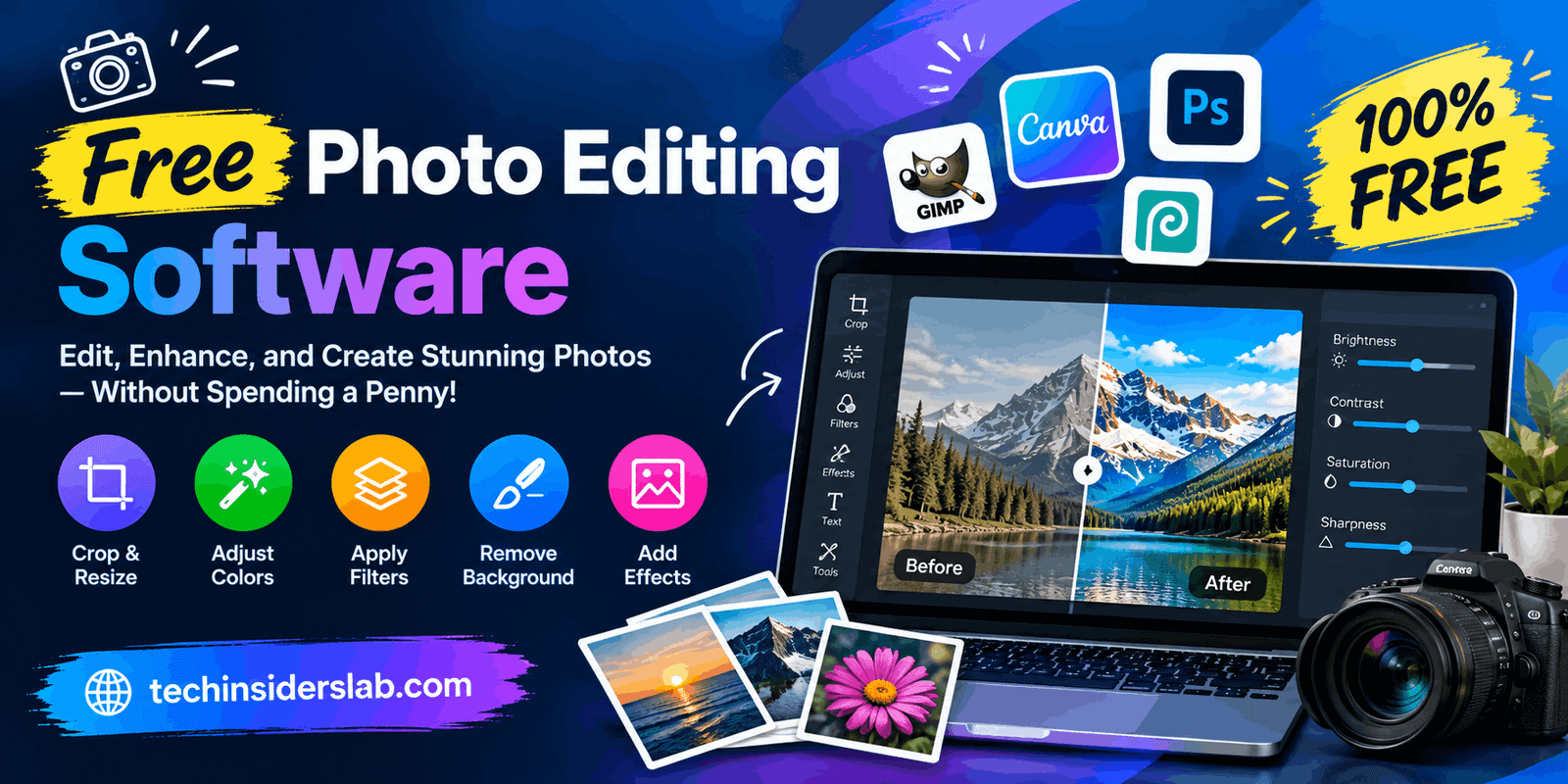
This is where free photo editing software becomes useful. These tools allow users to crop pictures, adjust colors, improve brightness, remove unwanted objects, add text, and perform many other editing tasks without necessarily purchasing a subscription.
Today, free photo editors are available for desktop computers, mobile devices, and web browsers. Some are designed for beginners who want quick results, while others provide advanced features for photographers and graphic designers.
Choosing the right software depends on your experience, device, editing requirements, and the features available in its free version. This guide explains what free photo editing software is, explores popular options, and provides practical advice for selecting the right tool.
What Is Free Photo Editing Software?
Free photo editing software is an application or online tool that allows users to modify digital images without paying for its basic functionality. Depending on the program, users can improve image quality, change colors, adjust lighting, remove backgrounds, add creative effects, and combine multiple images.
Some programs are completely free and open-source, while others offer a free plan alongside paid features. Understanding this difference is important because a tool advertised as free might restrict certain effects, templates, exports, or AI-powered features to paying customers.
Photo editing software generally falls into three categories:
- Desktop photo editors: Applications installed on Windows, macOS, or Linux computers.
- Online photo editors: Browser-based tools that can be accessed without installing a traditional desktop application.
- Mobile photo editors: Applications designed for editing photographs on smartphones and tablets.
Each category serves different needs. Desktop software is often suitable for detailed editing, online tools offer convenience, and mobile applications make it easy to edit images while traveling.
Best Free Photo Editing Software to Consider
There is no single photo editor that works best for everyone. The following options cover different editing styles, skill levels, and workflows.
1. GIMP
GIMP, short for GNU Image Manipulation Program, is a powerful, free, and open-source image editor. It is suitable for users who want more control over their photographs without purchasing expensive professional software.
GIMP provides tools for photo retouching, image composition, color adjustments, selections, layers, and transformations. Users can also extend its capabilities with supported plugins and customize parts of their workflow.
One of its biggest advantages is flexibility. Beginners can use it for basic adjustments, while experienced users can create complex compositions and perform detailed image manipulation.
However, GIMP may take some time to learn. Its interface and extensive collection of tools can feel complicated to users who have never worked with advanced editing software.
Best for: Photographers, bloggers, graphic designers, and users who want a capable desktop editor without subscription fees.
2. Photopea
Photopea is a browser-based image editor that provides many familiar features found in professional graphics applications. Users can open the website and start editing without installing a conventional desktop program.
It supports common editing tasks such as cropping, resizing, retouching, layers, masks, blending, and working with PSD files. This makes it particularly useful for people who receive layered design files or want a Photoshop-style editing experience in their browser.
Photopea is convenient for students, freelancers, content creators, and users who work across different computers. Its browser-based approach also reduces the need to install large applications.
Nevertheless, complex projects may require a capable device, and users should check which features are available in the free experience.
Best for: Browser-based editing, PSD file work, and users who prefer not to install software.
3. Paint.NET
Paint.NET is a Windows image-editing application that combines a relatively straightforward interface with useful editing capabilities. It is a practical option for users who need more functionality than a basic image viewer provides.
The application supports layers, effects, adjustments, and common image-editing operations. It can be useful for editing screenshots, preparing simple graphics, improving photographs, and making quick changes to digital images.
Its comparatively approachable interface makes it easier for many beginners to understand than more complex professional editors.
Paint.NET is primarily associated with Windows, so users on macOS or Linux should consider other alternatives. It is also important to download the application from its official website and check the current distribution options.
Best for: Windows users who want a lightweight, practical image editor for everyday work.
4. Canva Photo Editor
Canva is a popular online design platform with photo-editing features suitable for everyday creative projects. It combines image adjustments with templates, typography, graphic elements, and layouts.
Users can prepare social media graphics, blog thumbnails, promotional images, presentations, and other visual content without needing advanced graphic-design knowledge.
Its template-based workflow is particularly helpful when the goal is to create a complete design rather than simply correct a photograph. However, some premium assets, advanced tools, and AI-powered features may require a paid plan.
Users should also review the licensing conditions for individual assets before using them in commercial projects.
Best for: Bloggers, social media managers, students, and small businesses creating visual content.
5. Snapseed
Snapseed is a mobile photo-editing application developed by Google. It is designed for users who prefer editing photographs directly on their smartphones.
Its editing tools include image adjustments, selective corrections, filters, and portrait-focused enhancements. Users can improve exposure, adjust colors, refine details, and apply creative effects without moving photographs to a computer.
Snapseed is particularly useful for editing pictures taken during travel, family events, or everyday activities. Its mobile-focused interface makes it convenient for quick improvements and more deliberate adjustments.
The available features and compatibility can depend on the device and app version, so users should check their device’s official app store.
Best for: Smartphone photographers and people who want convenient photo editing on the go.
6. darktable
darktable is a free, open-source photography workflow application designed primarily for photographers. It is particularly useful for working with RAW photographs captured by compatible digital cameras.
RAW files retain substantial image information, giving photographers more flexibility when adjusting exposure, highlights, shadows, and colors. darktable focuses on developing photographs through a structured workflow while preserving the original image data during editing.
It is different from a simple filter application. Instead of concentrating mainly on templates and quick effects, it provides controls intended for photographers who want detailed results.
Because of its extensive controls, new users may need time to understand its interface and processing workflow.
Best for: Photography enthusiasts and users who regularly edit RAW camera images.
Important Features to Look for in Free Photo Editors
Before selecting a tool, it is helpful to understand which features make the biggest difference in everyday editing.
Basic Image Adjustments
A useful editor should provide controls for brightness, contrast, saturation, sharpness, and color balance. These adjustments can improve photographs that look too dark, washed out, or visually unbalanced.
Cropping and resizing are also essential because images often need different dimensions for websites, social media platforms, documents, and presentations.
Background Removal
Background removal is helpful for product photographs, profile pictures, promotional graphics, and online stores. Some editors offer automatic background detection, while others provide manual selection tools.
Automatic results can vary depending on lighting, image quality, and the complexity of the subject. Hair, transparent objects, and similarly colored backgrounds may require additional corrections.
Layers and Masks
Layers allow users to combine multiple visual elements without permanently merging every change into the image. Masks provide more control over which parts of a layer remain visible.
These features are valuable for advanced retouching, promotional graphics, composite images, and designs containing text or multiple photographs.
Filters and Effects
Filters can quickly change the mood of a photograph. Common options include black-and-white effects, vintage styles, color grading, blur, and artistic enhancements.
However, filters should support the purpose of the image rather than overpower it. For product photographs and professional websites, natural-looking adjustments may be more effective than dramatic effects.
Export and File Format Support
A good editor should allow users to save images in formats appropriate for their projects.
- JPEG: Suitable for many photographs and website images.
- PNG: Useful when image quality or transparency is important.
- WebP: Helpful for web publishing when supported by the workflow.
- PSD: Relevant when working with compatible layered design projects.
- TIFF: Often used in photography and print-related workflows.
Not every program supports every format equally. Always confirm the required format before beginning a large editing project.
Benefits of Using Free Photo Editing Software
Lower Costs
The most obvious benefit is reduced expense. Students, beginners, bloggers, and small businesses can improve their images without immediately paying for a premium subscription.
Open-source programs can be particularly valuable for users who want to avoid recurring software fees.
Easy Access
Online editors can be accessed through a compatible web browser, while mobile applications allow users to edit images almost anywhere. Desktop applications provide another option for people who prefer working with local files.
This variety makes it easier to choose a workflow that fits your equipment and daily routine.
Improved Content Quality
Well-edited images can make websites, articles, advertisements, and social media posts look more professional. Simple corrections to lighting, cropping, and color can significantly improve how an image communicates its message.
For website owners, consistent image dimensions and sensible compression can also contribute to a more organized publishing workflow.
Opportunities to Learn
Free editors provide an accessible way to develop useful creative skills. Users can begin with simple adjustments and gradually learn masking, retouching, color correction, and image composition.
These skills may become valuable for blogging, digital marketing, freelance design, and photography.
Limitations of Free Photo Editing Software
Although free tools offer many advantages, they are not always perfect for every task.
Some applications reserve advanced AI features, premium templates, or specialized effects for paid users. Others may display advertisements, impose usage restrictions, or require an internet connection for particular features.
Advanced programs can also have steep learning curves. A tool with hundreds of controls might be powerful, but it may not be the most efficient choice for someone who only wants to crop an image.
Hardware requirements are another consideration. Large photographs, multiple layers, and complex effects can use substantial memory and processing power.
Finally, users should not assume that every free editor includes unrestricted commercial licensing. Check the software license, stock-image permissions, and terms governing any included fonts, templates, or other assets.
How to Choose the Right Free Photo Editing Software
The best way to choose an editor is to start with your actual editing needs instead of selecting a tool simply because it has the most features.
For beginners: Choose an editor with a clear interface, straightforward adjustments, and helpful tutorials. A simple workflow makes it easier to learn without feeling overwhelmed.
For bloggers and website owners: Look for cropping, resizing, text overlays, compression, and reliable export options. These features are useful when preparing article thumbnails, featured images, and illustrations.
For advanced editing: Consider GIMP or Photopea if you need layers, masks, selections, and detailed image manipulation.
For RAW photography: Explore darktable or another dedicated RAW-processing application that supports your camera files.
For social media designs: Canva may be more convenient because it combines photo editing with templates, typography, and layout tools.
For smartphone users: A mobile editor such as Snapseed may be more practical than transferring every photograph to a computer.
Before committing to a tool, test it with a few real photographs. Check the output quality, ease of use, file compatibility, export restrictions, and whether the features you need are genuinely free.
Tips for Getting Better Results
You do not need advanced software to produce attractive images. A few consistent practices can improve your editing results.
- Start with a good original photograph. Better lighting and clear composition reduce the amount of correction required.
- Make small adjustments first. Avoid excessive saturation, sharpening, or contrast that can make images look unnatural.
- Keep an original copy. Save a duplicate before applying major changes so you can return to the original if necessary.
- Choose the correct dimensions. Match the image size to its intended purpose instead of stretching it unnecessarily.
- Compress images thoughtfully. For websites, balance file size with visual quality to help pages load efficiently.
- Review the final export. Check text readability, image clarity, cropping, and transparency before publishing.
- Use trusted download sources. Download desktop applications from their official websites and avoid suspicious installers.
For website publishing, a consistent visual style can also strengthen your brand. Using similar image proportions, balanced colors, and readable typography helps articles and graphics look more cohesive.
Free Photo Editing Software for Bloggers and Content Creators
Photo editing is especially important for people who publish digital content regularly. A blog post with a relevant, well-prepared image can communicate its subject more clearly and create a more polished reading experience.
For example, a technology blog may need featured images, software screenshots, comparison graphics, tutorials, and social media promotions. Canva can help create template-based graphics, while GIMP and Photopea offer more detailed control over individual images.
A practical workflow is to choose the appropriate editor, create the image at the required dimensions, make any necessary adjustments, export it in a suitable format, and optimize the file for the website.
Remember that photo editing does not automatically guarantee better search rankings. Images should be relevant, appropriately sized, accessible, and supported by useful page content. Descriptive filenames and meaningful alternative text can also help users and search engines understand an image’s purpose.
Conclusion
Free photo editing software makes image improvement accessible to beginners, photographers, students, bloggers, and businesses. Depending on your requirements, you can choose a browser-based editor, a desktop application, or a mobile photo-editing tool without necessarily paying for a subscription.
GIMP is a strong choice for advanced desktop editing, Photopea is convenient for browser-based projects, Paint.NET suits many everyday Windows tasks, Canva helps with design-focused content, Snapseed is useful for mobile photography, and darktable is worth considering for RAW workflows.
The right choice ultimately depends on the work you want to complete. Compare the available features, learn the basics, and test a few tools before settling on one. With the right software and a consistent editing process, you can create attractive, useful images while keeping your creative budget under control.